Free Shipping on Domestic Orders $75+

Dell Inspiron M5110 Palmrest Replacement

What you need

    1. Dell Inspiron M5110 Palmrest Replacement, Battery: step 1, image 1 of 1
      • Shut down the computer and turn it upside down.

      Ask FixBot

      Add Comment

    2. Dell Inspiron M5110 Palmrest Replacement: step 2, image 1 of 1
      • Slide both of the battery release latches on the bottom of the device in towards the center of the computer.

      Ask FixBot

      Add Comment

    3. Dell Inspiron M5110 Palmrest Replacement: step 3, image 1 of 1
      • Slide and lift the battery up and out from the device.

      Ask FixBot

      Add Comment

    1. Dell Inspiron M5110 Palmrest Replacement, Keyboard: step 4, image 1 of 1
      • Open the computer and push the screen back as far as possible.

      Ask FixBot

      Add Comment

    2. Dell Inspiron M5110 Palmrest Replacement: step 5, image 1 of 1
      • Slide a plastic opening tool into the slots on the top of the keyboard.

      Ask FixBot

      Add Comment

    3. Dell Inspiron M5110 Palmrest Replacement: step 6, image 1 of 1
      • Pry the keyboard away from the device using the plastic opening tool.

      Ask FixBot

      Add Comment

    4. Dell Inspiron M5110 Palmrest Replacement: step 7, image 1 of 1
      • Lift and slide the keyboard towards the screen to remove the tabs on the keyboard from the slots on the palmrest.

      Ask FixBot

      Add Comment

    5. Dell Inspiron M5110 Palmrest Replacement: step 8, image 1 of 1
      • Flip the keyboard over and place it on the front of the device making sure not to pull out the keyboard cable.

      Ask FixBot

      Add Comment

    6. Dell Inspiron M5110 Palmrest Replacement: step 9, image 1 of 1
      • Lift up the connector latch and remove the keyboard cable. The keyboard is now free from the device.

      Ask FixBot

      Add Comment

    1. Dell Inspiron M5110 Palmrest Replacement, Palmrest: step 10, image 1 of 1
      • Turn the computer over and remove the six screws that secure the palmrest assembly

      Ask FixBot

      Add Comment

    2. Dell Inspiron M5110 Palmrest Replacement: step 11, image 1 of 1
      • Turn the computer over and open the display as far as possible and remove the four 5 mm Phillips # 0 screw holding the palmrest in place.

      Ask FixBot

      Add Comment

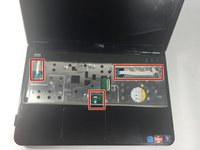
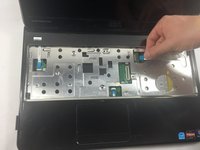
    3. Dell Inspiron M5110 Palmrest Replacement: step 12, image 1 of 2 Dell Inspiron M5110 Palmrest Replacement: step 12, image 2 of 2
      • Disconnect the power button board cable, touch pad cable and the hot key board cable from the connectors.

      Ask FixBot

      Add Comment

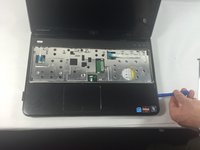
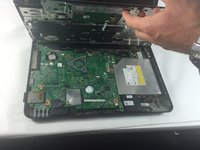
    4. Dell Inspiron M5110 Palmrest Replacement: step 13, image 1 of 2 Dell Inspiron M5110 Palmrest Replacement: step 13, image 2 of 2
      • Use a plastic opening tool to carefully pry out the palmrest assembly and lift it off the computer base.

      Ask FixBot

      Add Comment

Conclusion

To reassemble your device, follow these instructions in reverse order.

Cancel: I did not complete this guide.

One other person completed this guide.

Larain

Member since: 10/26/16

411 Reputation

3 Guides authored

Team

UMass Dartmouth, Team 4-3, Catania Fall 2016 Member of UMass Dartmouth, Team 4-3, Catania Fall 2016

UMASSD-CATANIA-F16S4G3

3 Members

96 Guides authored

0 Guide Comments

Add Comment

View Statistics:

Past 24 Hours: 1

Past 7 Days: 1

Past 30 Days: 11

All Time: 396