Free Shipping on Domestic Orders $75+

Dell Inspiron M5110 Display Assembly Replacement

What you need

  1. Dell Inspiron M5110 Display Assembly Replacement, Battery: step 1, image 1 of 1
    • Shut down the computer and turn it upside down.

    Ask FixBot

    Add Comment

  2. Dell Inspiron M5110 Display Assembly Replacement: step 2, image 1 of 1
    • Slide both of the battery release latches on the bottom of the device in towards the center of the computer.

    Ask FixBot

    Add Comment

  3. Dell Inspiron M5110 Display Assembly Replacement: step 3, image 1 of 1
    • Slide and lift the battery up and out from the device.

    Ask FixBot

    Add Comment

  4. Dell Inspiron M5110 Display Assembly Replacement, Keyboard: step 4, image 1 of 1
    • Open the computer and push the screen back as far as possible.

    Ask FixBot

    Add Comment

  5. Dell Inspiron M5110 Display Assembly Replacement: step 5, image 1 of 1
    • Slide a plastic opening tool into the slots on the top of the keyboard.

    Ask FixBot

    Add Comment

  6. Dell Inspiron M5110 Display Assembly Replacement: step 6, image 1 of 1
    • Pry the keyboard away from the device using the plastic opening tool.

    Ask FixBot

    Add Comment

  7. Dell Inspiron M5110 Display Assembly Replacement: step 7, image 1 of 1
    • Lift and slide the keyboard towards the screen to remove the tabs on the keyboard from the slots on the palmrest.

    Ask FixBot

    Add Comment

  8. Dell Inspiron M5110 Display Assembly Replacement: step 8, image 1 of 1
    • Flip the keyboard over and place it on the front of the device making sure not to pull out the keyboard cable.

    Ask FixBot

    Add Comment

  9. Dell Inspiron M5110 Display Assembly Replacement: step 9, image 1 of 1
    • Lift up the connector latch and remove the keyboard cable. The keyboard is now free from the device.

    Ask FixBot

    Add Comment

  10. Dell Inspiron M5110 Display Assembly Replacement, Palmrest: step 10, image 1 of 1
    • Turn the computer over and remove the six screws that secure the palmrest assembly

    Ask FixBot

    Add Comment

  11. Dell Inspiron M5110 Display Assembly Replacement: step 11, image 1 of 1
    • Turn the computer over and open the display as far as possible and remove the four 5 mm Phillips # 0 screw holding the palmrest in place.

    Ask FixBot

    Add Comment

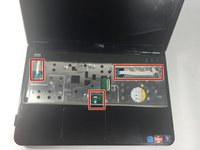
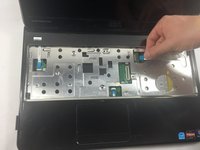
  12. Dell Inspiron M5110 Display Assembly Replacement: step 12, image 1 of 2 Dell Inspiron M5110 Display Assembly Replacement: step 12, image 2 of 2
    • Disconnect the power button board cable, touch pad cable and the hot key board cable from the connectors.

    Ask FixBot

    Add Comment

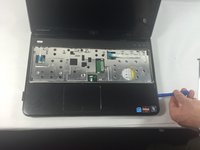
  13. Dell Inspiron M5110 Display Assembly Replacement: step 13, image 1 of 2 Dell Inspiron M5110 Display Assembly Replacement: step 13, image 2 of 2
    • Use a plastic opening tool to carefully pry out the palmrest assembly and lift it off the computer base.

    Ask FixBot

    Add Comment

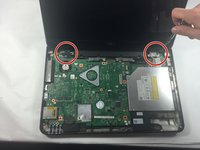
  14. Dell Inspiron M5110 Display Assembly Replacement, Display Assembly: step 14, image 1 of 1
    • Turn the device over and then remove the two 5 mm Phillips #0 screws that keeps the display assembly to the base and then flip the device.

    Ask FixBot

    Add Comment

  15. Dell Inspiron M5110 Display Assembly Replacement: step 15, image 1 of 1
    • Disconnect the display antenna cable from the Mini Card.

    Ask FixBot

    Add Comment

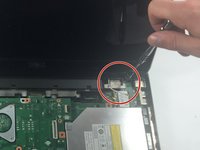
  16. Dell Inspiron M5110 Display Assembly Replacement: step 16, image 1 of 1
    • Disconnect the LCD display cable and touch screen cable.

    Ask FixBot

    Add Comment

  17. Dell Inspiron M5110 Display Assembly Replacement: step 17, image 1 of 2 Dell Inspiron M5110 Display Assembly Replacement: step 17, image 2 of 2
    • There are two 5 mm Phillips # 0 screws on each hinge.

    • Unscrew the four 5 mm Phillips # 0 screws holding the hinge that keeps the monitor in place.

    Ask FixBot

    Add Comment

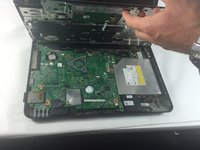
  18. Dell Inspiron M5110 Display Assembly Replacement: step 18, image 1 of 1
    • Lift the display off the computer base.

    Ask FixBot

    Add Comment

Conclusion

To reassemble your device, follow these instructions in reverse order.

Cancel: I did not complete this guide.

Maxwell Dumerant

Member since: 10/18/16

19 Reputation

1 Guide authored

Team

UMass Dartmouth, Team 4-3, Catania Fall 2016 Member of UMass Dartmouth, Team 4-3, Catania Fall 2016

UMASSD-CATANIA-F16S4G3

3 Members

8 Guides authored

0 Guide Comments

Add Comment

View Statistics:

Past 24 Hours: 1

Past 7 Days: 7

Past 30 Days: 29

All Time: 452