Free Shipping on Domestic Orders $75+

Dell Inspiron M5010 RAM Replacement

What you need

    1. Dell Inspiron M5010 RAM Replacement, Battery: step 1, image 1 of 2 Dell Inspiron M5010 RAM Replacement, Battery: step 1, image 2 of 2
      • Make sure laptop is powered off before removing the battery.

      • Slide both arrow tabs towards the outer edge of the computer to release the battery.

      • Battery is not shown.

      Ask FixBot

      Add Comment

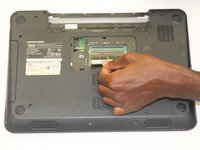
    1. Dell Inspiron M5010 RAM Replacement, RAM: step 2, image 1 of 2 Dell Inspiron M5010 RAM Replacement, RAM: step 2, image 2 of 2
      • Using the Phillips #000 screwdriver, loosen the screw holding in the back cover.

      • Then, lift up the back cover to remove it.

      Ask FixBot

      Add Comment

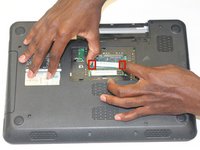
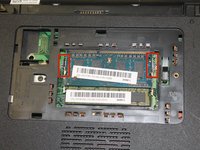
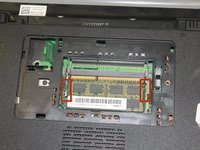
    2. Dell Inspiron M5010 RAM Replacement: step 3, image 1 of 3 Dell Inspiron M5010 RAM Replacement: step 3, image 2 of 3 Dell Inspiron M5010 RAM Replacement: step 3, image 3 of 3
      • Snap open the top memory clips and remove the memory drive they hold in.

      Ask FixBot

      Add Comment

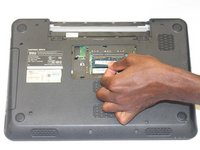
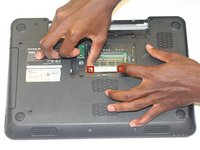
    3. Dell Inspiron M5010 RAM Replacement: step 4, image 1 of 3 Dell Inspiron M5010 RAM Replacement: step 4, image 2 of 3 Dell Inspiron M5010 RAM Replacement: step 4, image 3 of 3
      • Snap open the bottom memory clips and remove the memory drive they hold in.

      Ask FixBot

      Add Comment

    4. Dell Inspiron M5010 RAM Replacement: step 5, image 1 of 1
      • The laptop computer should look like this once both memory cards are removed.

      Ask FixBot

      Add Comment

Conclusion

To reassemble your device, follow these instructions in reverse order.

Cancel: I did not complete this guide.

April Poucher

Member since: 10/13/14

1,164 Reputation

10 Guides authored

Team

Clemson, Team 1-5, Benson Fall 2014 Member of Clemson, Team 1-5, Benson Fall 2014

CLEM-BENSON-F14S1G5

4 Members

132 Guides authored

0 Guide Comments

Add Comment

View Statistics:

Past 24 Hours: 0

Past 7 Days: 2

Past 30 Days: 13

All Time: 632