Free Shipping on Domestic Orders $75+

Dell Inspiron E1705 Hard Drive Replacement

What you need

  1. Dell Inspiron E1705 Hard Drive Replacement, Battery: step 1, image 1 of 1
    • Make sure that the computer is turned off and is disconnected from external power source.

    • Turn it upside down and locate the battery release switch.

    Ask FixBot

    Add Comment

  2. Dell Inspiron E1705 Hard Drive Replacement: step 2, image 1 of 2 Dell Inspiron E1705 Hard Drive Replacement: step 2, image 2 of 2
    • While holding the switch in the open position, lift out the battery.

    • If you plan to work on any internal laptop components, press and hold the power button for 5 seconds. This will dissipate any residual charge on the motherboard to prevent electrical shock when you begin to handle it.

    Ask FixBot

    Add Comment

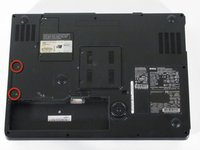
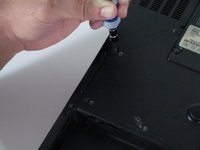
  3. Dell Inspiron E1705 Hard Drive Replacement, Hard Drive: step 3, image 1 of 2 Dell Inspiron E1705 Hard Drive Replacement, Hard Drive: step 3, image 2 of 2
    • Remove the two Phillips #1 screws on the left side of the computer, just above the battery compartment.

    • These screws hold the hard drive tray into the hard drive compartment.

    Ask FixBot

    Add Comment

  4. Dell Inspiron E1705 Hard Drive Replacement: step 4, image 1 of 1
    • Slide the hard drive tray out of the hard drive compartment.

    Ask FixBot

    Add Comment

Conclusion

To reassemble your device, follow these instructions in reverse order.

Cancel: I did not complete this guide.

3 other people completed this guide.

Malik Shahbal

Member since: 10/05/10

471 Reputation

5 Guides authored

Team

Cal Poly, Team 22-5, Maness Fall 2010 Member of Cal Poly, Team 22-5, Maness Fall 2010

CPSU-MANESS-F10S22G5

4 Members

11 Guides authored

0 Guide Comments

Add Comment

View Statistics:

Past 24 Hours: 3

Past 7 Days: 26

Past 30 Days: 59

All Time: 20,948