
Dell Inspiron E1505 GPU Replacement

tmg86 and one other contributor
Last updated on Oct 6, 2025
Views: 896
View statistics:
- Past 24 Hours:
- 0
- Past 7 Days:
- 14
- Past 30 Days:
- 90
- All Time:
- 896
Comments: 0
No one has left comments on this guide. Will you be first?
Go to guide commentsCompleted: 1 2
1 person has marked this guide "completed." Will you be next?
2 people have marked this guide "completed." Including you — great job!
Favorites: 0 1
No one has favorited (and subscribed to) this guide. Will you be the first?
1 person has favorited (and subscribed to) this guide — and that's you!
Bullets!
Better coordination with markups and the color/type of bullets will help make this guide more clear!
Markup Mishap
This guide needs better markups. Help out by correcting or making some markup annotations.
Community-Contributed Guide
An awesome member of our community made this guide. It was not created by iFixit staff.
What you need
Tools
-
Spudger4.9


-
-
-
Slide the battery disconnect right.
-
Remove the screw for the optical drive.
-
Use a screwdriver to push the optical drive out of the base.
-
Gently pull the drive out when it sticks out far enough.
 Ask FixBot
-
-
-
Remove all 12 screws on the base of the laptop
-
Remove the 2 screws at the back of the laptop.
-
-
-
-
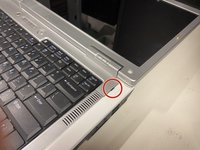
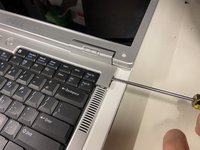
Use a flat head screwdriver and gently pry at the indentation. It should come open semi-easily.
-
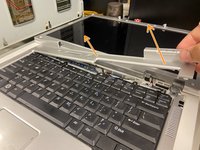
Grab the panel and gently pull it away from the laptop.
-
-
-
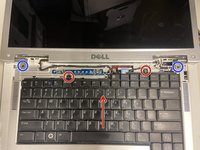
Remove the two screws and slide the keyboard toward the display.
-
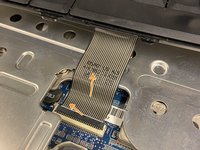
Rotate the latch up toward the trackpad, then carefully remove the ribbon cable.
-
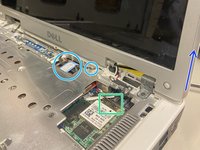
Remove the antenna connectors on the wifi card by pulling up at the part where the cable meets the connector.
-
Unscrew the grounding cable on the display cable. Disconnect the display cable by pulling up on the tab.
-
Remove the last two screws holding the display in. Rotate the display to an upright 90-degree position. Gently pull up to remove the display.
-
-
-
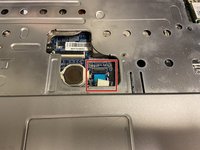
Disconnect the ribbon cable from the motherboard
-
Disconnect the lid sensor.
-
Unscrew the last screw holding the top panel in.
-
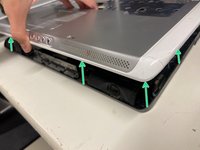
Lift the panel.
-
-
-
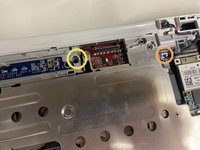
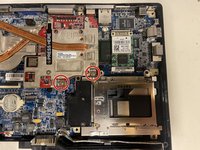
Remove the two screws shown.
-
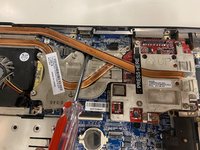
Use a spudger to pry the GPU and cooler up.
-
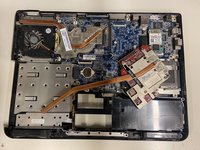
To reconnect the gpu, align it and firmly press at the "Press here" label.
-
-








To reassemble your device, follow these instructions in reverse order.
Cancel: I did not complete this guide.
One other person completed this guide.

