
Dell Inspiron E1405 LCD Screen Replacement

Sarah Neal Secrest and 2 other contributors
Last updated on May 25, 2017
Views: 949
View statistics:
- Past 24 Hours:
- 2
- Past 7 Days:
- 17
- Past 30 Days:
- 92
- All Time:
- 949
Comments: 1
1 guide comment.
Go to guide commentsCompleted: 1 2
1 person has marked this guide "completed." Will you be next?
2 people have marked this guide "completed." Including you — great job!
Favorites: 0 1
No one has favorited (and subscribed to) this guide. Will you be the first?
1 person has favorited (and subscribed to) this guide — and that's you!
Needs Better Images
Better photos will improve this guide. Help out by taking, editing, or uploading new ones!
Needs More Images
A few more images would make this guide's procedures crystal clear.
Introduction
Go to step 1 ↓This guide will help you replace the LCD screen in a Dell Inspiron 1305 laptop.
What you need
Tools

-
-
-
Flip the laptop over.
-
Locate the battery release switch on the bottom of the laptop.
 Ask FixBot
-
-
-
Slide the battery release switch away from the lock symbol until you hear the battery click.
-
Slide the battery towards the back of the laptop until it comes free.
-
-
-
-
-
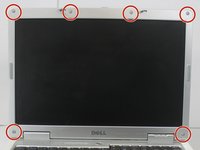
Use your fingers or a spudger to remove the six small rubber covers off the display assembly.
-
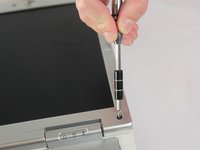
Remove the six 5.7 mm screws with a Phillips #00 screwdriver.
-
-
-
Use your fingers to gently pry the front bezel off the display assembly. Start at a corner and work your way around.
-
Remove the front display bezel when it comes free.
-
-
-
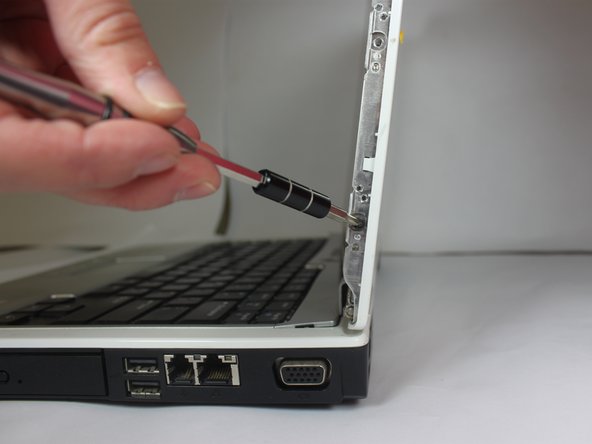
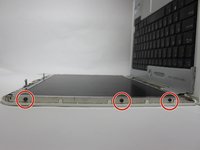
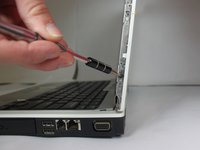
Remove the three 3.6 mm screws using a Phillips #00 screwdriver on both sides of the display.
-
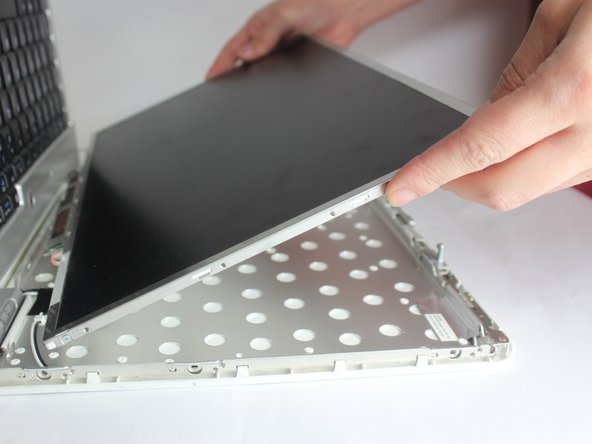
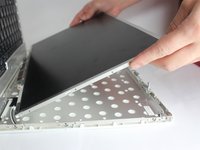
Remove the LCD screen from the display assembly.
-
-
-
-
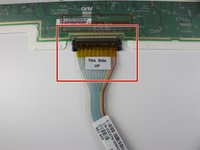
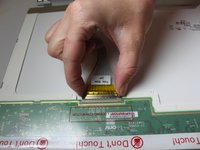
Unplug the VGA cable by pushing the two metal sides towards the middle of the strip.
-
Gently pull the VGA cable away to release the strip.
-
-
-
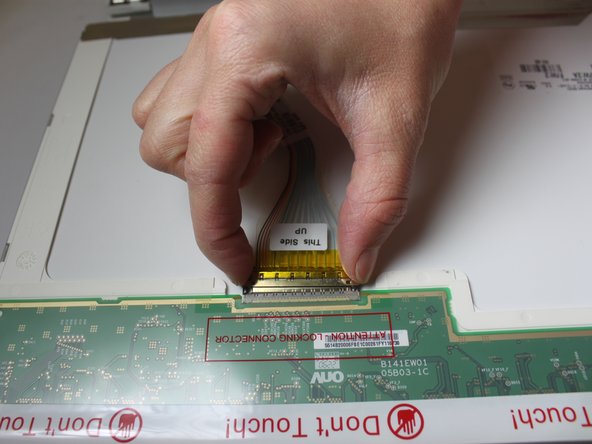
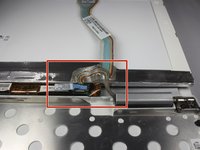
Remove the next connection by pressing the two metal sides towards the middle. Then gently pull up the ribbon.
-
-









To reassemble your device, follow these instructions in reverse order.
Cancel: I did not complete this guide.
One other person completed this guide.

Team

Texas Tech, Team S8-G3, Bennett Spring 2017 Member of Texas Tech, Team S8-G3, Bennett Spring 2017
TTU-BENNETT-S17S8G3
3 Members
60 Guides authored
