
Dell Inspiron B130 RAM and Wireless Replacement

Patrick McNeil and 3 other contributors
Last updated on Jul 2, 2025
Views: 625
View statistics:
- Past 24 Hours:
- 3
- Past 7 Days:
- 18
- Past 30 Days:
- 87
- All Time:
- 625
Comments: 0
No one has left comments on this guide. Will you be first?
Go to guide commentsCompleted: 1 2
1 person has marked this guide "completed." Will you be next?
2 people have marked this guide "completed." Including you — great job!
Favorites: 0 1
No one has favorited (and subscribed to) this guide. Will you be the first?
1 person has favorited (and subscribed to) this guide — and that's you!
Missing Details
Some of this guide's details are missing. Help users by adding tools, difficulty, or time.
Introduction
Go to step 1 ↓RAM is very important for a computer to pull up information quickly and without referring to previous bytes of memory. The RAM in any computer wears out over time so this is actually a pretty common replacement if you have an older computer. The wireless aspect just means how it connects to wireless networks(Wifi) problems with this leave the computer with a slow internet connection or non at all when there should be one.
What you need
Tools

-
-
-
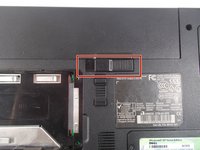
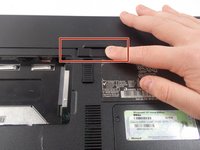
Remove the battery by flipping the two switches under the battery and pulling it out
 Ask FixBot
-
-
-
Push the tab from the battery, downwards to unlock the battery.
-
The tab should be in the position next to the unlocked indicator.
-
-
-
Now, push the other tab (the one right under the battery) from right to left.
-
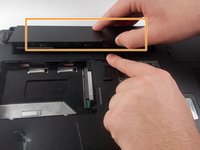
Now the battery will be loose; lift the battery up and out of the computer.
-
-
-
-
-
-
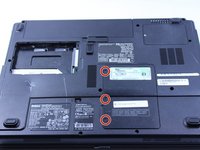
Remove the three 6mm screws.
-
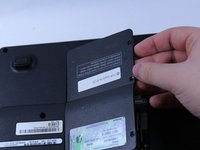
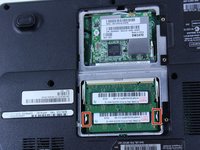
Lift the plastic cover off to reveal the RAM and the Wireless.
-
-
-
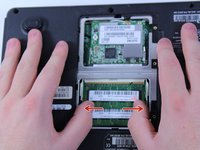
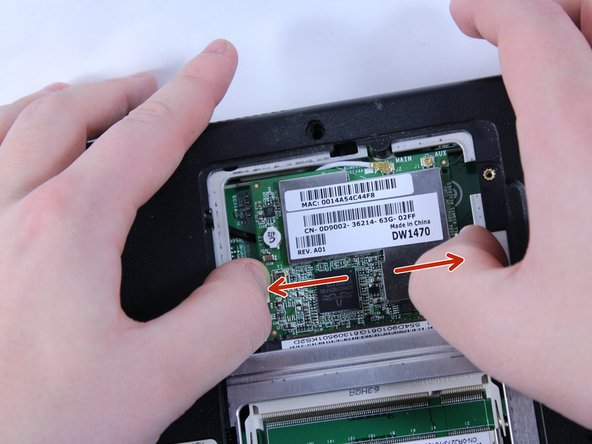
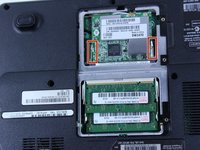
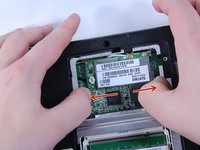
To remove the RAM, push outward against the metal brackets.
-
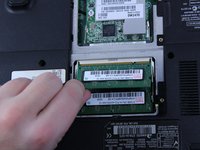
The first RAM will pop up so you can just pull it right out.
-
Repeat the first step again to remove the second RAM chip.
-
Installation is the reverse of removal.
-
-
-
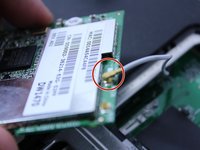
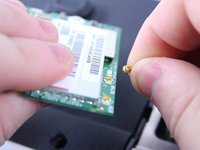
To remove the wire, hold the wireless chip firmly and pull the connection straight up off of the chip.
-
-









To reassemble your device, follow these instructions in reverse order.
Cancel: I did not complete this guide.
One other person completed this guide.

Team

UMass Dartmouth, Team 1-8, Catania Fall 2016 Member of UMass Dartmouth, Team 1-8, Catania Fall 2016
UMASSD-CATANIA-F16S1G8
3 Members
108 Guides authored
