
Dell Inspiron B130 Hard Drive Replacement

Patrick McNeil and 2 other contributors
Last updated on Jul 2, 2025
Views: 1.1K
View statistics:
- Past 24 Hours:
- 2
- Past 7 Days:
- 18
- Past 30 Days:
- 91
- All Time:
- 1,066
Comments: 0
No one has left comments on this guide. Will you be first?
Go to guide commentsCompleted: 0 1
No one has marked this guide "completed." Will you be the first?
1 person has marked this guide "completed." It's you — great job!
Favorites: 0 1
No one has favorited (and subscribed to) this guide. Will you be the first?
1 person has favorited (and subscribed to) this guide — and that's you!
Missing Details
Some of this guide's details are missing. Help users by adding tools, difficulty, or time.
Introduction
Go to step 1 ↓In this guide you will learn how to replace the hard drive on your Dell B130. The hard drive is where the computer stores any information and there may be problems with it if: the computer is slow, is unable to boot, or has errors when trying to read or delete data.
What you need
Tools

-
-
-
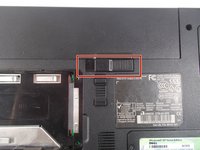
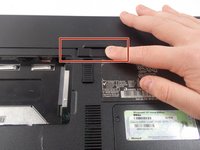
Remove the battery by flipping the two switches under the battery and pulling it out
 Ask FixBot
-
-
-
Push the tab from the battery, downwards to unlock the battery.
-
The tab should be in the position next to the unlocked indicator.
-
-
-
Now, push the other tab (the one right under the battery) from right to left.
-
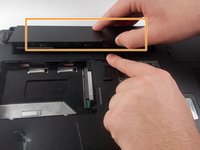
Now the battery will be loose; lift the battery up and out of the computer.
-
-
-
-
-
-
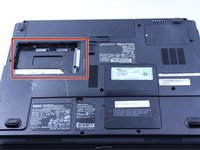
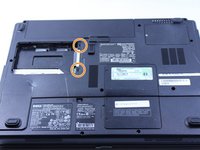
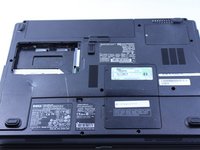
This particular computer is missing its hard drive.
-
Remove the two screws.
-
Remove the plastic cover by lifting from the groove as indicated.
-
Remove the hard drive from the computer by lifting up and out.
-
-




To reassemble your device, follow these instructions in reverse order.

Team

UMass Dartmouth, Team 1-8, Catania Fall 2016 Member of UMass Dartmouth, Team 1-8, Catania Fall 2016
UMASSD-CATANIA-F16S1G8
3 Members
108 Guides authored
