Free Shipping on Domestic Orders $75+

Dell Inspiron 9100 Mini-PCI (WiFi) Card Replacement

What you need

    1. Dell Inspiron 9100 Mini-PCI (WiFi) Card Replacement, Battery: step 1, image 1 of 3 Dell Inspiron 9100 Mini-PCI (WiFi) Card Replacement, Battery: step 1, image 2 of 3 Dell Inspiron 9100 Mini-PCI (WiFi) Card Replacement, Battery: step 1, image 3 of 3
      • Unplug the laptop from the power adapter and turn the power off.

      • Failure to unplug laptop before proceeding could result in risk of electric shock!

      Ask FixBot

      Add Comment

    2. Dell Inspiron 9100 Mini-PCI (WiFi) Card Replacement: step 2, image 1 of 3 Dell Inspiron 9100 Mini-PCI (WiFi) Card Replacement: step 2, image 2 of 3 Dell Inspiron 9100 Mini-PCI (WiFi) Card Replacement: step 2, image 3 of 3
      • Slide the battery-lock tab and hold.

      • Flip the battery away from the chassis to remove it.

      Ask FixBot

      Add Comment

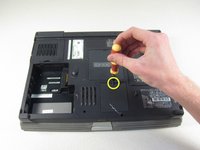
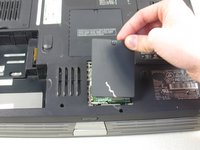
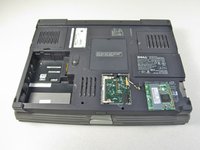
    1. Dell Inspiron 9100 Mini-PCI (WiFi) Card Replacement, Mini-PCI (WiFi) Card: step 3, image 1 of 2 Dell Inspiron 9100 Mini-PCI (WiFi) Card Replacement, Mini-PCI (WiFi) Card: step 3, image 2 of 2
      • Undo the screw on the Mini-PCI card cover labeled "C"

      • This screw will remain within the panel

      • Remove the panel from the chassis.

      Ask FixBot

      Add Comment

    2. Dell Inspiron 9100 Mini-PCI (WiFi) Card Replacement: step 4, image 1 of 1
      • Disconnect the antenna cables from the Mini-PCI card.

      Ask FixBot

      Add Comment

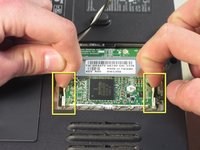
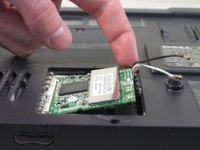
    3. Dell Inspiron 9100 Mini-PCI (WiFi) Card Replacement: step 5, image 1 of 3 Dell Inspiron 9100 Mini-PCI (WiFi) Card Replacement: step 5, image 2 of 3 Dell Inspiron 9100 Mini-PCI (WiFi) Card Replacement: step 5, image 3 of 3
      • Use your fingertips to carefully spread apart the white plastic tabs.

      • Flip the Mini-PCI card up at a 45 degree angle.

      • Remove the card from the computer by sliding out diagonally

      • Ground yourself while dealing with the card. Static shock can cause damage to the card. Store the card in anti-static bag when not in use.

      Ask FixBot

      Add Comment

Conclusion

To reassemble your device, follow these instructions in reverse order.

Cancel: I did not complete this guide.

One other person completed this guide.

charlierefvem

Member since: 01/11/11

854 Reputation

7 Guides authored

Team

Cal Poly, Team 13-2, Forte Winter 2011 Member of Cal Poly, Team 13-2, Forte Winter 2011

CPSU-FORTE-W11S13G2

5 Members

93 Guides authored

0 Guide Comments

Add Comment

View Statistics:

Past 24 Hours: 2

Past 7 Days: 8

Past 30 Days: 35

All Time: 4,721