
Dell Inspiron 9100 Fan 3 Replacement

charlierefvem and 6 other contributors
Last updated on Jul 30, 2014
Views: 2.6K
View statistics:
- Past 24 Hours:
- 1
- Past 7 Days:
- 24
- Past 30 Days:
- 85
- All Time:
- 2,583
Comments: 0
No one has left comments on this guide. Will you be first?
Go to guide commentsCompleted: 0 1
No one has marked this guide "completed." Will you be the first?
1 person has marked this guide "completed." It's you — great job!
Favorites: 1 2
1 person has favorited (and subscribed to) this guide. Will you be next?
2 people have favorited (and subscribed to) this guide — including you!
Step Trimmer
This guide has unnecessary steps. Trim them to be more concise!
Introduction
Go to step 1 ↓This guide requires a Phillips #00 screwdriver
What you need
Tools

-
-
-
-
Slide the battery-lock tab and hold.
-
Flip the battery away from the chassis to remove it.
-
-
-
-
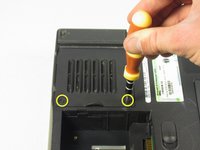
Undo the two screws on the fan cover plate labeled "F3", they will remain in the panel.
-
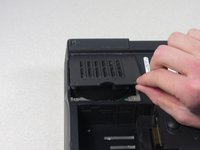
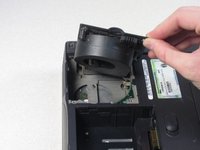
Lift up on the side of the fan nearest the screws to release the fan module
-
-


 Ask FixBot


To reassemble your device, follow these instructions in reverse order.

Team

Cal Poly, Team 13-2, Forte Winter 2011 Member of Cal Poly, Team 13-2, Forte Winter 2011
CPSU-FORTE-W11S13G2
5 Members
96 Guides authored
