
Dell Inspiron 8600 Touch Pad Replacement

John Nesthus and 10 other contributors
Last updated on Jan 14, 2026
Views: 3.6K
View statistics:
- Past 24 Hours:
- 4
- Past 7 Days:
- 22
- Past 30 Days:
- 89
- All Time:
- 3,643
Comments: 1
1 guide comment.
Go to guide commentsCompleted: 0 1
No one has marked this guide "completed." Will you be the first?
1 person has marked this guide "completed." It's you — great job!
Favorites: 2 3
2 people have favorited (and subscribed to) this guide. Will you be next?
3 people have favorited (and subscribed to) this guide — including you!
Action Shots
Be an action hero! This guide needs images that better demonstrate how to perform specific actions.
Needs More Images
A few more images would make this guide's procedures crystal clear.
Incorrect Tools
Help make this guide better by using the correct tools in images and/or text.
Missing Steps
Oops! This guide is currently missing one or more important steps.
Introduction
Go to step 1 ↓Replacing the touchpad on your Dell Inspiron 8600 can bring new life to an older laptop, especially if the cursor skips, drags, or simply fails to respond. This guide will walk you step-by-step through safely removing the palm rest and installing a new touchpad. With common tools and careful attention, you can complete this repair yourself and avoid the cost of professional service.
Before you begin, make sure the laptop is powered off, unplugged, and the battery is removed to prevent electrical damage or injury!
What you need
Tools


-
-
-
-
Insert a spudger into the notch at the far left side of the top blue panel and pry the hinge cover off.
-
You may need to pry the other side off as well. You can do this by inserting the spudger between the hinge and the top cover.
-
-
-
Pull the small black tab on the right hand side of the laptop.
-
You have now removed the hinge cover.
-
-
-
-
-
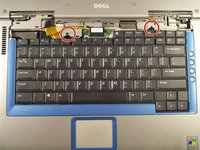
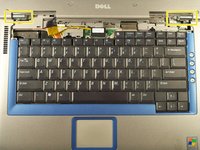
Using the Phillips #1 remove the screws at the top of the keyboard as indicated.
-
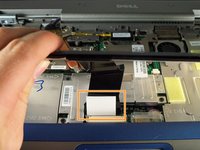
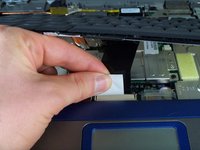
You will need to pull out the white tab underneath the keyboard upwards until it pops out of its socket.
-
-
-
-
-
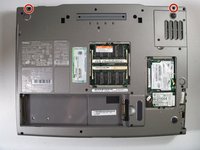
Flip the laptop over and remove the indicated screws.
-
Flip the laptop back over.
-
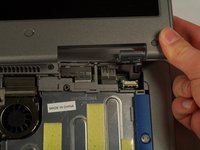
Find the two places where the display module is attached to the base of the computer.
-
-
-
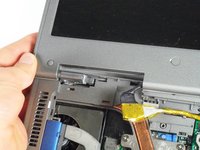
Disconnect the video card from the display module by gently lifting upwards on the black tab.
-
-
-
-
-
-
Remove the palm rest assembly that secures the touch pad from the device.
-
-

 Ask FixBot








To reassemble your device, follow these instructions in reverse order. Take your e-waste to an R2 or e-Stewards certified recycler.

Team

Cal Poly, Team 18-22, Garner Spring 2011 Member of Cal Poly, Team 18-22, Garner Spring 2011
CPSU-GARNER-S11S18G22
4 Members
180 Guides authored
1 Guide Comment
this is just the display guide with a footnote added, it doesn't tell you how to remove the touchpad
