Free Shipping on Domestic Orders $75+

Dell Inspiron 8600 Lower Case Replacement

What you need

    1. Dell Inspiron 8600 Lower Case Replacement, Battery: step 1, image 1 of 1
      • Remove the battery from the bottom left of the laptop as shown.

      • Remove the battery before operating on the computer to avoid electrocution.

      Ask FixBot

      Add Comment

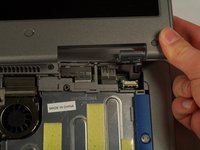
    1. Dell Inspiron 8600 Lower Case Replacement, Hinge Cover: step 2, image 1 of 3 Dell Inspiron 8600 Lower Case Replacement, Hinge Cover: step 2, image 2 of 3 Dell Inspiron 8600 Lower Case Replacement, Hinge Cover: step 2, image 3 of 3
      • Insert a spudger into the notch at the far left side of the top blue panel and pry the hinge cover off.

      • You may need to pry the other side off as well. You can do this by inserting the spudger between the hinge and the top cover.

      • Be careful of the wire attached to the underside of the hinge cover.

      Ask FixBot

      Add Comment

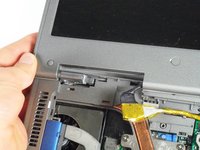
    2. Dell Inspiron 8600 Lower Case Replacement: step 3, image 1 of 1
      • Pull the small black tab on the right hand side of the laptop.

      • You have now removed the hinge cover.

      Ask FixBot

      Add Comment

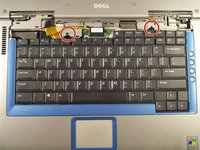
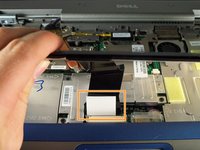
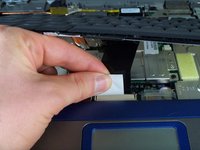
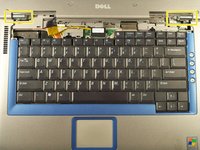
    1. Dell Inspiron 8600 Lower Case Replacement, Keyboard: step 4, image 1 of 3 Dell Inspiron 8600 Lower Case Replacement, Keyboard: step 4, image 2 of 3 Dell Inspiron 8600 Lower Case Replacement, Keyboard: step 4, image 3 of 3
      • Using the Phillips #1 remove the screws at the top of the keyboard as indicated.

      • Do not just lift up. There is a tab underneath the keyboard that is still connected to the mother board.

      • You will need to pull out the white tab underneath the keyboard upwards until it pops out of its socket.

      • The keyboard should be easily removable at this point.

      Ask FixBot

      Add Comment

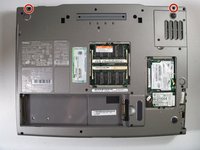
    1. Dell Inspiron 8600 Lower Case Replacement, Display Module: step 5, image 1 of 2 Dell Inspiron 8600 Lower Case Replacement, Display Module: step 5, image 2 of 2
      • Flip the laptop over and remove the indicated screws.

      • Flip the laptop back over.

      • Find the two places where the display module is attached to the base of the computer.

      Ask FixBot
      Add Comment

    2. Dell Inspiron 8600 Lower Case Replacement: step 6, image 1 of 1
      • Disconnect the video card from the display module by gently lifting upwards on the black tab.

      Ask FixBot
      Add Comment

    3. Dell Inspiron 8600 Lower Case Replacement: step 7, image 1 of 2 Dell Inspiron 8600 Lower Case Replacement: step 7, image 2 of 2
      • Lift the display module directly upwards from the base of the computer.

      Ask FixBot
      Add Comment

    4. Dell Inspiron 8600 Lower Case Replacement: step 8, image 1 of 1
      • Now remove the display module.

      Ask FixBot

      Add Comment

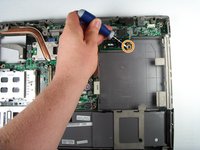
    1. Dell Inspiron 8600 Lower Case Replacement, Lower Case: step 9, image 1 of 1
      • Remove the two screws holding down the upper case with a Phillips #1 screwdriver.

      Ask FixBot

      Add Comment

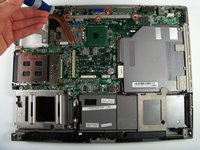
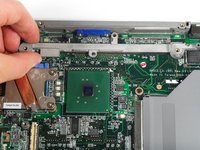
    2. Dell Inspiron 8600 Lower Case Replacement: step 10, image 1 of 2 Dell Inspiron 8600 Lower Case Replacement: step 10, image 2 of 2
      • Using a Phillips #1 screwdriver, remove four screws attaching the metal bar to the motherboard.

      • Remove the metal bar which connects the motherboard to the lower case.

      Ask FixBot

      Add Comment

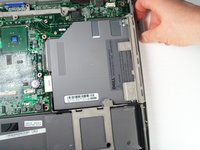
    3. Dell Inspiron 8600 Lower Case Replacement: step 11, image 1 of 1
      • Disconnect the optical disk drive by gently pulling upward on the plastic connector to prevent connection damage.

      Ask FixBot

      Add Comment

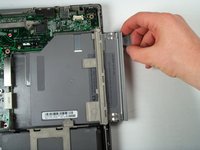
    4. Dell Inspiron 8600 Lower Case Replacement: step 12, image 1 of 3 Dell Inspiron 8600 Lower Case Replacement: step 12, image 2 of 3 Dell Inspiron 8600 Lower Case Replacement: step 12, image 3 of 3
      • Remove the optical disc drive by pushing a small release button on the side of the laptop and then pulling it.

      • This will uncover one final screw. Use the Phillips # 1 to remove the screw.

      Ask FixBot

      Add Comment

    5. Dell Inspiron 8600 Lower Case Replacement: step 13, image 1 of 1
      • Now, pop off the lower case for repair or replacement.

      Ask FixBot

      Add Comment

Conclusion

To reassemble your device, follow these instructions in reverse order.

Cancel: I did not complete this guide.

John Nesthus

Member since: 04/13/11

186 Reputation

6 Guides authored

Team

Cal Poly, Team 18-22, Garner Spring 2011 Member of Cal Poly, Team 18-22, Garner Spring 2011

CPSU-GARNER-S11S18G22

4 Members

179 Guides authored

0 Guide Comments

Add Comment

View Statistics:

Past 24 Hours: 1

Past 7 Days: 4

Past 30 Days: 26

All Time: 4,025