
Dell Inspiron 7590 Battery Replacement

Danielle Byrd and 2 other contributors
Last updated on May 7, 2024
Views: 2.3K
View statistics:
- Past 24 Hours:
- 5
- Past 7 Days:
- 30
- Past 30 Days:
- 101
- All Time:
- 2,292
Comments: 1
1 guide comment.
Go to guide commentsCompleted: 2 3
2 people have marked this guide "completed." Will you be next?
3 people have marked this guide "completed." Including you — great job!
Favorites: 0 1
No one has favorited (and subscribed to) this guide. Will you be the first?
1 person has favorited (and subscribed to) this guide — and that's you!
Introduction
Go to step 1 ↓Does your battery life seem to be diminishing? Are you constantly in search of a power outlet in public spaces? It may be time to replace the battery in your device; this guide will reduce your charging time and double your screen time! Inside the device lies a 68 Wh Standard Rechargeable Dell Li-ion Battery. The following guide will illustrate the steps to replace this vital component.
What you need
Tools

-
-
-
Use a Phillips #000 screwdriver to remove seven screws securing the base face of your device.
-
Unscrew the remaining two screws in the corners closest to the bottom of the base of the laptop.
 Ask FixBot
-
-
-
Using a Jimmy, work your way around the edge of the back panel and the side of the laptop to remove the back panel.
-
Separate the remainder of the paneling using an Opening Pick.
-
-
-
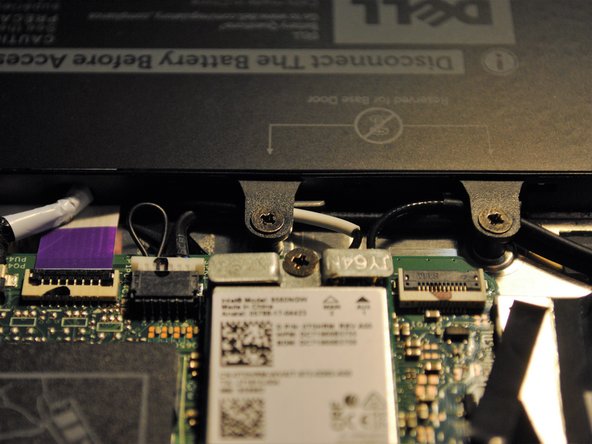
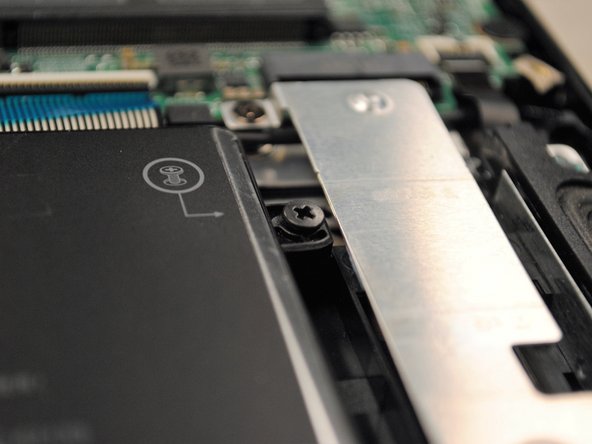
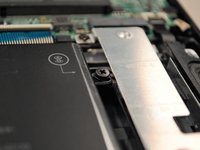
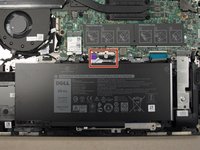
Using a Phillips #0 screwdriver, remove the three screws securing the battery.
-
-
Tool used on this step:Tweezers$4.99
-
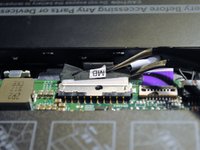
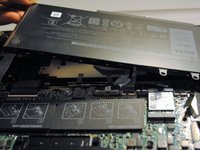
Using a pair of tweezers, disconnect the ribbon cable connecting the battery to the motherboard.
-
-
-






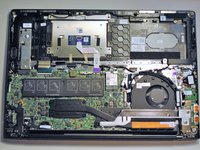
To reassemble your device, follow these instructions in reverse order.
Cancel: I did not complete this guide.
2 other people completed this guide.

Team

University of North Texas, Team S2-G3, Thomas Spring 2020 Member of University of North Texas, Team S2-G3, Thomas Spring 2020
UNT-THOMAS-S20S2G3
3 Members
12 Guides authored
