Free Shipping on Domestic Orders $75+

Dell Inspiron 7568 Keyboard Replacement Guide

What you need

    1. Dell Inspiron 7568 Keyboard Replacement Guide, Battery: step 1, image 1 of 2 Dell Inspiron 7568 Keyboard Replacement Guide, Battery: step 1, image 2 of 2
      • Remove the ten 7mm Phillips #1 screws on the bottom cover.

      • Remove the bottom cover.

      Ask FixBot

      Add Comment

    2. Dell Inspiron 7568 Keyboard Replacement Guide: step 2, image 1 of 2 Dell Inspiron 7568 Keyboard Replacement Guide: step 2, image 2 of 2
      • Remove the four 3mm Phillips #1 screws holding the battery.

      • Unhinge the connector cable to the battery.

      • Remove the battery.

      Ask FixBot

      Add Comment

    1. Dell Inspiron 7568 Keyboard Replacement Guide, Display Assembly: step 3, image 1 of 2 Dell Inspiron 7568 Keyboard Replacement Guide, Display Assembly: step 3, image 2 of 2
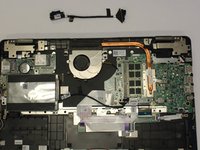
      • Unscrew & remove the two 3mm screws (using a ph1 screwdriver bit) and the cable bracket, above the motherboard

      • Doing this will allow one to access the LCD-motherboard connector cables.

      Ask FixBot

      Add Comment

    2. Dell Inspiron 7568 Keyboard Replacement Guide: step 4, image 1 of 2 Dell Inspiron 7568 Keyboard Replacement Guide: step 4, image 2 of 2
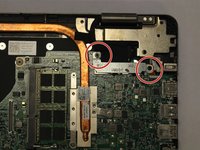
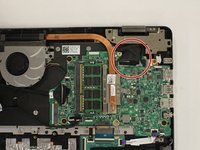
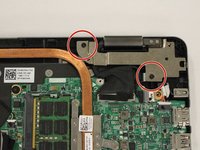
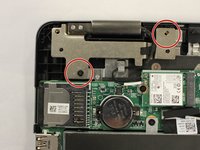
      • Unscrew the 7mm screws that secure the left and right hinges (using a ph1 screwdriver bit).

      Ask FixBot

      Add Comment

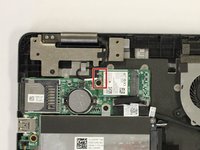
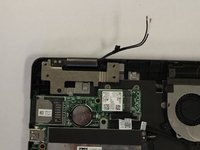
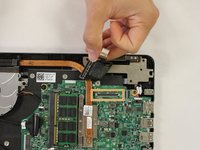
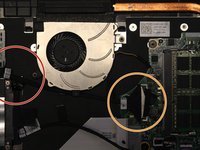
    3. Dell Inspiron 7568 Keyboard Replacement Guide: step 5, image 1 of 3 Dell Inspiron 7568 Keyboard Replacement Guide: step 5, image 2 of 3 Dell Inspiron 7568 Keyboard Replacement Guide: step 5, image 3 of 3
      • Disconnect the antenna cable (under the left hinge)

      • Disconnect the LCD and Touchscreen display cables under the right hinge.

      • These are a set of two cables. For better image see image two in step one of this guide.

      Ask FixBot

      Add Comment

    4. Dell Inspiron 7568 Keyboard Replacement Guide: step 6, image 1 of 1
      • Carefully separate the screen from the bottom half of the device.

      Ask FixBot

      Add Comment

    1. Dell Inspiron 7568 Keyboard Replacement Guide, Cooling Fan: step 7, image 1 of 2 Dell Inspiron 7568 Keyboard Replacement Guide, Cooling Fan: step 7, image 2 of 2
      • Begin by unclipping the cable connecting the fan and the motherboard.

      • Gently separate the motherboard cable from the clamp at the bottom of the fan.

      • Remove the cable.

      Ask FixBot

      Add Comment

    2. Dell Inspiron 7568 Keyboard Replacement Guide: step 8, image 1 of 2 Dell Inspiron 7568 Keyboard Replacement Guide: step 8, image 2 of 2
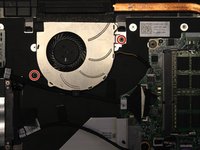
      • Remove the two 3mm Phillips #1 screws that hold the fan into place.

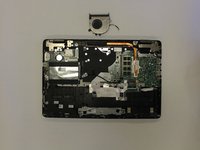
      • Remove the fan.

      Ask FixBot

      Add Comment

    1. Dell Inspiron 7568 Keyboard Replacement Guide, Keyboard: step 9, image 1 of 3 Dell Inspiron 7568 Keyboard Replacement Guide, Keyboard: step 9, image 2 of 3 Dell Inspiron 7568 Keyboard Replacement Guide, Keyboard: step 9, image 3 of 3
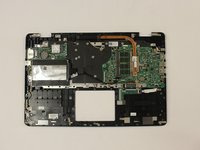
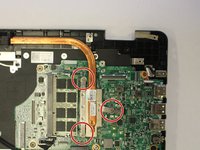
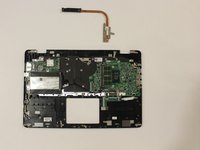
      • Once the battery, screen, cooling fan, trackpad are out, the device would resemble the one in the first picture of this step.

      • Unscrew the three screws connecting the copper pipe to the motherboard.

      • Remove the copper pipe.

      Ask FixBot

      Add Comment

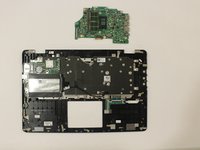
    2. Dell Inspiron 7568 Keyboard Replacement Guide: step 10, image 1 of 3 Dell Inspiron 7568 Keyboard Replacement Guide: step 10, image 2 of 3 Dell Inspiron 7568 Keyboard Replacement Guide: step 10, image 3 of 3
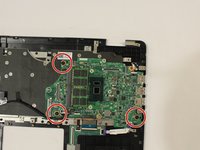
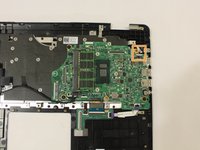
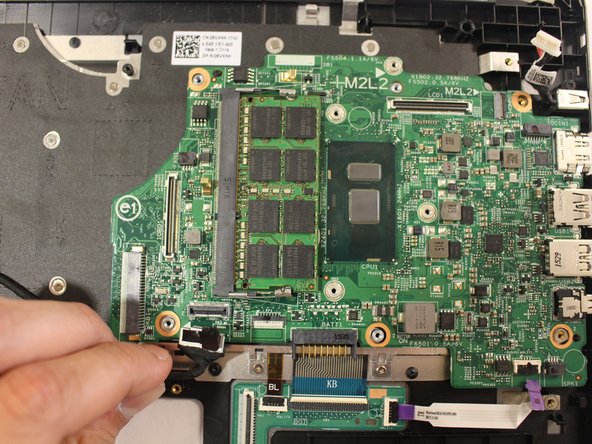
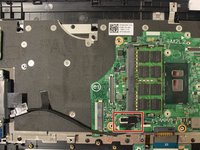
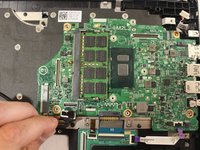
      • Unscrew the three 2mm wafer screws holding the motherboard.

      • Unplug the DC cable from the motherboard.

      Ask FixBot

      Add Comment

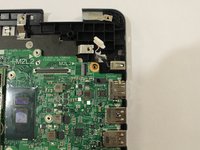
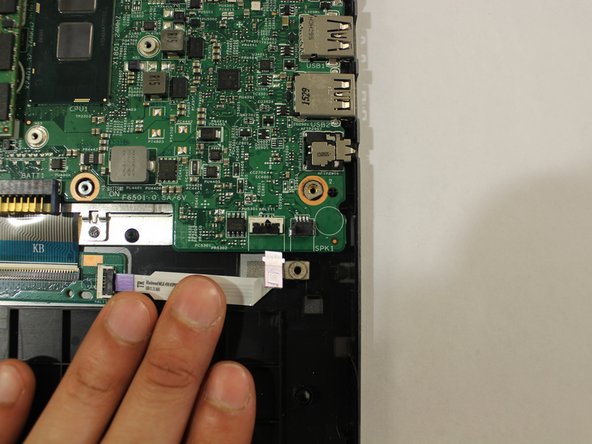
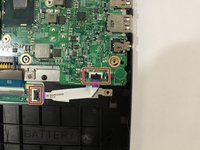
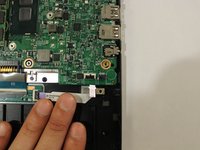
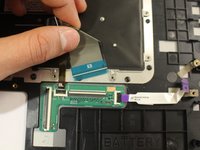
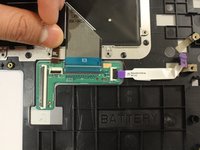
    3. Dell Inspiron 7568 Keyboard Replacement Guide: step 11, image 1 of 2 Dell Inspiron 7568 Keyboard Replacement Guide: step 11, image 2 of 2
      • Unplug the connecting strip

      Ask FixBot

      Add Comment

    4. Dell Inspiron 7568 Keyboard Replacement Guide: step 12, image 1 of 3 Dell Inspiron 7568 Keyboard Replacement Guide: step 12, image 2 of 3 Dell Inspiron 7568 Keyboard Replacement Guide: step 12, image 3 of 3
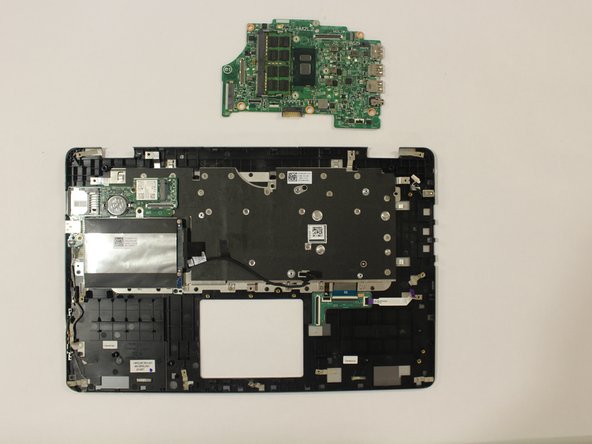
      • Unplug the hard-drive cable

      • Remove the motherboard

      Ask FixBot

      Add Comment

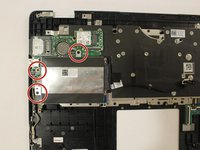
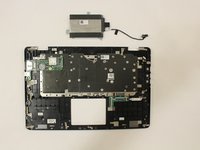
    5. Dell Inspiron 7568 Keyboard Replacement Guide: step 13, image 1 of 2 Dell Inspiron 7568 Keyboard Replacement Guide: step 13, image 2 of 2
      • Unscrew the three 3mm screws holding the hard drive (using a ph1 screwdriver bit)

      • Remove the hard drive

      Ask FixBot

      Add Comment

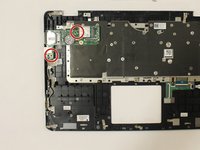
    6. Dell Inspiron 7568 Keyboard Replacement Guide: step 14, image 1 of 2 Dell Inspiron 7568 Keyboard Replacement Guide: step 14, image 2 of 2
      • Unscrew the two 3mm screws holding the daughter board (using the ph1 screwdriver bit).

      • Set the daughterboard aside. NOTE: the daughter board doesn't have to be removed

      Ask FixBot

      Add Comment

    7. Dell Inspiron 7568 Keyboard Replacement Guide: step 15, image 1 of 2 Dell Inspiron 7568 Keyboard Replacement Guide: step 15, image 2 of 2
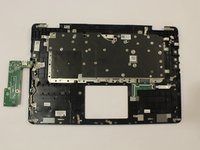
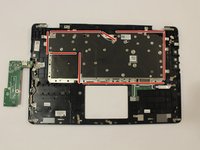
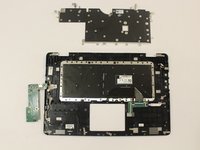
      • Unscrew & remove the twenty-eight 2mm bracket screws holding the keyboard bracket (using a PH000 screwdriver bit)

      • Remove the keyboard bracket

      Ask FixBot

      Add Comment

    8. Dell Inspiron 7568 Keyboard Replacement Guide: step 16, image 1 of 1
      • Unscrew & remove the sixteen 2mm screws holding the keyboard (using a PH000 screwdriver bit)

      Ask FixBot

      Add Comment

    9. Dell Inspiron 7568 Keyboard Replacement Guide: step 17, image 1 of 3 Dell Inspiron 7568 Keyboard Replacement Guide: step 17, image 2 of 3 Dell Inspiron 7568 Keyboard Replacement Guide: step 17, image 3 of 3
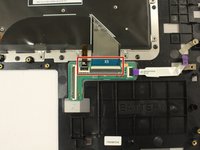
      • Unplug the keyboard ("KB") and backlight ("BL") cable

      • Remove the keyboard.

      Ask FixBot

      Add Comment

Conclusion

To reassemble your device, follow these instructions in reverse order.

Cancel: I did not complete this guide.

2 other people completed this guide.

Luis Velez

Member since: 02/19/17

452 Reputation

2 Guides authored

Team

USF Tampa, Team S2-G2, Lacy Spring 2017 Member of USF Tampa, Team S2-G2, Lacy Spring 2017

USFT-LACY-S17S2G2

4 Members

60 Guides authored

0 Guide Comments

Add Comment

View Statistics:

Past 24 Hours: 1

Past 7 Days: 4

Past 30 Days: 21

All Time: 1,438