Free Shipping on Domestic Orders $75+

Dell Inspiron 6000 Fan Replacement

What you need

  1. Dell Inspiron 6000 Fan Replacement, Battery: step 1, image 1 of 1
    • To prevent injury, make sure the laptop is unplugged before removing the battery.

    • Flip the laptop over, bottom-side up.

    Ask FixBot

    Add Comment

  2. Dell Inspiron 6000 Fan Replacement: step 2, image 1 of 1
    • Push the switch next to the battery.

    • At the same time, lift the battery away from the laptop.

    Ask FixBot
    Add Comment

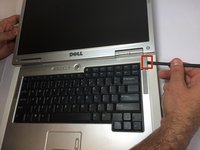
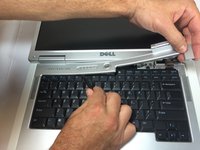
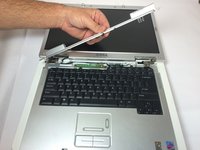
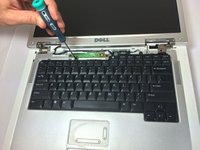
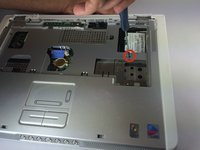
  3. Dell Inspiron 6000 Fan Replacement, Keyboard: step 3, image 1 of 3 Dell Inspiron 6000 Fan Replacement, Keyboard: step 3, image 2 of 3 Dell Inspiron 6000 Fan Replacement, Keyboard: step 3, image 3 of 3
    • Place the laptop on flat surface.

    • Carefully open the laptop at far as it will go so that the back of screen is touching the flat surface.

    • Carefully take a spudger and separate part of the cover at the red circle.

    Ask FixBot
    Add Comment

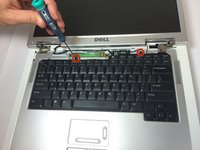
  4. Dell Inspiron 6000 Fan Replacement: step 4, image 1 of 2 Dell Inspiron 6000 Fan Replacement: step 4, image 2 of 2
    • Remove two 4 mm Philips #00 screws.

    Ask FixBot

    Add Comment

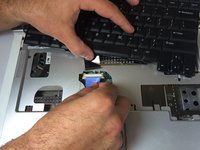
  5. Dell Inspiron 6000 Fan Replacement: step 5, image 1 of 1
    • Gently lift the keyboard away from the laptop without harming the cord that is located at the bottom of the keyboard.

    Ask FixBot

    Add Comment

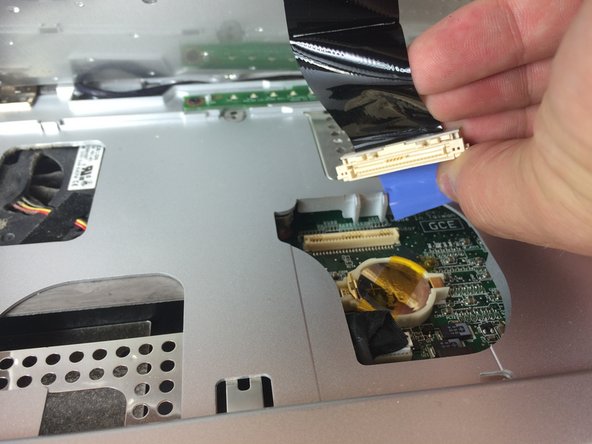
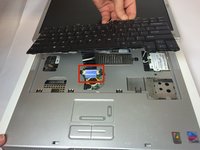
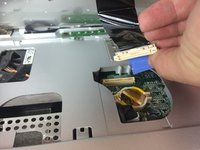
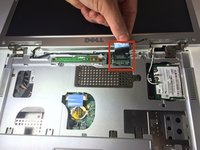
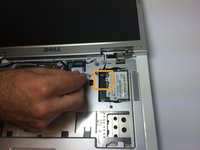
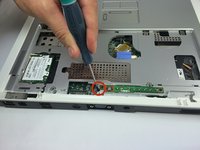
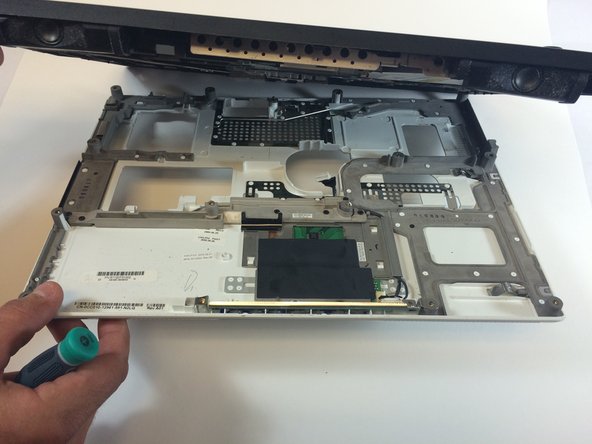
  6. Dell Inspiron 6000 Fan Replacement: step 6, image 1 of 3 Dell Inspiron 6000 Fan Replacement: step 6, image 2 of 3 Dell Inspiron 6000 Fan Replacement: step 6, image 3 of 3
    • Gently pull the blue tab up until it comes away from computer.

    Ask FixBot
    Add Comment

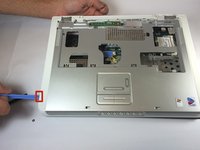
  7. Dell Inspiron 6000 Fan Replacement, Fan: step 7, image 1 of 1
    • Unscrew the 4 mm Phillips #00 screw.

    • The screw will remain attached to the cord when fully removed.

    Ask FixBot
    Add Comment

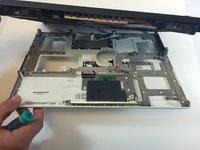
  8. Dell Inspiron 6000 Fan Replacement: step 8, image 1 of 2 Dell Inspiron 6000 Fan Replacement: step 8, image 2 of 2
    • Gently pull the blue tab to separate the screen connection from the laptop.

    • Gently pull and disconnect the white and black cords from the power source.

    Ask FixBot
    Add Comment

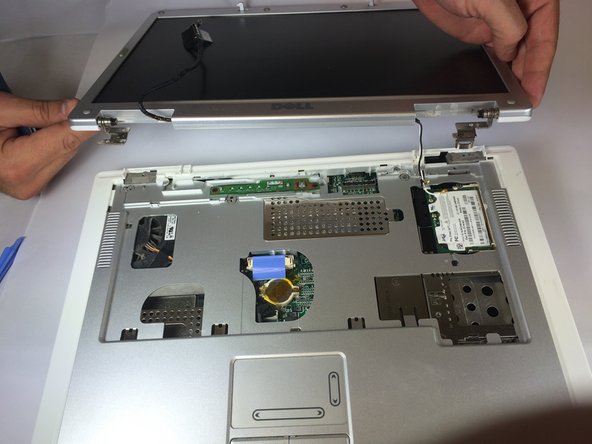
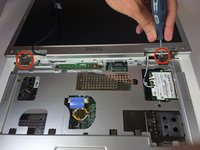
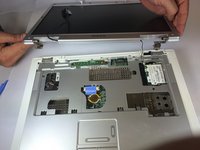
  9. Dell Inspiron 6000 Fan Replacement: step 9, image 1 of 2 Dell Inspiron 6000 Fan Replacement: step 9, image 2 of 2
    • Remove four 4mm #00 Philips screws from the screen hinges.

    • Lift the screen away from the laptop.

    Ask FixBot

    Add Comment

  10. Dell Inspiron 6000 Fan Replacement: step 10, image 1 of 2 Dell Inspiron 6000 Fan Replacement: step 10, image 2 of 2
    • Remove two 4 mm Philips #00 screws that connect top of laptop to base..

    Ask FixBot

    Add Comment

  11. Dell Inspiron 6000 Fan Replacement: step 11, image 1 of 1
    • Flip laptop the over and remove thirteen 6mm Philips #00 screws.

    Ask FixBot

    Add Comment

  12. Dell Inspiron 6000 Fan Replacement: step 12, image 1 of 2 Dell Inspiron 6000 Fan Replacement: step 12, image 2 of 2
    • Insert the plastic opening tool in between the back and front plates of the laptop

    Ask FixBot

    Add Comment

  13. Dell Inspiron 6000 Fan Replacement: step 13, image 1 of 1
    • Remove two 4 mm Philips #00 screws.

    Ask FixBot

    Add Comment

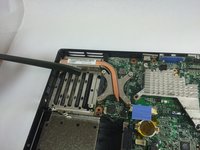
  14. Dell Inspiron 6000 Fan Replacement: step 14, image 1 of 1
    • Remove the fan power cord

    Ask FixBot

    Add Comment

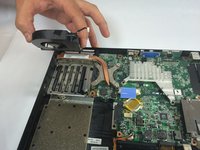
  15. Dell Inspiron 6000 Fan Replacement: step 15, image 1 of 2 Dell Inspiron 6000 Fan Replacement: step 15, image 2 of 2
    • Using your hand, lift the fan from the laptop.

    Ask FixBot

    Add Comment

Conclusion

To reassemble your device, follow these instructions in reverse order.

Cancel: I did not complete this guide.

5 other people completed this guide.

Jacob DeWar

Member since: 09/23/14

563 Reputation

3 Guides authored

Team

USF Tampa, Team 11-1, Blackwell Fall 2014 Member of USF Tampa, Team 11-1, Blackwell Fall 2014

USFT-BLACKWELL-F14S11G1

5 Members

7 Guides authored

0 Guide Comments

Add Comment

View Statistics:

Past 24 Hours: 2

Past 7 Days: 10

Past 30 Days: 37

All Time: 2,739