Free Shipping on Domestic Orders $75+

Dell Inspiron 5758 Touchpad Replacement

Views: 1.1K

View statistics:

Past 24 Hours:
1
Past 7 Days:
17
Past 30 Days:
68
All Time:
1,059
Comments: 1

1 comment on steps.

Completed: 2

2 people have marked this guide "completed." Will you be next?

Favorites: 1

1 person has favorited (and subscribed to) this guide. Will you be next?

Time Required: 45 minutes - 1 hour
Difficulty: Difficult
Dell Inspiron 5758 Touchpad Replacement

Introduction

Go to step 1 ↓

This guide will show you how to replace the touchpad on the Dell Inspiron 5758.

What you need

Parts

Tools

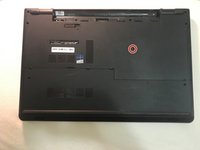
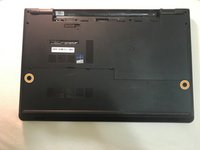
    1. Dell Inspiron 5758 Touchpad Replacement, Battery: step 1, image 1 of 2 Dell Inspiron 5758 Touchpad Replacement, Battery: step 1, image 2 of 2
      • Flip the laptop with the serial number facing up. You should be able to see the battery release switch.

      Ask FixBot

      Add Comment

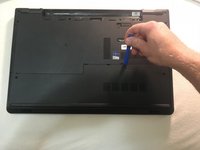
    2. Dell Inspiron 5758 Touchpad Replacement: step 2, image 1 of 3 Dell Inspiron 5758 Touchpad Replacement: step 2, image 2 of 3 Dell Inspiron 5758 Touchpad Replacement: step 2, image 3 of 3
      • Slide the battery release switch towards the unlock icon.

      • You should hear a click.

      • Lift and pull the ejected battery to remove it.

      Ask FixBot

      Add Comment

    1. Dell Inspiron 5758 Touchpad Replacement, DC Jack: step 3, image 1 of 3 Dell Inspiron 5758 Touchpad Replacement, DC Jack: step 3, image 2 of 3 Dell Inspiron 5758 Touchpad Replacement, DC Jack: step 3, image 3 of 3
      • Remove the one 3mm optical drive screw.

      • Remove the two 8 mm screws.

      • Pry up and remove the access door.

      Ask FixBot

      Add Comment

    2. Dell Inspiron 5758 Touchpad Replacement: step 4, image 1 of 1
      • Remove the one 3 mm screw.

      • Remove the bracket.

      Ask FixBot

      Add Comment

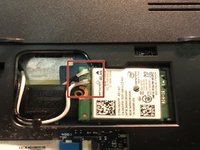
    3. Dell Inspiron 5758 Touchpad Replacement: step 5, image 1 of 2 Dell Inspiron 5758 Touchpad Replacement: step 5, image 2 of 2
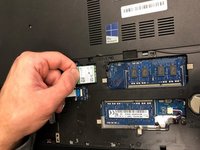
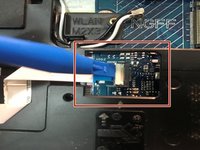
      • Unplug the antenna cables.

      • Remove the Wireless Card.

      Ask FixBot

      Add Comment

    4. Dell Inspiron 5758 Touchpad Replacement: step 6, image 1 of 2 Dell Inspiron 5758 Touchpad Replacement: step 6, image 2 of 2
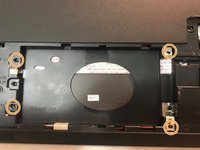
      • Unplug the hard drive cable.

      • Use a plastic opening tool or your fingernail to pop the tab of the cable connector. Then you will be able to disconnect the cable.

      • Remove the four 8 mm screws.

      • Remove the hard drive.

      Ask FixBot

      Add Comment

    5. Dell Inspiron 5758 Touchpad Replacement: step 7, image 1 of 3 Dell Inspiron 5758 Touchpad Replacement: step 7, image 2 of 3 Dell Inspiron 5758 Touchpad Replacement: step 7, image 3 of 3
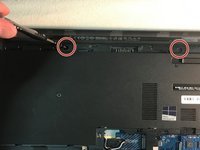
      • Remove the two 3 mm screws under the battery.

      • Remove the three 2 mm wafer screws under the optical drive.

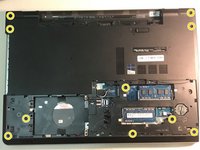
      • Remove the ten 8 mm base screws.

      Ask FixBot

      Add Comment

    6. Dell Inspiron 5758 Touchpad Replacement: step 8, image 1 of 1
      • Unplug the speaker cable by sliding to the right.

      Ask FixBot

      Add Comment

    7. Dell Inspiron 5758 Touchpad Replacement: step 9, image 1 of 2 Dell Inspiron 5758 Touchpad Replacement: step 9, image 2 of 2
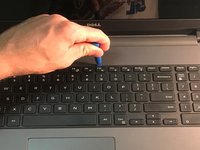
      • Press in the tabs to loosen the keyboard.

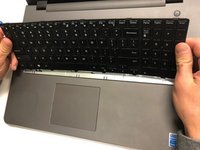
      • Carefully lift the keyboard up and turn it over.

      Ask FixBot

      Add Comment

    8. Dell Inspiron 5758 Touchpad Replacement: step 10, image 1 of 1
      • Unplug the keyboard cable & remove the keyboard.

      Ask FixBot

      Add Comment

    9. Dell Inspiron 5758 Touchpad Replacement: step 11, image 1 of 2 Dell Inspiron 5758 Touchpad Replacement: step 11, image 2 of 2
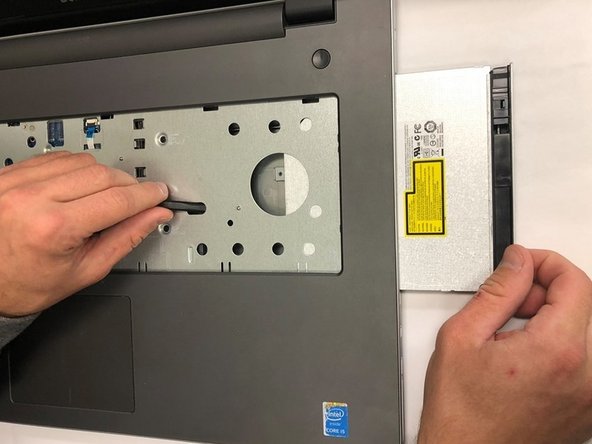
      • Slide the DVD optical drive over & remove it from the laptop.

      Ask FixBot

      Add Comment

    10. Dell Inspiron 5758 Touchpad Replacement: step 12, image 1 of 2 Dell Inspiron 5758 Touchpad Replacement: step 12, image 2 of 2
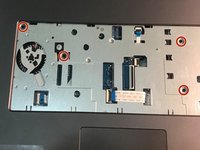
      • Remove the four 5 mm screws.

      • Unplug the optical drive interposer cable.

      Ask FixBot

      Add Comment

    11. Dell Inspiron 5758 Touchpad Replacement: step 13, image 1 of 2 Dell Inspiron 5758 Touchpad Replacement: step 13, image 2 of 2
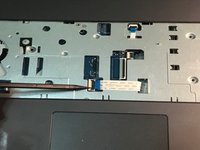
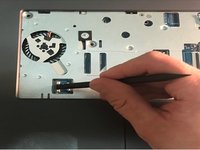
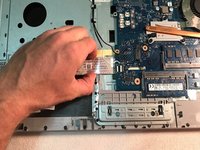
      • Unplug the power button cable.

      • Unplug the touchpad cable.

      Ask FixBot

      Add Comment

    12. Dell Inspiron 5758 Touchpad Replacement: step 14, image 1 of 3 Dell Inspiron 5758 Touchpad Replacement: step 14, image 2 of 3 Dell Inspiron 5758 Touchpad Replacement: step 14, image 3 of 3
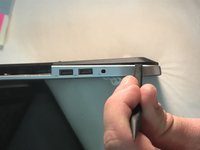
      • Carefully pry off & loosen the bottom base.

      Ask FixBot

      Add Comment

    13. Dell Inspiron 5758 Touchpad Replacement: step 15, image 1 of 1
      • Remove the bottom base.

      Ask FixBot

      Add Comment

    14. Dell Inspiron 5758 Touchpad Replacement: step 16, image 1 of 2 Dell Inspiron 5758 Touchpad Replacement: step 16, image 2 of 2
      • Remove the one 5mm screw.

      • Lift the circuit board & turn it over.

      • Unplug the cable.

      • Remove the audio/USB circuit board.

      Ask FixBot

      Add Comment

    15. Dell Inspiron 5758 Touchpad Replacement: step 17, image 1 of 3 Dell Inspiron 5758 Touchpad Replacement: step 17, image 2 of 3 Dell Inspiron 5758 Touchpad Replacement: step 17, image 3 of 3
      • Loosen the audio / USB cable.

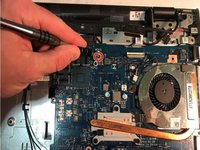
      • Remove the one 3mm motherboard screw.

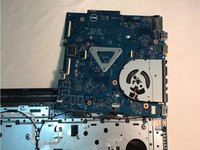
      • Lift the motherboard & carefully move it out of the way.

      Ask FixBot

      Add Comment

    16. Dell Inspiron 5758 Touchpad Replacement: step 18, image 1 of 3 Dell Inspiron 5758 Touchpad Replacement: step 18, image 2 of 3 Dell Inspiron 5758 Touchpad Replacement: step 18, image 3 of 3
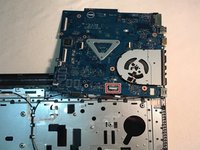
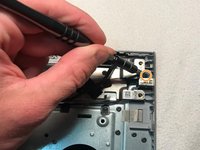
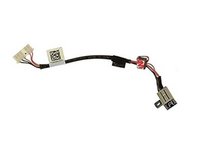
      • Unplug the DC jack cable.

      • Remove the one 3mm screw.

      • Remove the DC Jack.

      Ask FixBot

      Add Comment

    1. Dell Inspiron 5758 Touchpad Replacement, Touchpad: step 19, image 1 of 2 Dell Inspiron 5758 Touchpad Replacement, Touchpad: step 19, image 2 of 2
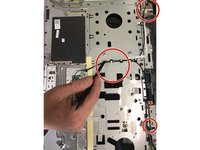
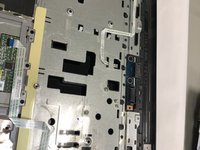
      • Release the antenna cable tape.

      • Release the antenna cables.

      Ask FixBot

      Add Comment

    2. Dell Inspiron 5758 Touchpad Replacement: step 20, image 1 of 3 Dell Inspiron 5758 Touchpad Replacement: step 20, image 2 of 3 Dell Inspiron 5758 Touchpad Replacement: step 20, image 3 of 3
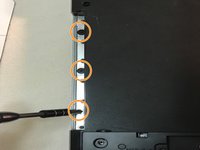
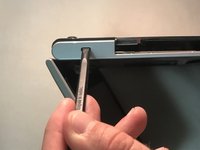
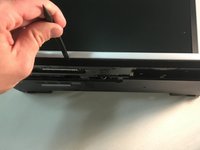
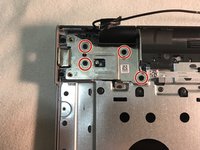
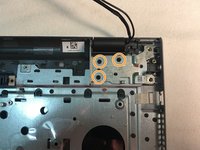
      • Remove the four 5mm right hinge screws using the Phillips #00 screwdriver.

      • Remove the three 5mm left hinge screws using Phillips #00 screwdriver.

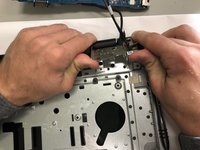
      • Open the hinges carefully and remove the LCD display assembly.

      Ask FixBot

      Add Comment

    3. Dell Inspiron 5758 Touchpad Replacement: step 21, image 1 of 2 Dell Inspiron 5758 Touchpad Replacement: step 21, image 2 of 2
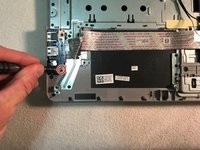
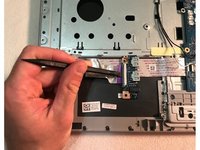
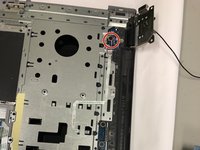
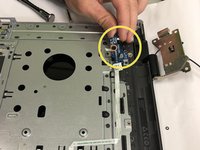
      • Remove the one 2mm wafer screw using Phillips #0 screwdriver.

      • Loosen the cable and remove the power button circuit board.

      Ask FixBot

      Add Comment

    4. Dell Inspiron 5758 Touchpad Replacement: step 22, image 1 of 2 Dell Inspiron 5758 Touchpad Replacement: step 22, image 2 of 2
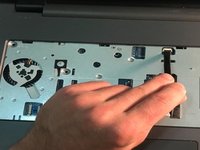
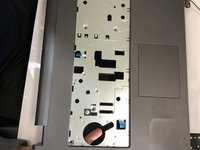
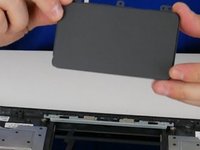
      • Push up on the touchpad to release it from the housing.

      • Remove the touchpad.

      Ask FixBot

      Add Comment

Conclusion

To reassemble your device, follow these instructions in reverse order.

Cancel: I did not complete this guide.

2 other people completed this guide.

0 Guide Comments

Add Comment

View Statistics:

Past 24 Hours: 1

Past 7 Days: 17

Past 30 Days: 68

All Time: 1,059