Free Shipping on Domestic Orders $75+

Dell Inspiron 5758 LCD Screen Replacement

What you need

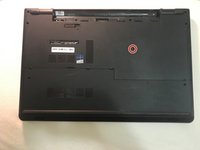
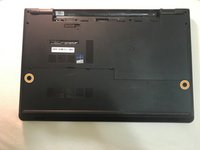
  1. Dell Inspiron 5758 LCD Screen Replacement, Battery: step 1, image 1 of 2 Dell Inspiron 5758 LCD Screen Replacement, Battery: step 1, image 2 of 2
    • Flip the laptop with the serial number facing up. You should be able to see the battery release switch.

    Ask FixBot

    Add Comment

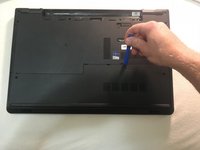
  2. Dell Inspiron 5758 LCD Screen Replacement: step 2, image 1 of 3 Dell Inspiron 5758 LCD Screen Replacement: step 2, image 2 of 3 Dell Inspiron 5758 LCD Screen Replacement: step 2, image 3 of 3
    • Slide the battery release switch towards the unlock icon.

    • You should hear a click.

    • Lift and pull the ejected battery to remove it.

    Ask FixBot

    Add Comment

  3. Dell Inspiron 5758 LCD Screen Replacement, DC Jack: step 3, image 1 of 3 Dell Inspiron 5758 LCD Screen Replacement, DC Jack: step 3, image 2 of 3 Dell Inspiron 5758 LCD Screen Replacement, DC Jack: step 3, image 3 of 3
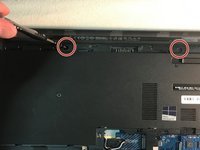
    • Remove the one 3mm optical drive screw.

    • Remove the two 8 mm screws.

    • Pry up and remove the access door.

    Ask FixBot

    Add Comment

  4. Dell Inspiron 5758 LCD Screen Replacement: step 4, image 1 of 1
    • Remove the one 3 mm screw.

    • Remove the bracket.

    Ask FixBot

    Add Comment

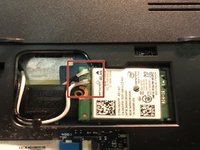
  5. Dell Inspiron 5758 LCD Screen Replacement: step 5, image 1 of 2 Dell Inspiron 5758 LCD Screen Replacement: step 5, image 2 of 2
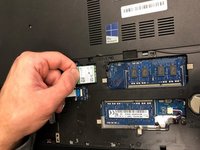
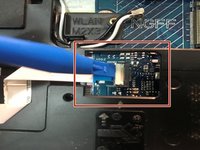
    • Unplug the antenna cables.

    • Remove the Wireless Card.

    Ask FixBot

    Add Comment

  6. Dell Inspiron 5758 LCD Screen Replacement: step 6, image 1 of 2 Dell Inspiron 5758 LCD Screen Replacement: step 6, image 2 of 2
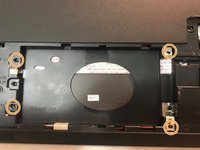
    • Unplug the hard drive cable.

    • Use a plastic opening tool or your fingernail to pop the tab of the cable connector. Then you will be able to disconnect the cable.

    • Remove the four 8 mm screws.

    • Remove the hard drive.

    Ask FixBot

    Add Comment

  7. Dell Inspiron 5758 LCD Screen Replacement: step 7, image 1 of 3 Dell Inspiron 5758 LCD Screen Replacement: step 7, image 2 of 3 Dell Inspiron 5758 LCD Screen Replacement: step 7, image 3 of 3
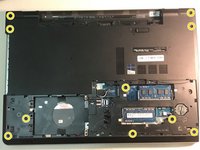
    • Remove the two 3 mm screws under the battery.

    • Remove the three 2 mm wafer screws under the optical drive.

    • Remove the ten 8 mm base screws.

    Ask FixBot

    Add Comment

  8. Dell Inspiron 5758 LCD Screen Replacement: step 8, image 1 of 1
    • Unplug the speaker cable by sliding to the right.

    Ask FixBot

    Add Comment

  9. Dell Inspiron 5758 LCD Screen Replacement: step 9, image 1 of 2 Dell Inspiron 5758 LCD Screen Replacement: step 9, image 2 of 2
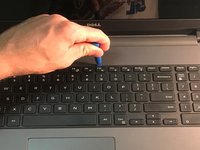
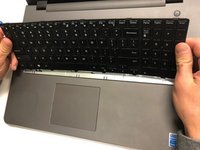
    • Press in the tabs to loosen the keyboard.

    • Carefully lift the keyboard up and turn it over.

    Ask FixBot

    Add Comment

  10. Dell Inspiron 5758 LCD Screen Replacement: step 10, image 1 of 1
    • Unplug the keyboard cable & remove the keyboard.

    Ask FixBot

    Add Comment

  11. Dell Inspiron 5758 LCD Screen Replacement: step 11, image 1 of 2 Dell Inspiron 5758 LCD Screen Replacement: step 11, image 2 of 2
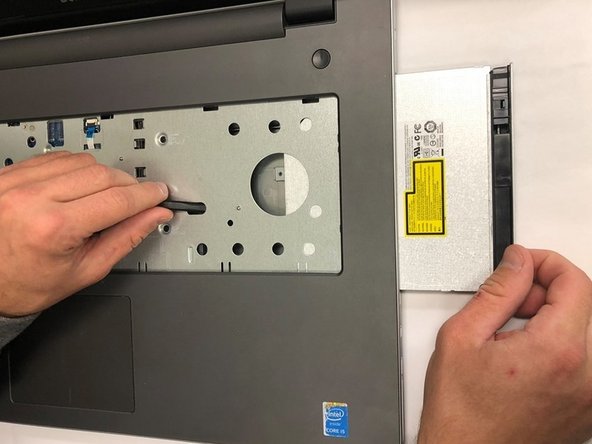
    • Slide the DVD optical drive over & remove it from the laptop.

    Ask FixBot

    Add Comment

  12. Dell Inspiron 5758 LCD Screen Replacement: step 12, image 1 of 2 Dell Inspiron 5758 LCD Screen Replacement: step 12, image 2 of 2
    • Remove the four 5 mm screws.

    • Unplug the optical drive interposer cable.

    Ask FixBot

    Add Comment

  13. Dell Inspiron 5758 LCD Screen Replacement: step 13, image 1 of 2 Dell Inspiron 5758 LCD Screen Replacement: step 13, image 2 of 2
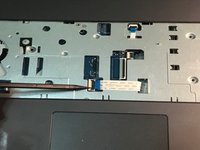
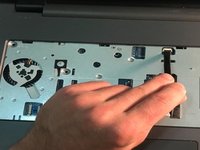
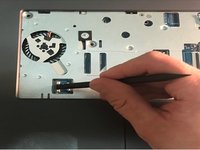
    • Unplug the power button cable.

    • Unplug the touchpad cable.

    Ask FixBot

    Add Comment

  14. Dell Inspiron 5758 LCD Screen Replacement: step 14, image 1 of 3 Dell Inspiron 5758 LCD Screen Replacement: step 14, image 2 of 3 Dell Inspiron 5758 LCD Screen Replacement: step 14, image 3 of 3
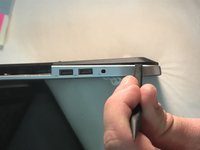
    • Carefully pry off & loosen the bottom base.

    Ask FixBot

    Add Comment

  15. Dell Inspiron 5758 LCD Screen Replacement: step 15, image 1 of 1
    • Remove the bottom base.

    Ask FixBot

    Add Comment

  16. Dell Inspiron 5758 LCD Screen Replacement: step 16, image 1 of 2 Dell Inspiron 5758 LCD Screen Replacement: step 16, image 2 of 2
    • Remove the one 5mm screw.

    • Lift the circuit board & turn it over.

    • Unplug the cable.

    • Remove the audio/USB circuit board.

    Ask FixBot

    Add Comment

  17. Dell Inspiron 5758 LCD Screen Replacement: step 17, image 1 of 3 Dell Inspiron 5758 LCD Screen Replacement: step 17, image 2 of 3 Dell Inspiron 5758 LCD Screen Replacement: step 17, image 3 of 3
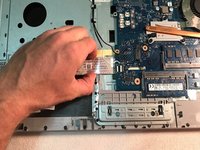
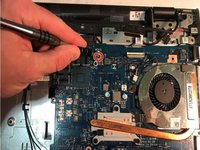
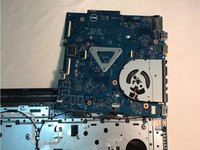
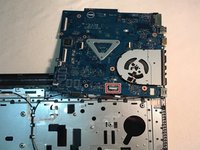
    • Loosen the audio / USB cable.

    • Remove the one 3mm motherboard screw.

    • Lift the motherboard & carefully move it out of the way.

    Ask FixBot

    Add Comment

  18. Dell Inspiron 5758 LCD Screen Replacement: step 18, image 1 of 3 Dell Inspiron 5758 LCD Screen Replacement: step 18, image 2 of 3 Dell Inspiron 5758 LCD Screen Replacement: step 18, image 3 of 3
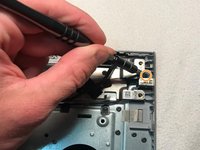
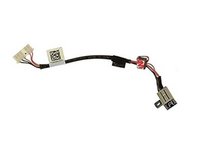
    • Unplug the DC jack cable.

    • Remove the one 3mm screw.

    • Remove the DC Jack.

    Ask FixBot

    Add Comment

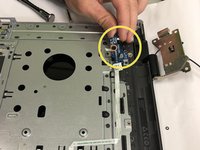
  19. Dell Inspiron 5758 LCD Screen Replacement, Touchpad: step 19, image 1 of 2 Dell Inspiron 5758 LCD Screen Replacement, Touchpad: step 19, image 2 of 2
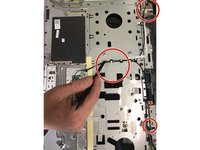
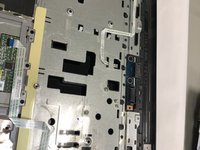
    • Release the antenna cable tape.

    • Release the antenna cables.

    Ask FixBot

    Add Comment

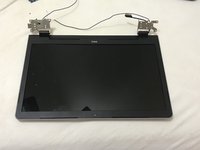
  20. Dell Inspiron 5758 LCD Screen Replacement: step 20, image 1 of 3 Dell Inspiron 5758 LCD Screen Replacement: step 20, image 2 of 3 Dell Inspiron 5758 LCD Screen Replacement: step 20, image 3 of 3
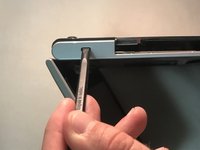
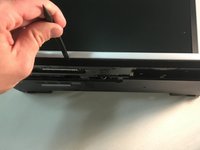
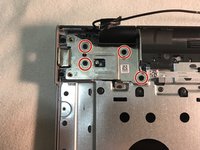
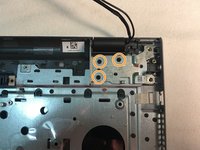
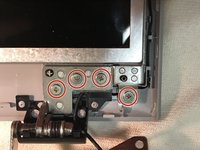
    • Remove the four 5mm right hinge screws using the Phillips #00 screwdriver.

    • Remove the three 5mm left hinge screws using Phillips #00 screwdriver.

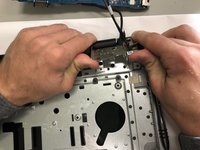
    • Open the hinges carefully and remove the LCD display assembly.

    Ask FixBot

    Add Comment

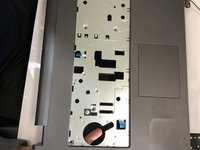
  21. Dell Inspiron 5758 LCD Screen Replacement: step 21, image 1 of 2 Dell Inspiron 5758 LCD Screen Replacement: step 21, image 2 of 2
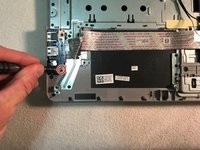
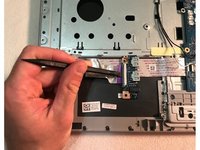
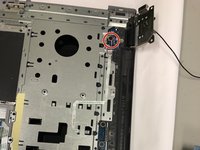
    • Remove the one 2mm wafer screw using Phillips #0 screwdriver.

    • Loosen the cable and remove the power button circuit board.

    Ask FixBot

    Add Comment

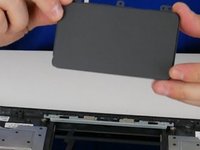
  22. Dell Inspiron 5758 LCD Screen Replacement: step 22, image 1 of 2 Dell Inspiron 5758 LCD Screen Replacement: step 22, image 2 of 2
    • Push up on the touchpad to release it from the housing.

    • Remove the touchpad.

    Ask FixBot

    Add Comment

  23. Dell Inspiron 5758 LCD Screen Replacement, LCD Screen: step 23, image 1 of 3 Dell Inspiron 5758 LCD Screen Replacement, LCD Screen: step 23, image 2 of 3 Dell Inspiron 5758 LCD Screen Replacement, LCD Screen: step 23, image 3 of 3
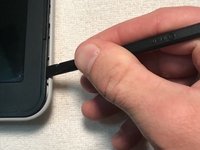
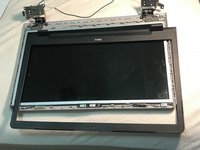
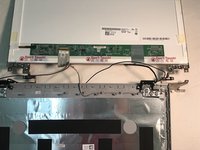
    • Once you have removed the LCD display assembly from the palmrest touchpad, use a spudger to unsnap the LCD bezel via the notches on the outside edge of the bezel .

    • The bezel may require some force to unsnap.

    • When you have removed the LCD bezel, place it to the side.

    Ask FixBot

    Add Comment

  24. Dell Inspiron 5758 LCD Screen Replacement: step 24, image 1 of 3 Dell Inspiron 5758 LCD Screen Replacement: step 24, image 2 of 3 Dell Inspiron 5758 LCD Screen Replacement: step 24, image 3 of 3
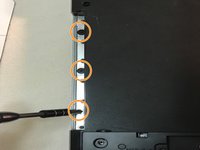
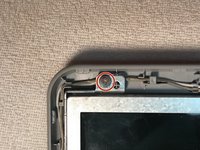
    • Remove the ten 4.5mm screen screws.

    • There is one screw in the top left, one screw in the top right, four in the bottom left, and four in the bottom right.

    Ask FixBot

    Add Comment

  25. Dell Inspiron 5758 LCD Screen Replacement: step 25, image 1 of 2 Dell Inspiron 5758 LCD Screen Replacement: step 25, image 2 of 2
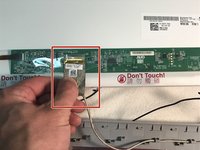
    • Lift the LCD screen from the display assembly, flip the LCD screen over, and place the screen face down.

    • Unplug the LCD cable.

    • Place the display assembly to the side.

    Ask FixBot

    Add Comment

  26. Dell Inspiron 5758 LCD Screen Replacement: step 26, image 1 of 2 Dell Inspiron 5758 LCD Screen Replacement: step 26, image 2 of 2
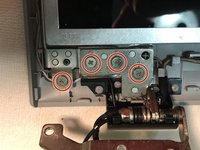
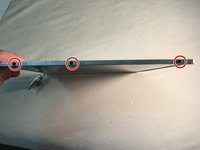
    • Remove the three 3mm screws that connect each hinge rail to the LCD screen.

    • Remove the hinge rails.

    • There are two hinge rails, one on the left edge of the screen and one on the right edge.

    Ask FixBot

    Add Comment

Conclusion

To reassemble your device, follow these instructions in reverse order.

Cancel: I did not complete this guide.

2 other people completed this guide.

0 Guide Comments

Add Comment

View Statistics:

Past 24 Hours: 2

Past 7 Days: 7

Past 30 Days: 22

All Time: 1,159