Introduction
This guide will walk you through the proper steps needed to replace the RAM in your Dell Inspiron 5680.
RAM failure diagnosis: Random crashes, file corruption, decreased performance, distorted graphics, freezing, and other random occurrences
RAM options: 32GB CT2K16G4DFRA32A (faster speeds) or 16GB CT16G4DFD824A
Make sure you have your replacement RAM and the screwdriver listed below ready before following the instructions detailed below.
When handling PC components it is important that you are properly grounded as a static discharge could potentially damage them. That is why the anti-static wristband is included in the tool list as an optional item. To use the wristband, attach the clip to a metal object such as a computer case and attach the wrist strap to your wrist. If you do not wish to use the anti-static wristband you can also make sure you are grounded by periodically touching a metal object like your computer case.
What you need
-
-
-
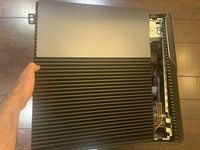
Use a Phillips #0 screwdriver to remove two screws on the side panel of your computer.
-
-
-
-
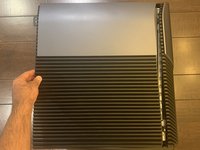
Remove the side panel from the computer by gently pulling it away from the front of the case and then towards you.
-
-
-
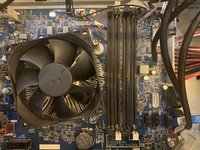
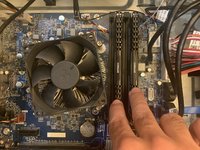
Remove the RAM sticks at the right of the CPU by pressing down on the tabs on both ends of the slot.
-
-
-
Take your new RAM sticks and line them up with the slots. Push down until the tabs lock and hold them in place.
-
-
-
Put the side panel back on, plug the computer in and power it on. You have successful installed your RAM and your computer is ready to run faster.
-

 Ask FixBot









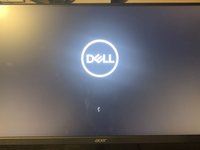
If your computer does not power on you have not installed the RAM properly. Revisit step 5 and make sure the RAM is completely pushed into the slots.
Cancel: I did not complete this guide.
One other person completed this guide.

Team

York University, Team S2-G5, Melo-Thaiss Summer 2021 Member of York University, Team S2-G5, Melo-Thaiss Summer 2021
YORK-MELO-THAISS-SU21S2G5
1 Member
12 Guides authored
