Free Shipping on Domestic Orders $75+

Dell Inspiron 5570 SSD Replacement

What you need

  1. Dell Inspiron 5570 SSD Replacement, Unfasten the back cover: step 1, image 1 of 2 Dell Inspiron 5570 SSD Replacement, Unfasten the back cover: step 1, image 2 of 2
    • For your safety, discharge the battery below 25% and power down your device before disassembly.

    • Use your Phillips screwdriver to remove the seven screws securing the back cover:

    • Three 5 mm-long screws

    • Four 7.5 mm-long screws

    • Loosen the three captive screws.

    Ask FixBot

    Add Comment

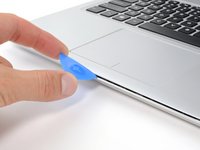
  2. Dell Inspiron 5570 SSD Replacement, Unclip the front corners: step 2, image 1 of 2 Dell Inspiron 5570 SSD Replacement, Unclip the front corners: step 2, image 2 of 2
    • Flip the laptop upright and open the lid so that the keyboard is exposed.

    • Insert an opening pick between the front right corner of the back cover and the chassis.

    • Pry upward to release the retaining clips holding the cover.

    • You'll hear clicks whenever a clip is released.

    • Repeat this procedure for the opposite corner.

    Ask FixBot

    Add Comment

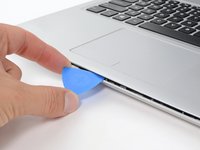
  3. Dell Inspiron 5570 SSD Replacement, Unclip the front edge: step 3, image 1 of 2 Dell Inspiron 5570 SSD Replacement, Unclip the front edge: step 3, image 2 of 2
    • Insert an opening pick between the front edge of the back cover and the chassis, near the trackpad.

    • Pry upward to release the clips along the front edge of the laptop.

    Ask FixBot

    Add Comment

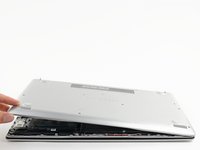
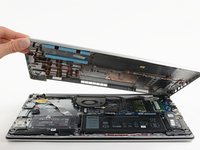
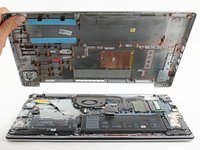
  4. Dell Inspiron 5570 SSD Replacement, Remove the back cover: step 4, image 1 of 3 Dell Inspiron 5570 SSD Replacement, Remove the back cover: step 4, image 2 of 3 Dell Inspiron 5570 SSD Replacement, Remove the back cover: step 4, image 3 of 3
    • Close the screen to the laptop and flip it over.

    • Pull the left side of the back cover away from the frame and remove it.

    • If your back cover is stuck to the chassis, use an opening pick to release the clips around the back cover's perimeter.

    Ask FixBot

    Add Comment

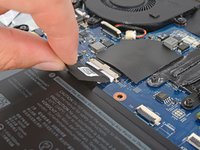
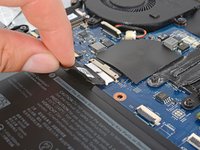
  5. Dell Inspiron 5570 SSD Replacement, Disconnect the battery: step 5, image 1 of 2 Dell Inspiron 5570 SSD Replacement, Disconnect the battery: step 5, image 2 of 2
    • Pull the tab on the head of the battery cable away from the socket to disconnect the battery.

    Ask FixBot

    Add Comment

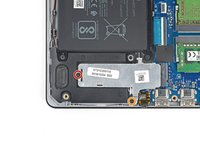
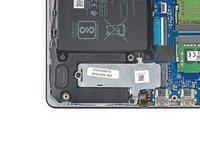
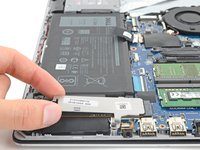
  6. Dell Inspiron 5570 SSD Replacement, Unfasten the SSD cover: step 6, image 1 of 2 Dell Inspiron 5570 SSD Replacement, Unfasten the SSD cover: step 6, image 2 of 2
    • Use your Phillips screwdriver to remove the 4 mm-long screw securing the silver SSD shield.

    • Use your Phillips screwdriver to loosen the captive screw.

    Ask FixBot

    Add Comment

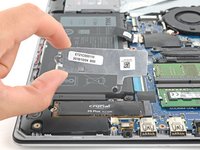
  7. Dell Inspiron 5570 SSD Replacement, Remove the SSD cover: step 7, image 1 of 2 Dell Inspiron 5570 SSD Replacement, Remove the SSD cover: step 7, image 2 of 2
    • Lift the SSD cover straight off the SSD to remove it.

    Ask FixBot

    Add Comment

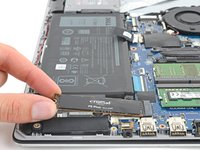
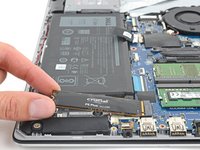
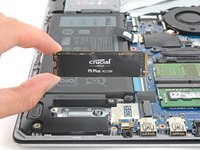
  8. Dell Inspiron 5570 SSD Replacement, Remove the SSD: step 8, image 1 of 3 Dell Inspiron 5570 SSD Replacement, Remove the SSD: step 8, image 2 of 3 Dell Inspiron 5570 SSD Replacement, Remove the SSD: step 8, image 3 of 3
    • Grip the edges of the SSD near the screw indent.

    • Pull the SSD straight out from its socket and remove it.

    • If it feels stuck, gently wiggle it side to side as you pull.

    Ask FixBot

    Add Comment

Conclusion

To reassemble your device, follow these instructions in reverse order.

Take your e-waste to an R2 or e-Stewards certified recycler.

Repair didn’t go as planned? Try some basic troubleshooting, or ask our Dell Inspiron answers community for help.

Cancel: I did not complete this guide.

4 other people completed this guide.

Clay Eickemeyer

Member since: 09/19/22

104,936 Reputation

472 Guides authored

0 Guide Comments

Add Comment

View Statistics:

Past 24 Hours: 5

Past 7 Days: 38

Past 30 Days: 184

All Time: 5,199