Up to 20% off select tools
Free Shipping on Domestic Orders $75+

Dell Inspiron 5379 Memory Modules Replacement

Views: 1.4K

View statistics:

Past 24 Hours:
4
Past 7 Days:
10
Past 30 Days:
53
All Time:
1,392
Comments: 0

No one has left comments on this guide. Will you be first?

Go to guide comments
Completed: 0

No one has marked this guide "completed." Will you be the first?

Favorites: 0

No one has favorited (and subscribed to) this guide. Will you be the first?

Time Required: 15 - 45 minutes
Difficulty: Easy
Community-Contributed Guide

An awesome member of our community made this guide. It was not created by iFixit staff.

Dell Inspiron 5379 Memory Modules Replacement

What you need

Tools

Introduction

Go to step 1 ↓

In this guide, we will show you how to remove and replace the Memory Modules.

    1. Dell Inspiron 5379 Memory Modules Replacement, Lifting the Mylar: step 1, image 1 of 1
      Ask FixBot

      Add Comment

    2. Dell Inspiron 5379 Memory Modules Replacement, Popping up the Memory Module: step 2, image 1 of 3 Dell Inspiron 5379 Memory Modules Replacement, Popping up the Memory Module: step 2, image 2 of 3 Dell Inspiron 5379 Memory Modules Replacement, Popping up the Memory Module: step 2, image 3 of 3
      • Use your fingertips to carefully spread apart the securing-clips on each end of the memory-module slot until the memory module pops up.

      Ask FixBot

      Add Comment

    3. Dell Inspiron 5379 Memory Modules Replacement, Lifting the Mylar: step 3, image 1 of 1
      • Lift the Mylar to access the memory-module slot.

      Ask FixBot

      Add Comment

    4. Dell Inspiron 5379 Memory Modules Replacement, Align the Notch: step 4, image 1 of 1
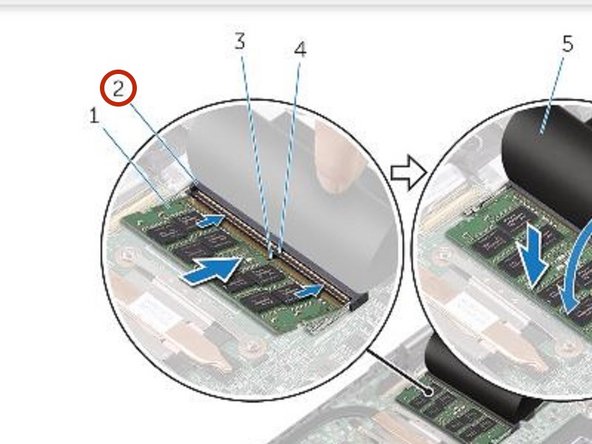
      • Align the notch on the memory module with the tab on the memory-module slot.

      Ask FixBot

      Add Comment

    5. Dell Inspiron 5379 Memory Modules Replacement, Sliding the Memory Module: step 5, image 1 of 2 Dell Inspiron 5379 Memory Modules Replacement, Sliding the Memory Module: step 5, image 2 of 2
      • Slide the memory module firmly into the slot at an angle and press the memory module down until it clicks into place.

      • NOTE: If you do not hear the click, remove the memory module and reinstall it.

      Ask FixBot

      Add Comment

Finish Line

Cancel: I did not complete this guide.

Author

with

Terrence15

Member since: 12/18/17

80,173 Reputation

441 Guides authored

Team

RampUP America, Inc. Member of RampUP America, Inc.

Community

45 Members

12,349 Guides authored

0 Guide Comments

Add Comment

View Statistics:

Past 24 Hours: 4

Past 7 Days: 10

Past 30 Days: 53

All Time: 1,392