
Dell Inspiron 530 DCMF Graphics Card Replacement

Drew Cunningham and 6 other contributors
Last updated on Jun 11, 2024
Views: 3.6K
View statistics:
- Past 24 Hours:
- 5
- Past 7 Days:
- 30
- Past 30 Days:
- 104
- All Time:
- 3,563
Comments: 1
1 guide comment.
Go to guide commentsCompleted: 3 4
3 people have marked this guide "completed." Will you be next?
4 people have marked this guide "completed." Including you — great job!
Favorites: 2 3
2 people have favorited (and subscribed to) this guide. Will you be next?
3 people have favorited (and subscribed to) this guide — including you!
Action Shots
Be an action hero! This guide needs images that better demonstrate how to perform specific actions.
Step Trimmer
This guide has unnecessary steps. Trim them to be more concise!
Introduction
Go to step 1 ↓This guide will walk you through how to replace the graphics card in your Dell Inspiron 530 DCMF.
The graphics card is responsible for rendering images, videos, and any animations on your computer. The higher quality of graphics card, the higher the resolution images and videos will appear.
Be sure to power off the desktop and remove all sources of power before replacing your graphics card.
What you need
Tools

-
-
-
Locate the graphics card. It can be identified by its position on the motherboard and built-in fan.
-
-
-
-
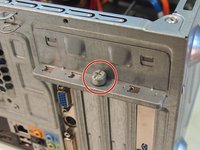
Unscrew the screw.
-
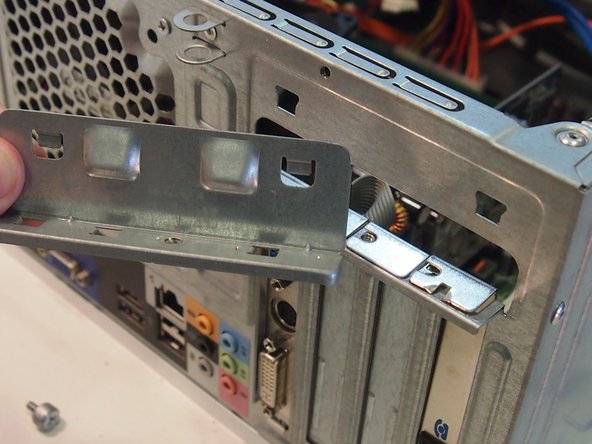
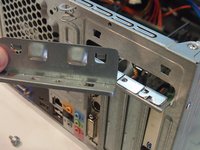
Remove the metal piece that holds the graphics card in place.
-


 Ask FixBot



To reassemble your device, follow these instructions in reverse order.
Cancel: I did not complete this guide.
3 other people completed this guide.

Team

UMass Dartmouth, Team 5-1, Kish Spring 2015 Member of UMass Dartmouth, Team 5-1, Kish Spring 2015
UMASSD-KISH-S15S5G1
5 Members
60 Guides authored
