Introduction
If you have noticed that your Dell Inpiron 530 DCMF has been over heating or if you know the fan is broken, this guide will help you replace the unit’s fan.
The main fan keeps then interior of you computer from overheating, which ultimately leads to your computer more efficiently. Sometimes the fan can get clogged with dirt and just needs a simple cleaning. However, if you have noticed that the fan has stopped functioning or is noticeably damaged, following this guide will lead to a quick and easy fix for this issue.
Before you begin the disassembly process, make sure your computer is completely turned off, as it could be damaging to the computer working on it while it’s on.
What you need
-
-
-
Unscrew the two large screws on the back that are securing the side panel.
-
Slide the panel backwards to remove it.
 Ask FixBot
-
-
-
Remove the four screws on the outside of the case that hold the fan in place.
-
-
-


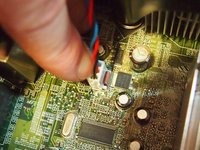
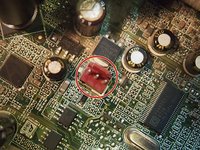

To reassemble your device, follow these instructions in reverse order.
Cancel: I did not complete this guide.
2 other people completed this guide.

Team

UMass Dartmouth, Team 5-1, Kish Spring 2015 Member of UMass Dartmouth, Team 5-1, Kish Spring 2015
UMASSD-KISH-S15S5G1
5 Members
60 Guides authored
