
Dell Inspiron 5100 PP07L Screen Replacement

May Chauvin and 10 other contributors
Last updated on Feb 21, 2020
Views: 4.3K
View statistics:
- Past 24 Hours:
- 2
- Past 7 Days:
- 26
- Past 30 Days:
- 105
- All Time:
- 4,258
Comments: 0
No one has left comments on this guide. Will you be first?
Go to guide commentsCompleted: 1 2
1 person has marked this guide "completed." Will you be next?
2 people have marked this guide "completed." Including you — great job!
Favorites: 1 2
1 person has favorited (and subscribed to) this guide. Will you be next?
2 people have favorited (and subscribed to) this guide — including you!
Better Introduction
Improve this guide by completing or revising its introduction.
Introduction
Go to step 1 ↓You will be able to access wires connecting your screen and replace it if needed.
What you need
Tools
-
Spudger4.9


-
-
-
Starting from the right side of the hinge cover, use the flat end of the spudger to pry up the hinge cover and gently remove it.
-
-
-
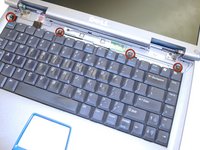
Using a Phillips screwdriver remove the four M2 x 3-mm screws holding in the keyboard.
-
-
-
-
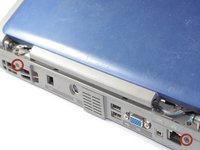
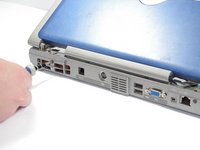
Using a Phillips screwdriver remove the two screws (5.8mm) located at the rear of the laptop.
-
-
-
-
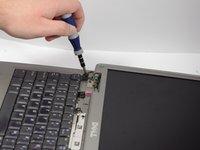
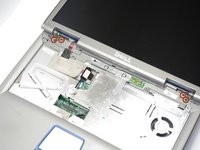
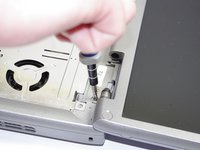
Using a Phillips screwdriver remove the four screws (5.8 mm) located at hinges of the screen.
-
-

 Ask FixBot







To reassemble your device, follow these instructions in reverse order.
Cancel: I did not complete this guide.
One other person completed this guide.

Team

Cal Poly, Team 12-34, Maness Spring 2011 Member of Cal Poly, Team 12-34, Maness Spring 2011
CPSU-MANESS-S11S12G34
4 Members
72 Guides authored
