
Dell Inspiron 5100 PP07L Keyboard Replacement

May Chauvin and 12 other contributors
Last updated on May 29, 2024
Views: 4.3K
View statistics:
- Past 24 Hours:
- 1
- Past 7 Days:
- 26
- Past 30 Days:
- 109
- All Time:
- 4,273
Comments: 0
No one has left comments on this guide. Will you be first?
Go to guide commentsCompleted: 1 2
1 person has marked this guide "completed." Will you be next?
2 people have marked this guide "completed." Including you — great job!
Favorites: 2 3
2 people have favorited (and subscribed to) this guide. Will you be next?
3 people have favorited (and subscribed to) this guide — including you!
Missing Prerequisites
This guide is missing information on how to start the process. Make a prerequisite guide!
Introduction
Go to step 1 ↓This guide will provide you with a step-by-step procedure of how to remove the keyboard on your Dell Inspiron 5100 PP07L. Be advised: this guide will require you to remove your laptop battery. Use caution when removing the battery, as lithium ion batteries (like the one in this laptop) can be dangerous if handled incorrectly. Be sure to carefully follow the instructions of this guide to avoid breaking the hinge cover of your laptop and to prevent key caps from being broken.
What you need
Tools
-
Spudger4.9


-
-
-
Starting from the right side of the hinge cover, use the flat end of the spudger to pry up the hinge cover and gently remove it.
-
-
-
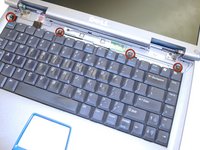
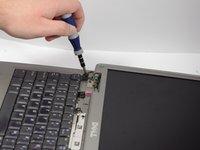
Using a Phillips screwdriver remove the four M2 x 3-mm screws holding in the keyboard.
-
-

 Ask FixBot



To reassemble your device, follow these instructions in reverse order.
Cancel: I did not complete this guide.
One other person completed this guide.

Team

Cal Poly, Team 12-34, Maness Spring 2011 Member of Cal Poly, Team 12-34, Maness Spring 2011
CPSU-MANESS-S11S12G34
4 Members
72 Guides authored
