
Dell Inspiron 3501 SSD Replacement

Clay Eickemeyer and 2 other contributors
Last updated on Feb 15, 2023
Views: 2.9K
View statistics:
- Past 24 Hours:
- 2
- Past 7 Days:
- 31
- Past 30 Days:
- 105
- All Time:
- 2,901
Comments: 5
4 comments on steps, 1 guide comment.
Go to guide commentsCompleted: 3 4
3 people have marked this guide "completed." Will you be next?
4 people have marked this guide "completed." Including you — great job!
Favorites: 0 1
No one has favorited (and subscribed to) this guide. Will you be the first?
1 person has favorited (and subscribed to) this guide — and that's you!
Introduction
Go to step 1 ↓Use this guide to replace the SSD in your Dell Inspiron 3501.
Before you perform this repair, back up your existing SSD if possible. If you’re replacing the SSD where your operating system is installed, familiarize yourself with a disk cloning utility so you’ll be ready to migrate your data to the new SSD.
What you need
Fix Kit
This kit contains all the parts and tools needed to complete this guide.

Parts


Tools


-
-
-
Use the Phillips screwdriver to remove the seven 6 mm-long screws securing the back cover.
-
Use the Phillips screwdriver to loosen the two captive screws.
 Ask FixBot
-
-
-
Insert an opening pick between the bottom-left corner of the back cover and the laptop body.
-
Pry upward to release the retaining clips.
-
Repeat this procedure for the bottom-right corner of the back cover.
-
-
-
At the sides of the laptop, insert your opening pick between the cover and body.
-
Pry upward to release the remainder of the clips.
-
-
-
-
Grab the cover by the edge closest to you.
-
Lift the cover up. Swing it open so that the rear edge lifts up last.
-
Completely remove the cover from the laptop.
-
-
-
-
-
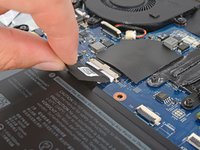
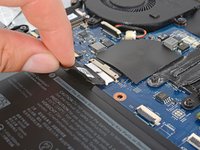
Pull the tab on the head of the battery cable away from the socket to disconnect the battery.
-
-
-
-
-
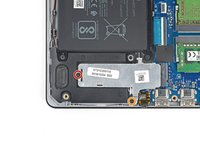
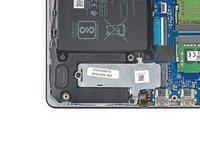
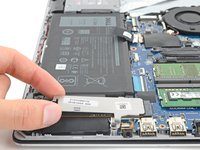
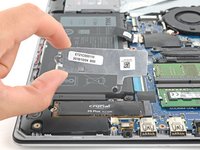
Use your Phillips screwdriver to remove the 4 mm-long screw securing the silver SSD shield.
-
Use your Phillips screwdriver to loosen the captive screw.
-
-
-
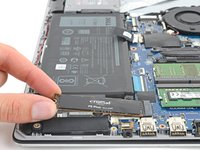
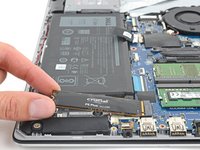
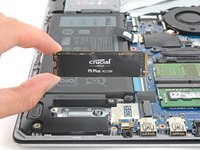
Grip the edges of the SSD near the screw indent.
-
Pull the SSD straight out from its socket and remove it.
-
-








To reassemble your device, follow these instructions in reverse order.
Take your e-waste to an R2 or e-Stewards certified recycler.
Repair didn’t go as planned? Try some basic troubleshooting, or ask our Dell Inspiron answers community for help.
Cancel: I did not complete this guide.
3 other people completed this guide.

