Free Shipping on Domestic Orders $75+

Dell Inspiron 3501 Battery Replacement

What you need

  1. Dell Inspiron 3501 Battery Replacement, Unfasten the back cover: step 1, image 1 of 2 Dell Inspiron 3501 Battery Replacement, Unfasten the back cover: step 1, image 2 of 2
    • For your safety, discharge the battery below 25% and power down your device before disassembly.

    • Use your Phillips screwdriver to remove the seven screws securing the back cover:

    • Three 5 mm-long screws

    • Four 7.5 mm-long screws

    • Loosen the three captive screws.

    Ask FixBot

    Add Comment

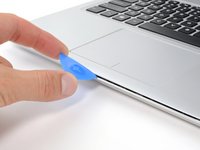
  2. Dell Inspiron 3501 Battery Replacement, Unclip the front corners: step 2, image 1 of 2 Dell Inspiron 3501 Battery Replacement, Unclip the front corners: step 2, image 2 of 2
    • Flip the laptop upright and open the lid so that the keyboard is exposed.

    • Insert an opening pick between the front right corner of the back cover and the chassis.

    • Pry upward to release the retaining clips holding the cover.

    • You'll hear clicks whenever a clip is released.

    • Repeat this procedure for the opposite corner.

    Ask FixBot

    Add Comment

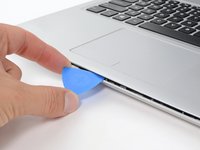
  3. Dell Inspiron 3501 Battery Replacement, Unclip the front edge: step 3, image 1 of 2 Dell Inspiron 3501 Battery Replacement, Unclip the front edge: step 3, image 2 of 2
    • Insert an opening pick between the front edge of the back cover and the chassis, near the trackpad.

    • Pry upward to release the clips along the front edge of the laptop.

    Ask FixBot

    Add Comment

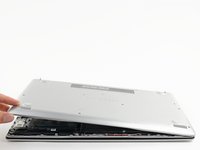
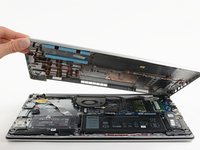
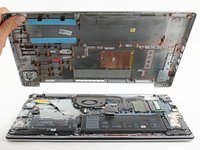
  4. Dell Inspiron 3501 Battery Replacement, Remove the back cover: step 4, image 1 of 3 Dell Inspiron 3501 Battery Replacement, Remove the back cover: step 4, image 2 of 3 Dell Inspiron 3501 Battery Replacement, Remove the back cover: step 4, image 3 of 3
    • Close the screen to the laptop and flip it over.

    • Pull the left side of the back cover away from the frame and remove it.

    • If your back cover is stuck to the chassis, use an opening pick to release the clips around the back cover's perimeter.

    Ask FixBot

    Add Comment

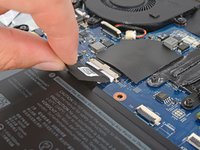
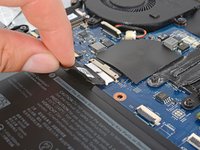
  5. Dell Inspiron 3501 Battery Replacement, Disconnect the battery: step 5, image 1 of 2 Dell Inspiron 3501 Battery Replacement, Disconnect the battery: step 5, image 2 of 2
    • Pull the tab on the head of the battery cable away from the socket to disconnect the battery.

    Ask FixBot

    Add Comment

  6. Dell Inspiron 3501 Battery Replacement, Unfasten the battery: step 6, image 1 of 2 Dell Inspiron 3501 Battery Replacement, Unfasten the battery: step 6, image 2 of 2
    • Use a Phillips screwdriver to remove the three 3.3 mm-long screws securing the battery.

    Ask FixBot

    Add Comment

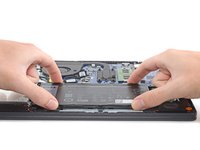
  7. Dell Inspiron 3501 Battery Replacement, Remove the battery: step 7, image 1 of 3 Dell Inspiron 3501 Battery Replacement, Remove the battery: step 7, image 2 of 3 Dell Inspiron 3501 Battery Replacement, Remove the battery: step 7, image 3 of 3
    • Lift the battery straight out of its recess and remove it.

    Ask FixBot

    Add Comment

Conclusion

To reassemble your device, follow these instructions in reverse order.

For optimal performance, calibrate your newly installed battery after completing this guide.

Take your e-waste to an R2 or e-Stewards certified recycler.

Repair didn’t go as planned? Try some basic troubleshooting, or ask our Answers community for help.

Cancel: I did not complete this guide.

3 other people completed this guide.

Alex Diaz-Kokaisl

Member since: 01/16/22

240,955 Reputation

1,180 Guides authored

Team

iFixit Member of iFixit

Staff

122 Members

26,593 Guides authored

0 Guide Comments

Add Comment

View Statistics:

Past 24 Hours: 2

Past 7 Days: 47

Past 30 Days: 154

All Time: 4,105