
Dell Inspiron 3148 Hard Drive Replacement

Christopher Gravelle and one other contributor
Last updated on Dec 18, 2018
Views: 869
View statistics:
- Past 24 Hours:
- 1
- Past 7 Days:
- 19
- Past 30 Days:
- 67
- All Time:
- 869
Comments: 0
No one has left comments on this guide. Will you be first?
Go to guide commentsCompleted: 0 1
No one has marked this guide "completed." Will you be the first?
1 person has marked this guide "completed." It's you — great job!
Favorites: 0 1
No one has favorited (and subscribed to) this guide. Will you be the first?
1 person has favorited (and subscribed to) this guide — and that's you!
Action Shots
Be an action hero! This guide needs images that better demonstrate how to perform specific actions.
Featured Student Guide
This guide has been the hard work of our awesome students and is found to be exceptionally cool by the iFixit staff.
Introduction
Go to step 1 ↓Are you experiencing problems with loading files and other applications on your computer? Consider using this guide to replace the hard drive.
What you need


-
-
-
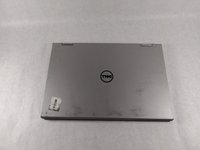
Ensure the device is powered off and unplugged. Close the device and orient it face up, with the hinges further away from you.
-
Flip the device over so the backside is facing you.
 Ask FixBot
-
-
-
Using the plastic opening tool, pull the back panel upward. Move the opening tool along the edge of the device and lift the panel off of your device.
-
-
-
-
-
-
Remove the three 4mm screws holding battery in place using the Phillips #0 screwdriver.
-
-
-
Once loosened, use your fingers to lift the battery up and out of its housing.
-
-
-
-
-
If there is a piece of tape connecting the hard drive and a small power cord, remove the tape.
-
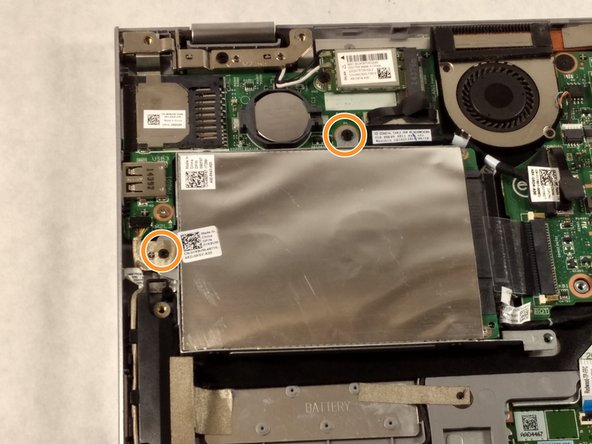
Using the Phillips #0 screwdriver, remove the two 4mm screws.
-
-
-
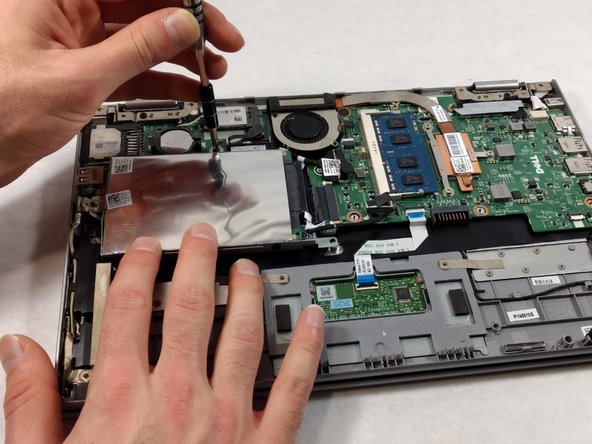
Lift the hard drive slightly out of the device.
-
Grasp the head of the cable, not the cable itself.
-
Pull away from the hard drive, removing the data cable. The hard drive may now be fully removed.
-
-






To reassemble your device, follow these instructions in reverse order.

Team

UMass Dartmouth, Team S1-G2, Simcock Fall 2018 Member of UMass Dartmouth, Team S1-G2, Simcock Fall 2018
UMASSD-SIMCOCK-F18S1G2
3 Members
84 Guides authored
