Introduction
This guide will walk you through replacing your Dell Inspiron 17R-N7110 keyboard. You will be using a metal jimmy to pry up the edges of the keyboard, which may require some force and result in some popping sounds. Care should be used during this process, but be aware that some force is okay and even necessary for this replacement.
What you need
-
-
Tool used on this step:Anti-Static Wrist Strap$7.95
-
Place the laptop on a flat surface with the Dell logo upside down.
-
Flip the laptop over. The battery will be in the top center.
 Ask FixBot
-
-
-
Slide both the left lock and right lock, towards the center of the battery.
-
Push upwards on the grip on the bottom of the battery to remove it.
-
-
-
-
-
-
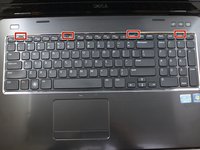
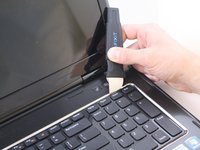
Flip over and open your device. Gently wedge the metal Jimmy into the rightmost hole at a 45-degree angle. Make sure that the Jimmy is between the silver metal portion of the keyboard and the silver plastic edge around the keyboard.
-
Tilt the metal jimmy away from you to pry up the edge of the keyboard.
-
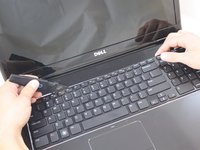
Repeat the previous actions on each of the other three holes to release the keyboard.
-
-
-
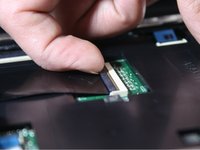
Flip up the black flap where the keyboard cable connects to the motherboard
-
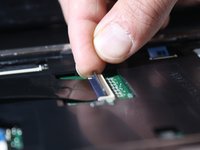
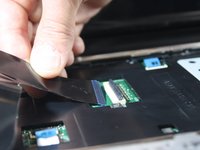
Gently pull the cable away from the slot to release the keyboard.
-
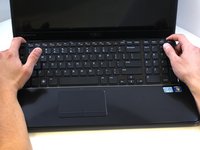
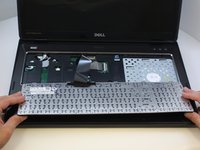
Remove the keyboard from the device.
-
-






To reassemble your device, follow these instructions in reverse order.
Cancel: I did not complete this guide.
3 other people completed this guide.

Team

Eastern Washington University, Team S1-G4, Carnegie Spring 2018 Member of Eastern Washington University, Team S1-G4, Carnegie Spring 2018
EWU-CARNEGIE-S18S1G4
4 Members
84 Guides authored
