Free Shipping on Domestic Orders $75+

Dell Inspiron 17R-5737 Keyboard Replacement

Views: 923

View statistics:

Past 24 Hours:
3
Past 7 Days:
22
Past 30 Days:
99
All Time:
923
Comments: 0

No one has left comments on this guide. Will you be first?

Go to guide comments
Completed: 0

No one has marked this guide "completed." Will you be the first?

Favorites: 0

No one has favorited (and subscribed to) this guide. Will you be the first?

Time Required: 4 minutes
Difficulty: Moderate
Dell Inspiron 17R-5737 Keyboard Replacement

Introduction

Go to step 1 ↓

When replacing the keyboard, it is recommended to be gentle and patient since it can be very easy to scratch the laptop with our tools if we are not careful.

What you need

Tools

    1. Dell Inspiron 17R-5737 Keyboard Replacement, Battery: step 1, image 1 of 1
      • Make sure the laptop is off before attempting to remove the battery.

      • Flip over your laptop so that the battery faces you.

      Ask FixBot
      Add Comment

    2. Dell Inspiron 17R-5737 Keyboard Replacement: step 2, image 1 of 2 Dell Inspiron 17R-5737 Keyboard Replacement: step 2, image 2 of 2
      • Slide each latch away from the battery to unlock it.

      Ask FixBot
      Add Comment

    3. Dell Inspiron 17R-5737 Keyboard Replacement: step 3, image 1 of 2 Dell Inspiron 17R-5737 Keyboard Replacement: step 3, image 2 of 2
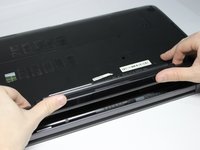
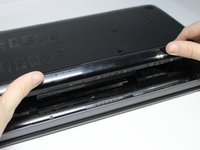
      • Lift the battery upwards to remove it.

      • Continue holding the latches when removing the battery.

      Ask FixBot

      Add Comment

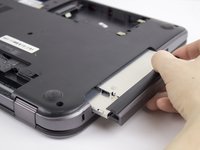
    1. Dell Inspiron 17R-5737 Keyboard Replacement, Optical Drive: step 4, image 1 of 2 Dell Inspiron 17R-5737 Keyboard Replacement, Optical Drive: step 4, image 2 of 2
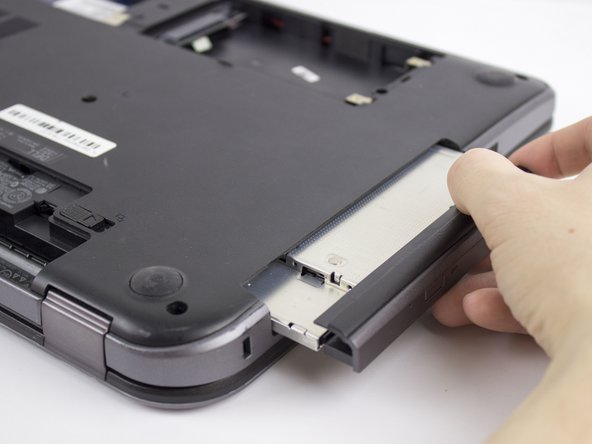
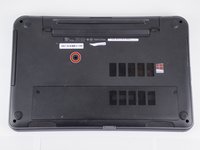
      • Remove one 4.8mm screw with a JIS #00 screwdriver.

      • Remove the optical drive.

      Ask FixBot

      Add Comment

    1. Dell Inspiron 17R-5737 Keyboard Replacement, Access Panel: step 5, image 1 of 1
      • Remove two 4.8mm screws with a JIS #00 screwdriver.

      • Remove the access panel.

      Ask FixBot

      Add Comment

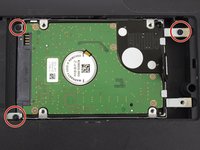
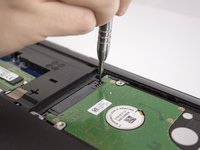
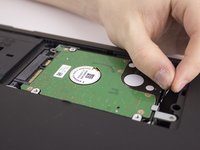
    1. Dell Inspiron 17R-5737 Keyboard Replacement, Hard Drive: step 6, image 1 of 3 Dell Inspiron 17R-5737 Keyboard Replacement, Hard Drive: step 6, image 2 of 3 Dell Inspiron 17R-5737 Keyboard Replacement, Hard Drive: step 6, image 3 of 3
      • Remove three 4.8mm screws from the hard drive with a JIS #00 screwdriver.

      • Slide the hard drive to the left.

      • Slide the hard drive to the right and up.

      Ask FixBot

      Add Comment

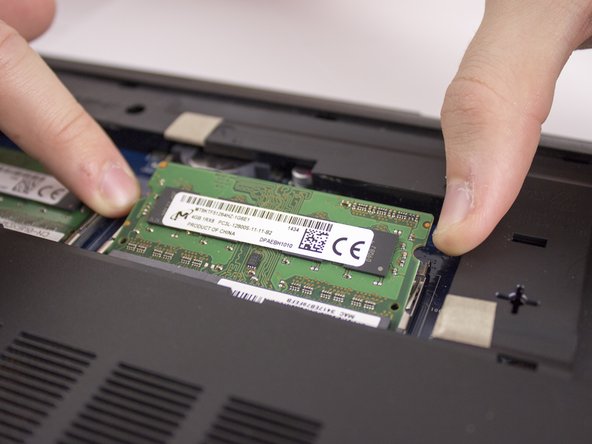
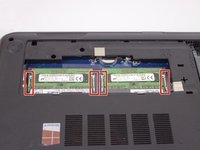
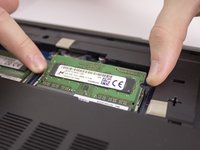
    1. Dell Inspiron 17R-5737 Keyboard Replacement, RAM: step 7, image 1 of 2 Dell Inspiron 17R-5737 Keyboard Replacement, RAM: step 7, image 2 of 2
      • Slide the two clips away from the RAM.

      • Lift the RAM out.

      Ask FixBot

      Add Comment

    1. Dell Inspiron 17R-5737 Keyboard Replacement, Keyboard: step 8, image 1 of 1
      • A metal spudger can scratch delicate internal parts. Be extra careful when removing the keyboard.

      • Use a metal spudger to loosen the main frame of the keyboard.

      • A metal spudger should be used instead of a plastic one because a plastic one will probably break.

      • Make sure to get the spudger under the entire keyboard and not just under the keys.

      Ask FixBot

      Add Comment

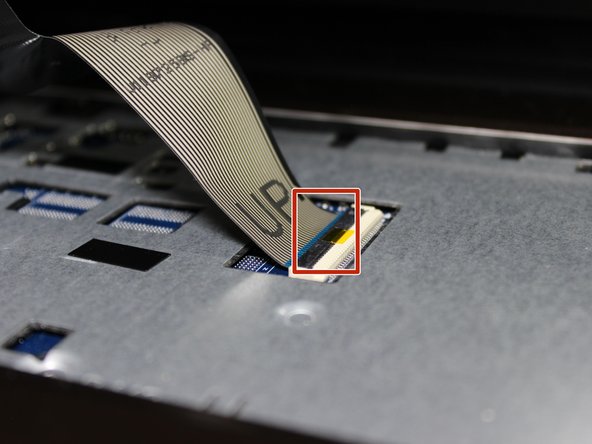
    2. Dell Inspiron 17R-5737 Keyboard Replacement: step 9, image 1 of 3 Dell Inspiron 17R-5737 Keyboard Replacement: step 9, image 2 of 3 Dell Inspiron 17R-5737 Keyboard Replacement: step 9, image 3 of 3
      • Slowly lift the keyboard.

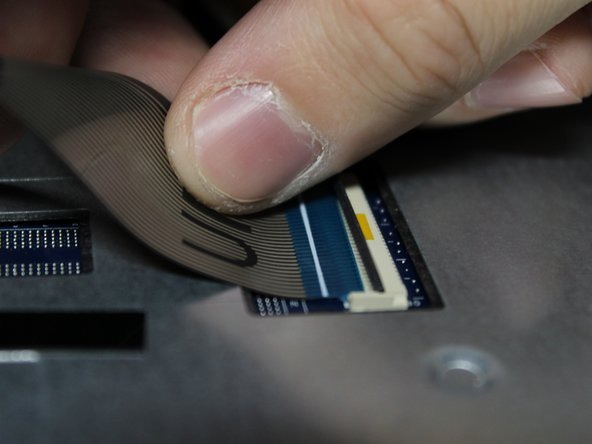
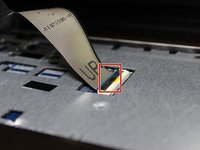
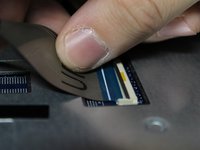
      • Lift the locking flap that holds the ribbon cable in place.

      • The white line on this ribbon cable marks the edge of the connection area. To reinstall, insert the cable into the connector up to this line, and then close the locking flap.

      • Remove the keyboard.

      Ask FixBot

      Add Comment

Conclusion

To reassemble your device, follow these instructions in reverse order.

Cancel: I did not complete this guide.

David Callahan

Member since: 10/19/17

559 Reputation

5 Guides authored

Team

UMass Dartmouth, Team S3-G7, Bailey Fall 2017 Member of UMass Dartmouth, Team S3-G7, Bailey Fall 2017

UMASSD-BAILEY-F17S3G7

3 Members

132 Guides authored

0 Guide Comments

Add Comment

View Statistics:

Past 24 Hours: 3

Past 7 Days: 22

Past 30 Days: 99

All Time: 923