Introduction
This is a replacement guide for the Dell Inspiron 17-7737 battery. The battery is the energy and vitality of a computer and is one of a computer's greatest issues when it is defective.
Disclaimer: Please be cautious in regard to swollen batteries, as battery acid is extremely toxic to humans, any puncture or leak can be a major issue if left unnoticed or unresolved.
What you need
-
-
-
Close the display and turn the computer over.
-
Remove the 5 mm screw on the left-hand side of the battery cover using a Phillips #1 screwdriver.
-
Loosen the captive screw on the right-hand side using a Phillips #1 screwdriver.
 Ask FixBot
-
-
-
-
Remove the three screws that secure the battery to the base using a Phillips #1 screwdriver.
-
-
-
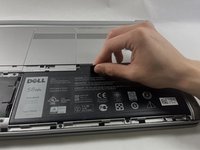
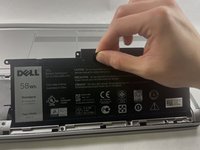
Using the adhesive pull tab, pull and lift the battery out of the computer's base.
-
-


To reassemble your device, follow these instructions in reverse order.

Team

UMass Dartmouth, Team 7-7, Ryckebusch Spring 2023 Member of UMass Dartmouth, Team 7-7, Ryckebusch Spring 2023
UMASSD-RYCKEBUSCH-S23S7G7
3 Members
36 Guides authored
