
Dell Inspiron 17-5755 Keyboard Replacement

Gabriel Espinal and one other contributor
Last updated on May 15, 2017
Views: 1.2K
View statistics:
- Past 24 Hours:
- 2
- Past 7 Days:
- 21
- Past 30 Days:
- 84
- All Time:
- 1,193
Comments: 0
No one has left comments on this guide. Will you be first?
Go to guide commentsCompleted: 3 4
3 people have marked this guide "completed." Will you be next?
4 people have marked this guide "completed." Including you — great job!
Favorites: 0 1
No one has favorited (and subscribed to) this guide. Will you be the first?
1 person has favorited (and subscribed to) this guide — and that's you!
Introduction
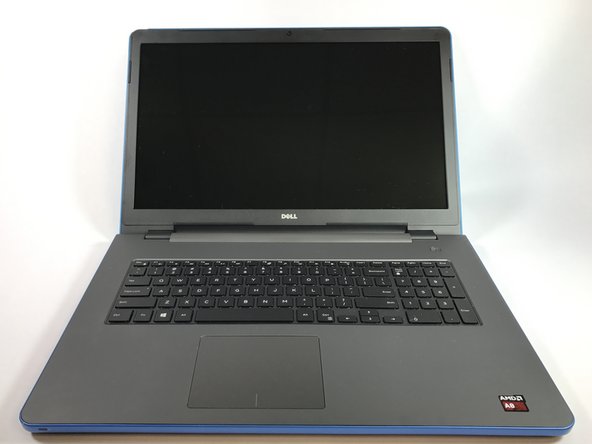
Go to step 1 ↓This guide will allow you to replace a broken keyboard for the Dell Inspiron 17-5755. Please ensure that the battery is removed before performing this replacement.
What you need
Tools

-
-
-
Find the battery release latch on the bottom side of the computer.
-
Slide the latch to the left until you hear a "click". This indicates that the battery has been released.
-
-
-
-
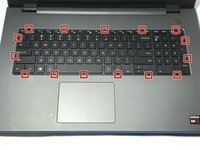
Open the display of the laptop as far as possible, and locate the tabs which secure the keyboard to the laptop.
-
-
-
Use a plastic opening tool to gently release the tabs that secure the keyboard to the laptop.
-
-
-
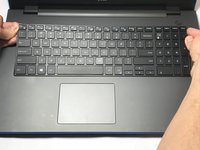
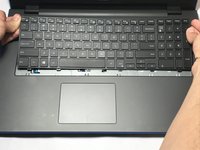
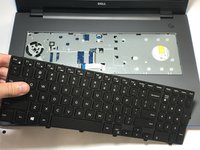
Carefully lift the keyboard from the laptop, being mindful of any attachments that it may have.
-
-
-
-
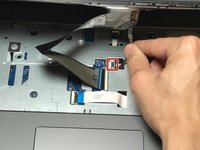
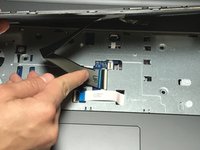
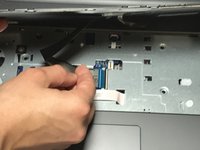
Lift the zero insertion force (ZIF) tab that secures the keyboard back light ribbon cable
-
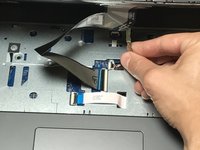
Afterwards, carefully detach the backlight cable from the laptop.
-
-
-
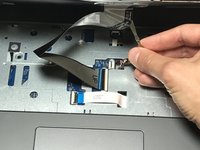
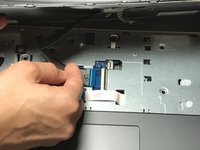
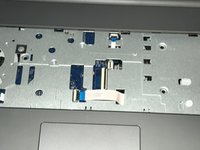
Gently release the ZIF tab that secures the keyboard ribbon cable to the laptop.
-
Afterwards, carefully slide the cable out of its slot.
-
-

 Ask FixBot











To reassemble your device, follow these instructions in reverse order.
Cancel: I did not complete this guide.
3 other people completed this guide.

Team

USF Tampa, Team S6-G1, Lacy Spring 2017 Member of USF Tampa, Team S6-G1, Lacy Spring 2017
USFT-LACY-S17S6G1
3 Members
60 Guides authored
