
Dell Inspiron 17-5749 Keyboard Replacement

Christopher Tran and 6 other contributors
Last updated on Jan 15, 2026
Views: 926
View statistics:
- Past 24 Hours:
- 1
- Past 7 Days:
- 18
- Past 30 Days:
- 68
- All Time:
- 926
Comments: 0
No one has left comments on this guide. Will you be first?
Go to guide commentsCompleted: 0 1
No one has marked this guide "completed." Will you be the first?
1 person has marked this guide "completed." It's you — great job!
Favorites: 0 1
No one has favorited (and subscribed to) this guide. Will you be the first?
1 person has favorited (and subscribed to) this guide — and that's you!
Action Shots
Be an action hero! This guide needs images that better demonstrate how to perform specific actions.
Introduction
Go to step 1 ↓If your Dell Inspiron 17-5749 keyboard is experiencing issues such as unresponsive keys, sticky buttons, or complete failure, this guide is designed to help you replace the keyboard with ease. Understanding these issues will guide you through the troubleshooting process and confirm that replacing the keyboard is the appropriate solution.
The keyboard is responsible for inputting commands and text into your laptop. A malfunctioning keyboard can disrupt your workflow and hinder the overall usability of your device.
For tips and precautions, follow proper procedures for disconnecting the power source and handling electronic components with ESD-safe tools. Wear an anti-static wrist strap or work in an uncarpeted area to prevent static shocks. The following link will direct you to a guide that provides the skills needed for use of an anti-static wrist strap: How to set up your Anti-static mat and wristband - iFixit Repair Guide.
What you need
Parts


Tools


-
-
Tool used on this step:Anti-Static Wrist Strap$7.95
-
Turn off power to the laptop.
-
Unplug the charging cable from the laptop.
 Ask FixBot
-
-
-
Switch each of the battery latches to the "unlocked" position.
-
Pull battery upwards by the tab to remove from the laptop.
-
-
-
-
-
Turn the computer over and open the display as far as possible
-
Using a plastic opening tool, release the tabs that secure the keyboard to the palm-rest assembly.
-
-
-
-
Carefully turn the keyboard over and place it on the palm rest assembly.
-
Lift the latches and disconnect the keyboard cable and keyboard back-light cable from the system board.
-
Lift the keyboard along with the cables, off the palm-rest assembly and set it aside.
-
-


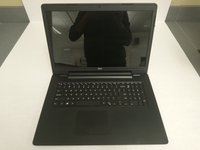



To reassemble your device, follow these instructions in reverse order.

Team

Washington State, Team S1-G2, Lobnitz Spring 2018 Member of Washington State, Team S1-G2, Lobnitz Spring 2018
WSU-LOBNITZ-S18S1G2
6 Members
144 Guides authored
