
Dell Inspiron 17-5748 Keyboard Replacement

Justine Vaca and 4 other contributors
Last updated on May 30, 2023
Views: 1.3K
View statistics:
- Past 24 Hours:
- 1
- Past 7 Days:
- 21
- Past 30 Days:
- 75
- All Time:
- 1,254
Comments: 0
No one has left comments on this guide. Will you be first?
Go to guide commentsCompleted: 0 1
No one has marked this guide "completed." Will you be the first?
1 person has marked this guide "completed." It's you — great job!
Favorites: 0 1
No one has favorited (and subscribed to) this guide. Will you be the first?
1 person has favorited (and subscribed to) this guide — and that's you!
Introduction
Go to step 1 ↓This guide will show how to access and replace the keyboard in this laptop. Simple tools are required. Be gentle when removing parts with ribbon cables.
What you need
Parts


Tools

-
-
-
-
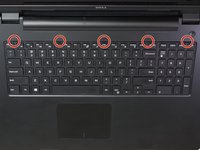
Locate the 5 keyboard tabs at the side of the keyboard closest to the screen.
-
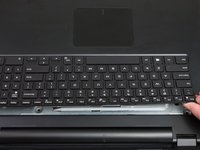
Using a metal spudger, gently pry the keyboard tabs inwards until they loosened. You should hear a click.
-
-
-
-
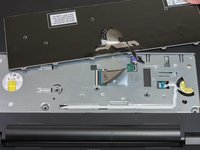
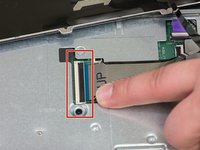
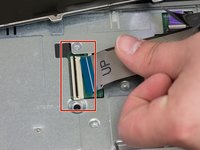
Detach the ribbon cable from the motherboard by tilting up the black clip, releasing the cable.
-
Gently detach the cable and the keyboard from the laptop.
-

 Ask FixBot







To reassemble your device, follow these instructions in reverse order.

Team

Washington State, Team S2-G2, Lobnitz Spring 2018 Member of Washington State, Team S2-G2, Lobnitz Spring 2018
WSU-LOBNITZ-S18S2G2
6 Members
48 Guides authored
