Introduction
If your Dell Inspiron 16-7610 laptop touchpad is no longer clicking or working the way it should, it might be time to replace it. The touchpad allows the computer to click and scroll through numerous applications. Before beginning this repair, be sure you have troubleshoted different possibilities for fixing your touchpad. A replacement may not be necessary, but if it is, continue following this guide. If you plan to proceed, power off your laptop and disconnect from the AC adapter.
What you need
-
-
-
Flip the device over, so the backside is facing up.
-
Use a Phillips #00 screwdriver to remove four 4.00 mm screws.
-
Use the Phillips #00 screwdriver to unscrew or loosen two captive screws at the right and left corner near the hinges.
-
Three of the screws are dummy screws, only screwed into retainers. They are not holding anything in and can be left in place for simplicity.
 Ask FixBot
-
-
-
-Use the opening tool between the seams of the top and bottom case to pry the back case off of the laptop.
-
Undo the clips gently as you pry the back of the device to avoid breaking them when removing the back case.
-
Remove the back case from the device.
-
-
-
-
-
-
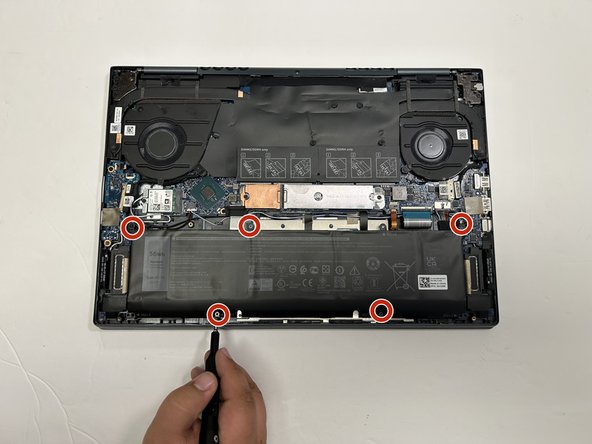
Use a Phillips #00 to remove the five screws securing the battery to the laptop.
-
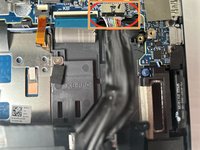
Use the wide end of a spudger to push on the connector tab to slide it out of its socket.
-
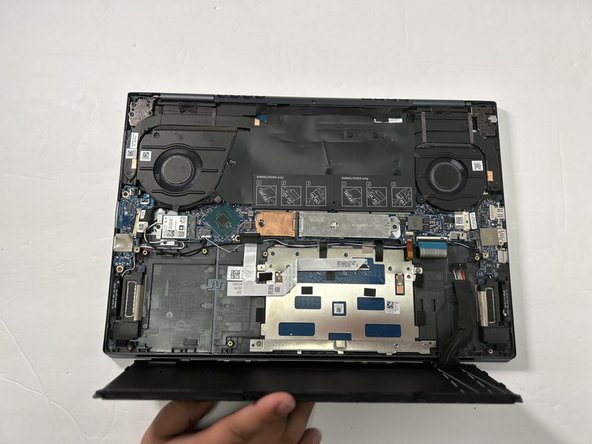
Use both hands to remove the battery from the laptop.
-
-
-



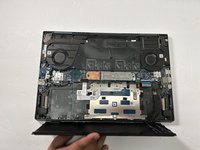


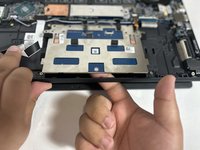
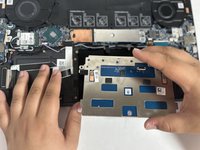
After installing the new touchpad on the Dell Inspiron, retrace the previous steps to put the Dell Inspiron back together. Take your e-waste to an R2 or e-Stewards certified recycler.
Cancel: I did not complete this guide.
One other person completed this guide.

Team

Gateway, Team 1-3, Pee Spring 2023 Member of Gateway, Team 1-3, Pee Spring 2023
GCC-PEE-S23S1G3
4 Members
72 Guides authored
