Up to 20% off select tools
Free Shipping on Domestic Orders $75+

Dell Inspiron 15R RAM Replacement

Views: 1.2K

View statistics:

Past 24 Hours:
4
Past 7 Days:
22
Past 30 Days:
90
All Time:
1,154
Comments: 0

No one has left comments on this guide. Will you be first?

Go to guide comments
Completed: 3

3 people have marked this guide "completed." Will you be next?

Favorites: 1

1 person has favorited (and subscribed to) this guide. Will you be next?

Time Required: 5 - 10 minutes
Difficulty: Easy
Dell Inspiron 15R RAM Replacement

What you need

Tools

Introduction

Go to step 1 ↓

The Dell Inspiron is expandable up to 8GB. If the device is running slowly, you can purchase its maximum memory capacity.

    1. Dell Inspiron 15R RAM Replacement, Battery: step 1, image 1 of 1
      • Turn the device over and locate the battery.

      Ask FixBot

      Add Comment

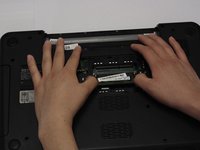
    2. Dell Inspiron 15R RAM Replacement: step 2, image 1 of 2 Dell Inspiron 15R RAM Replacement: step 2, image 2 of 2
      • Place thumbs on each latch and push outwards.

      Ask FixBot

      Add Comment

    3. Dell Inspiron 15R RAM Replacement: step 3, image 1 of 1
      • Push and slide the battery away from you.

      Ask FixBot

      Add Comment

    1. Dell Inspiron 15R RAM Replacement, RAM: step 4, image 1 of 1
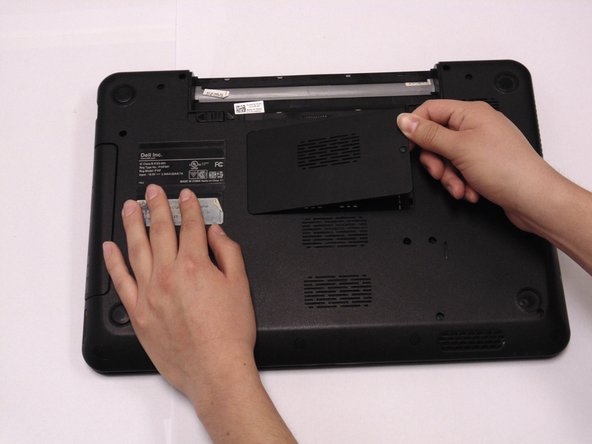
      • Locate the RAM compartment on the device and locate the screw on the right hand side.

      Ask FixBot

      Add Comment

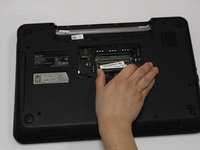
    2. Dell Inspiron 15R RAM Replacement: step 5, image 1 of 2 Dell Inspiron 15R RAM Replacement: step 5, image 2 of 2
      • Take your screwdriver and loosen the screw. Then remove the cover.

      Ask FixBot

      Add Comment

    3. Dell Inspiron 15R RAM Replacement: step 6, image 1 of 3 Dell Inspiron 15R RAM Replacement: step 6, image 2 of 3 Dell Inspiron 15R RAM Replacement: step 6, image 3 of 3
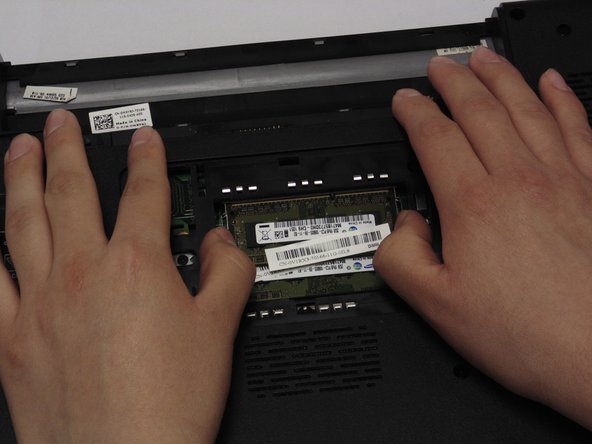
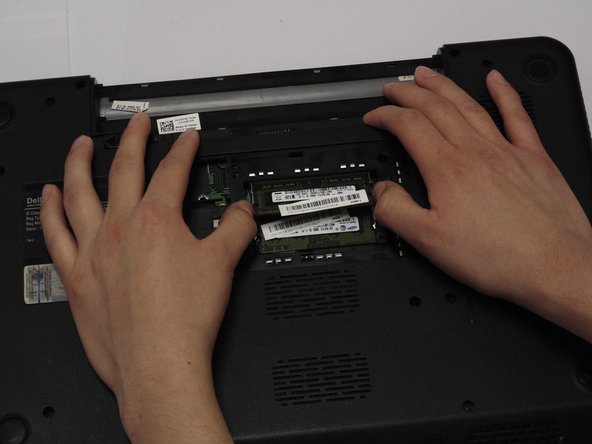
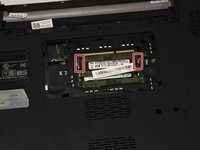
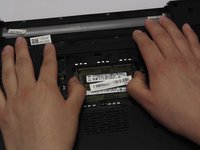
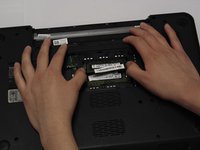
      • Place both thumbs on the latches and push outward. The RAM card will pop up.

      Ask FixBot

      Add Comment

    4. Dell Inspiron 15R RAM Replacement: step 7, image 1 of 1
      • Carefully hold RAM card from the sides and pull away.

      Ask FixBot

      Add Comment

    5. Dell Inspiron 15R RAM Replacement: step 8, image 1 of 2 Dell Inspiron 15R RAM Replacement: step 8, image 2 of 2
      • Repeats steps 6 and 7 for the second RAM card.

      Ask FixBot

      Add Comment

Conclusion

To reassemble your device, follow these instructions in reverse order.

Cancel: I did not complete this guide.

3 other people completed this guide.

Author

with

Trixie Gonzalez

Member since: 02/14/15

843 Reputation

6 Guides authored

Team

0 Guide Comments

Add Comment

View Statistics:

Past 24 Hours: 4

Past 7 Days: 22

Past 30 Days: 90

All Time: 1,154