
Dell Inspiron 15R 5537 Wi-Fi Module Replacement

Ashton Floda and 3 other contributors
Last updated on Dec 12, 2019
Views: 1.6K
View statistics:
- Past 24 Hours:
- 2
- Past 7 Days:
- 17
- Past 30 Days:
- 79
- All Time:
- 1,637
Comments: 0
No one has left comments on this guide. Will you be first?
Go to guide commentsCompleted: 0 1
No one has marked this guide "completed." Will you be the first?
1 person has marked this guide "completed." It's you — great job!
Favorites: 0 1
No one has favorited (and subscribed to) this guide. Will you be the first?
1 person has favorited (and subscribed to) this guide — and that's you!
Featured Student Guide
This guide has been the hard work of our awesome students and is found to be exceptionally cool by the iFixit staff.
Introduction
Go to step 1 ↓If the Wi-Fi connection to your computer doesn’t hold, you may be experiencing a malfunction of your Wi-Fi module. This guide will show you how to remove the Wi-Fi module for the Dell Inspiron 15R 5537.
The Wi-Fi module is located underneath the keyboard and is connected by two antenna cables. A malfunctioning Wi-Fi module can result in connection issues to the wireless network. This issue doesn’t completely disable your laptop, however, it does cause an inconvenience. A quick fix can be to use ethernet to connect to Wi-Fi or purchase an external Wi-Fi adapter.
It is important to make sure that the antenna cables are properly connected to your Wi-Fi module and that the wires aren’t frayed.
Before beginning this guide, make sure your laptop is powered off and disconnected from any external power source.
What you need
Tools


-
-
-
Close the display and turn over the computer to see the battery locking tabs.
 Ask FixBot
-
-
-
Pull both of the locking tabs outwards until they both click to release the battery.
-
Pull the battery out by lifting it from the top and sliding it forward.
-
-
-
-
-
Turn the laptop over so that the keyboard is facing up.
-
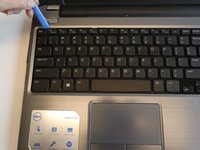
Use an opening tool to pry the keyboard from the base of the laptop.
-
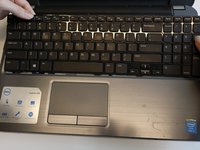
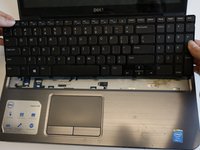
Once the top of the keyboard is released, slide the keyboard upwards.
-
-
-
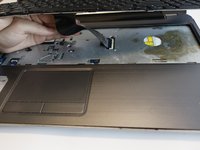
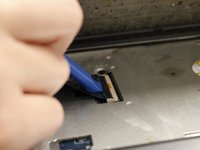
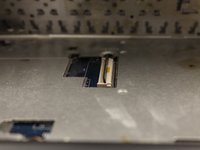
Use an opening tool to remove the keyboard ribbon from the latch by lifting the tab on top.
-
Once lifted, disconnect the ribbon and replace with a new keyboard.
-
-
-
-
-
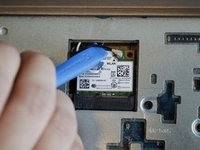
Once the keyboard is removed, the Wi-Fi module will be accessible.
-
-
-
-
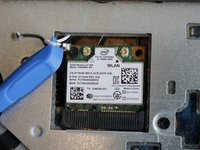
Use the opening tool to lift both antenna cables upward from the Wi-Fi module.
-
-
-
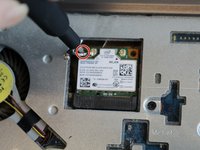
Remove the 3mm Phillips #000 screw securing the Wi-Fi module.
-
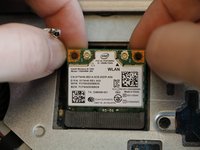
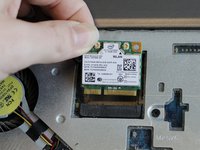
Lift the Wi-Fi module up and out of the laptop.
-
-








To reassemble your device, follow these instructions in reverse order.

Team

Embry-Riddle Aeronautical University, Team S6-G5, Salas Fall 2019 Member of Embry-Riddle Aeronautical University, Team S6-G5, Salas Fall 2019
ERAU-SALAS-F19S6G5
4 Members
72 Guides authored
