
Dell Inspiron 1545 Optical Disk Drive Replacement

Nathan Lemay and 6 other contributors
Last updated on Aug 13, 2018
Views: 2.9K
View statistics:
- Past 24 Hours:
- 1
- Past 7 Days:
- 19
- Past 30 Days:
- 84
- All Time:
- 2,851
Comments: 1
1 comment on steps.
Completed: 3 4
3 people have marked this guide "completed." Will you be next?
4 people have marked this guide "completed." Including you — great job!
Favorites: 1 2
1 person has favorited (and subscribed to) this guide. Will you be next?
2 people have favorited (and subscribed to) this guide — including you!
Introduction
Go to step 1 ↓This guide will be utilized if you are having issues with reading disks and it is not a firmware problem.
What you need


-
-
-
Slide the release latch while simultaneously pulling backwards on the battery.
-
-
-
-
Flip the laptop to its back side.
-
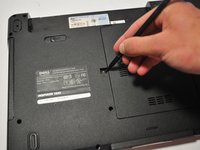
Remove the screw (5mm Phillips #1) that secures the Optical Disk Drive on the back of the laptop.
-
-
-
-
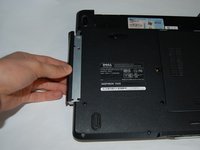
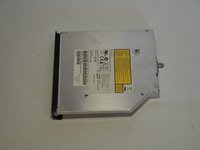
Push the Optical Disk Drive out using a spudger tool as shown and pull from the front cover of the Optical Disk Drive.
-
-

 Ask FixBot


To reassemble your device, follow these instructions in reverse order.
Cancel: I did not complete this guide.
3 other people completed this guide.

Team

Cal Poly, Team 9-14, Regan Spring 2014 Member of Cal Poly, Team 9-14, Regan Spring 2014
CPSU-REGAN-S14S9G14
4 Members
180 Guides authored
