
Dell Inspiron 1525 Wireless Mini-Card Replacement

Miroslav Djuric and 2 other contributors
Last updated on Nov 13, 2015
Views: 9.5K
View statistics:
- Past 24 Hours:
- 4
- Past 7 Days:
- 24
- Past 30 Days:
- 97
- All Time:
- 9,544
Comments: 0
No one has left comments on this guide. Will you be first?
Go to guide commentsCompleted: 3 4
3 people have marked this guide "completed." Will you be next?
4 people have marked this guide "completed." Including you — great job!
Favorites: 11 12
11 people have favorited (and subscribed to) this guide. Will you be next?
12 people have favorited (and subscribed to) this guide — including you!
Introduction
Go to step 1 ↓Use this guide to help you replace the Wireless Mini-Card in a Dell Inspiron 1525.
What you need
Tools
-
Spudger4.9


-
-
-
Slide the battery release switch away from the lock symbol until you hear the battery click.
-
Slide the battery towards the back of the laptop until it comes free.
-
-
-
-
-
Remove/loosen the eight 4.80 mm Phillips #1 screws securing the bottom panel.
-
The screws may only need to be loosened, as they are generally retained by plastic washers.
-
Remove the bottom panel.
-
-
-
-
-
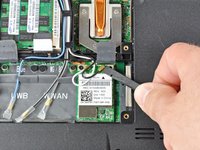
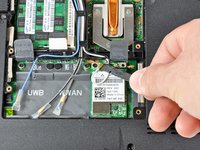
Use the flat end of a spudger to gently pry the black and white antenna connectors off the Wireless Mini-Card.
-
-
-
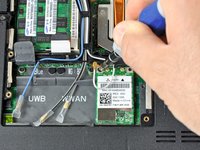
Remove the 3.70 mm Phillips #1 screw securing the card to the laptop.
-
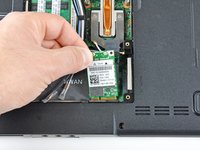
Slide the card straight out.
-
-

 Ask FixBot




To reassemble your device, follow these instructions in reverse order.
Cancel: I did not complete this guide.
3 other people completed this guide.

