Free Shipping on Domestic Orders $75+

Dell Inspiron 1525 RAM Replacement

What you need

    1. Dell Inspiron 1525 RAM Replacement, Battery: step 1, image 1 of 1
      • Locate the battery release switch on the bottom of the laptop.

      Ask FixBot

      Add Comment

    2. Dell Inspiron 1525 RAM Replacement: step 2, image 1 of 2 Dell Inspiron 1525 RAM Replacement: step 2, image 2 of 2
      • Slide the battery release switch away from the lock symbol until you hear the battery click.

      • Slide the battery towards the back of the laptop until it comes free.

      Ask FixBot

      Add Comment

    1. Dell Inspiron 1525 RAM Replacement, Bottom Cover: step 3, image 1 of 2 Dell Inspiron 1525 RAM Replacement, Bottom Cover: step 3, image 2 of 2
      • Remove/loosen the eight 4.80 mm Phillips #1 screws securing the bottom panel.

      • The screws may only need to be loosened, as they are generally retained by plastic washers.

      • Remove the bottom panel.

      Ask FixBot

      Add Comment

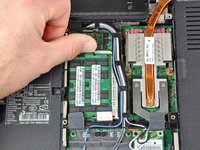
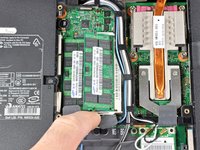
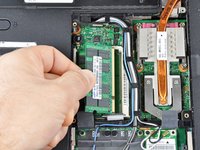
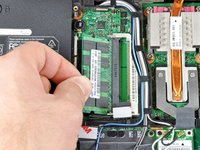
    1. Dell Inspiron 1525 RAM Replacement, RAM: step 4, image 1 of 3 Dell Inspiron 1525 RAM Replacement, RAM: step 4, image 2 of 3 Dell Inspiron 1525 RAM Replacement, RAM: step 4, image 3 of 3
      • Push the white tabs on either side of the RAM chip outward. The chip should pop up a little.

      • Carefully remove the RAM chip by pulling it out at a slight vertical angle.

      Ask FixBot

      Add Comment

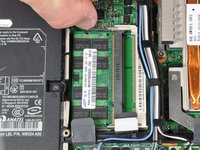
    2. Dell Inspiron 1525 RAM Replacement: step 5, image 1 of 2 Dell Inspiron 1525 RAM Replacement: step 5, image 2 of 2
      • Remove the lower RAM chip in the same fashion as the upper one.

      Ask FixBot

      Add Comment

Conclusion

To reassemble your device, follow these instructions in reverse order.

Cancel: I did not complete this guide.

5 other people completed this guide.

0 Guide Comments

Add Comment

View Statistics:

Past 24 Hours: 0

Past 7 Days: 8

Past 30 Days: 27

All Time: 11,369