Free Shipping on Domestic Orders $75+

Dell Inspiron 1521 Hard Drive Replacement

What you need

    1. Dell Inspiron 1521 Hard Drive Replacement, Battery: step 1, image 1 of 1
      • Rotate the laptop so its bottom is facing up.

      Ask FixBot

      Add Comment

    2. Dell Inspiron 1521 Hard Drive Replacement: step 2, image 1 of 3 Dell Inspiron 1521 Hard Drive Replacement: step 2, image 2 of 3 Dell Inspiron 1521 Hard Drive Replacement: step 2, image 3 of 3
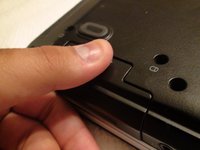
      • Identify the lock mechanisms holding the battery in place.

      • Slide each button outward with your fingers to disengage the battery.

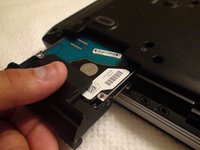
      • Pull the battery off with your hand to separate it from the laptop.

      Ask FixBot

      Add Comment

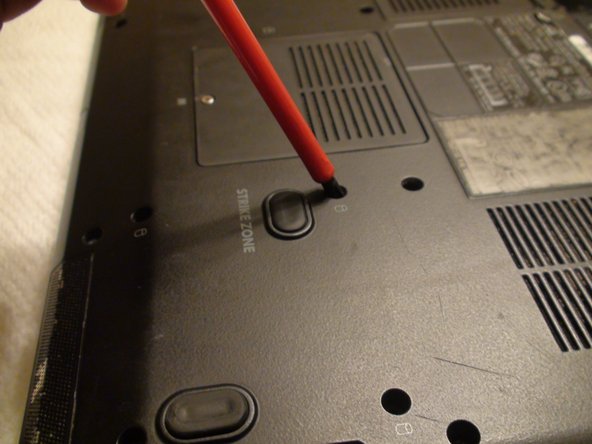
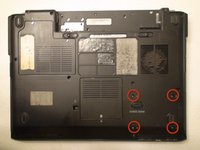
    1. Dell Inspiron 1521 Hard Drive Replacement, Hard Drive: step 3, image 1 of 2 Dell Inspiron 1521 Hard Drive Replacement, Hard Drive: step 3, image 2 of 2
      • Locate the four 4 mm Phillips #1 screws that secure the hard drive to the laptop. Each of the screws has a white cylinder next to it.

      • Remove these four screws with a Phillips #1 screwdriver.

      Ask FixBot

      Add Comment

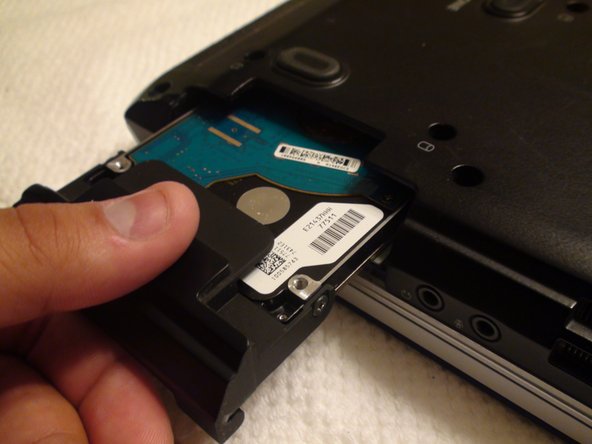
    2. Dell Inspiron 1521 Hard Drive Replacement: step 4, image 1 of 3 Dell Inspiron 1521 Hard Drive Replacement: step 4, image 2 of 3 Dell Inspiron 1521 Hard Drive Replacement: step 4, image 3 of 3
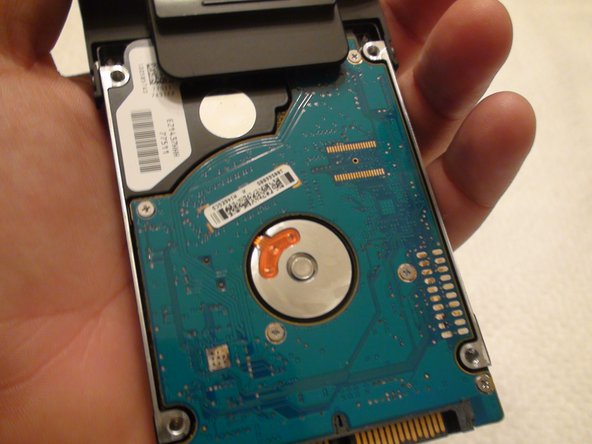
      • Once you've made sure all four screws are removed slide the hard drive out with your hand.

      Ask FixBot

      Add Comment

Conclusion

To reassemble your device, follow these instructions in reverse order.

Cancel: I did not complete this guide.

3 other people completed this guide.

Rogelio Ordonez

Member since: 09/26/12

54 Reputation

2 Guides authored

Team

Cal Poly, Team 15-47, Forte Fall 2012 Member of Cal Poly, Team 15-47, Forte Fall 2012

CPSU-FORTE-F12S15G47

5 Members

108 Guides authored

0 Guide Comments

Add Comment

View Statistics:

Past 24 Hours: 4

Past 7 Days: 4

Past 30 Days: 28

All Time: 3,837