Free Shipping on Domestic Orders $75+

Dell Inspiron 1501 Display Replacement

What you need

    1. Dell Inspiron 1501 Display Replacement, Battery: step 1, image 1 of 3 Dell Inspiron 1501 Display Replacement, Battery: step 1, image 2 of 3 Dell Inspiron 1501 Display Replacement, Battery: step 1, image 3 of 3
      • Place the laptop facedown with the battery facing you.

      • Push the switch above the battery to the right and hold it in that position.

      • Lift the battery using the grip on the top and remove it from its socket.

      Ask FixBot

      Add Comment

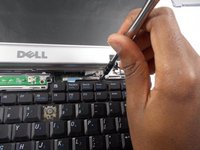
    1. Dell Inspiron 1501 Display Replacement, Hinge Cover: step 2, image 1 of 2 Dell Inspiron 1501 Display Replacement, Hinge Cover: step 2, image 2 of 2
      • Open the laptop all the way, rotating the display so that it is level with the surface that you are working on.

      • Insert the spudger underneath the groove on the right side of the hinge cover.

      • Push up to pry the edge of the hinge cover out.

      • Lift up to release the hinge cover from the laptop, working from right to left.

      Ask FixBot

      Add Comment

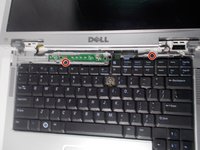
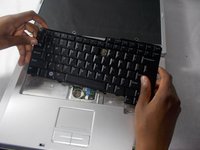
    1. Dell Inspiron 1501 Display Replacement, Keyboard: step 3, image 1 of 3 Dell Inspiron 1501 Display Replacement, Keyboard: step 3, image 2 of 3 Dell Inspiron 1501 Display Replacement, Keyboard: step 3, image 3 of 3
      • Remove the two 5mm JIS #1 screws from the top of the keyboard.

      • Lift the top of the keyboard up and pull the keyboard away from the laptop.

      • Be sure not to break the ribbon connector that attaches the keyboard to the laptop.

      Ask FixBot

      Add Comment

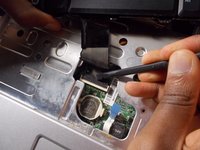
    2. Dell Inspiron 1501 Display Replacement: step 4, image 1 of 2 Dell Inspiron 1501 Display Replacement: step 4, image 2 of 2
      • Open the latch holding the ribbon from the top

      • Remove the keyboard from the laptop.

      Ask FixBot

      Add Comment

    1. Dell Inspiron 1501 Display Replacement, Display: step 5, image 1 of 2 Dell Inspiron 1501 Display Replacement, Display: step 5, image 2 of 2
      • Close display and flip the laptop upside down.

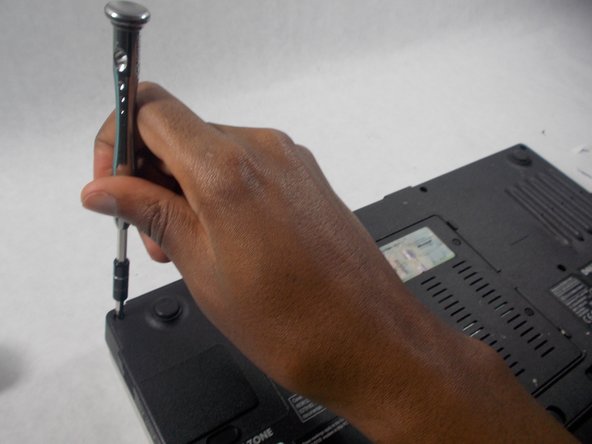
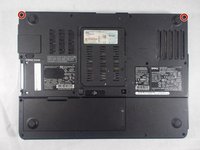
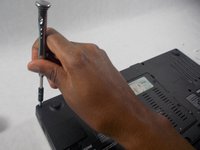
      • Remove the two 8mm JIS #1 screws on the backplate that hold the display.

      Ask FixBot

      Add Comment

    2. Dell Inspiron 1501 Display Replacement: step 6, image 1 of 1
      • From the back of the computer, remove the two screw covers.

      • Remove the two 8mm JIS #1 screws.

      Ask FixBot

      Add Comment

    3. Dell Inspiron 1501 Display Replacement: step 7, image 1 of 2 Dell Inspiron 1501 Display Replacement: step 7, image 2 of 2
      • Turn the laptop over and open the display.

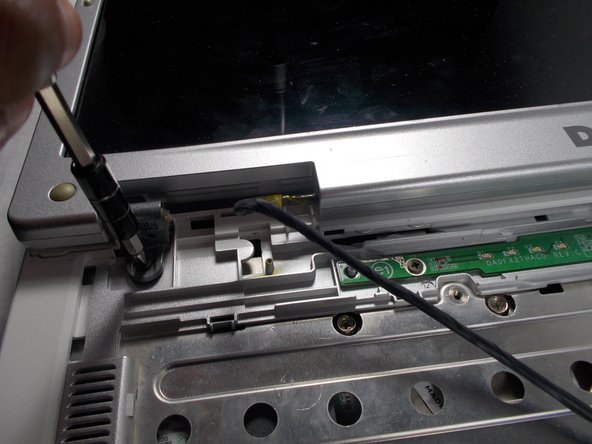
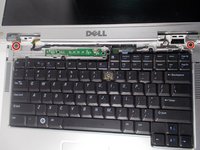
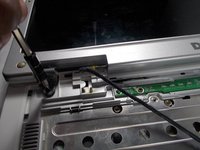
      • Remove the two 5mm JIS #1 screws on the display hinge.

      Ask FixBot

      Add Comment

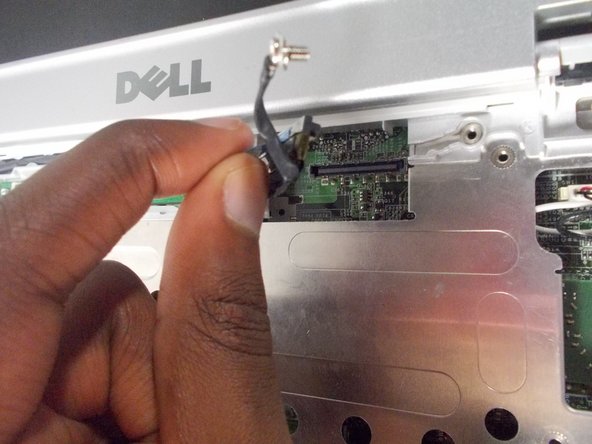
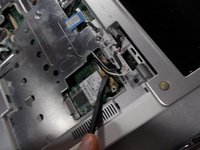
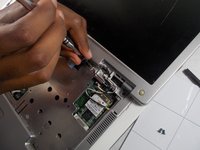
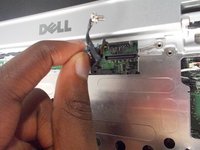
    4. Dell Inspiron 1501 Display Replacement: step 8, image 1 of 3 Dell Inspiron 1501 Display Replacement: step 8, image 2 of 3 Dell Inspiron 1501 Display Replacement: step 8, image 3 of 3
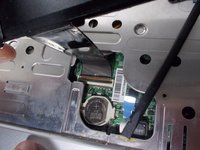
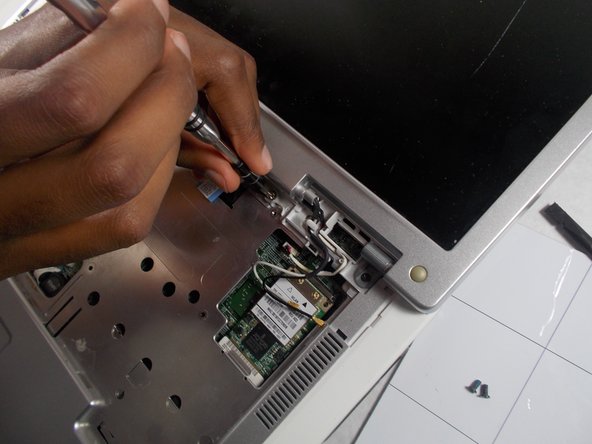
      • Disconnect the antenna cables from the Mini-Card.

      • Be careful not to knock the standby switch when disconnecting the cables as it is easily broken.

      • Loosen the JIS #1 screw on the display cable.

      • Pull the pull-tab straight up to disconnect the display cable from the laptop.

      Ask FixBot

      Add Comment

    5. Dell Inspiron 1501 Display Replacement: step 9, image 1 of 1
      • Remove the display from the rest of the device.

      Ask FixBot

      Add Comment

Conclusion

To reassemble your device, follow these instructions in reverse order.

Cancel: I did not complete this guide.

One other person completed this guide.

Luc-Anthony Breneville

Member since: 03/01/18

183 Reputation

1 Guide authored

Team

0 Guide Comments

Add Comment

View Statistics:

Past 24 Hours: 2

Past 7 Days: 12

Past 30 Days: 43

All Time: 1,368