Introduction
If your device screen breaks, you might need to replace it. The screen is the part of the device when images are displayed. This guide shows you how to replace a broken or faulty screen
What you need
-
-
-
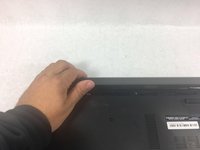
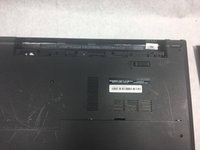
Slide the battery latch all the way to the left until you hear the click and see the battery prop up.
-
-
-
-
-
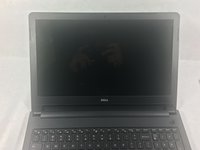
Open device so it is at least opened at a 90 degree angle.
-
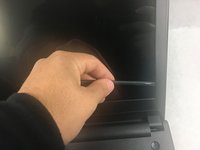
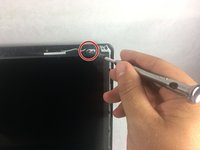
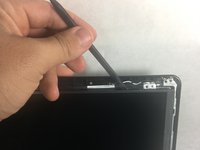
Wedge a spudger between the screen and the plastic frame.
-
Push in the spudger and push down to pop the frame from the pins.
-
Repeat around the whole frame.
-
-
-
Once all the pins are off, remove the frame by pulling it away from the screen.
-
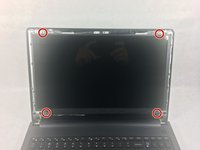
Using a Phillips #0 screwdriver, unscrew the four 3mm screws holding the screen in place.
-
Push the spudger behind the screen and push down to remove the screen.
-
-
-
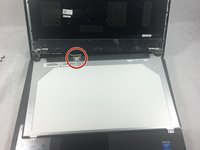
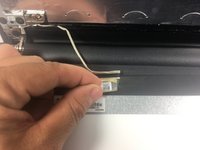
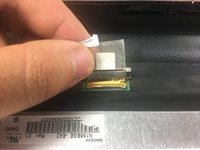
Pull the tape connecting the screen up with your fingers and pull the securing bar up with it.
-
Disconnect the securing bar to remove the screen.
-
-

 Ask FixBot








To reassemble your device, follow these instructions in reverse order.
Cancel: I did not complete this guide.
8 other people completed this guide.

Team

UMass Dartmouth, Team S3-G4, Bailey Fall 2017 Member of UMass Dartmouth, Team S3-G4, Bailey Fall 2017
UMASSD-BAILEY-F17S3G4
3 Members
60 Guides authored
3 Guide Comments
How many pins is the screen connector? 30? 40?
Very useful guide. Works with Dell Inspiron 15 5559. Screen replacement is a lot easier than replacing the whole screen assembly.
