
Dell Inspiron 15-5552 Keyboard Replacement

Chandler Champion and 4 other contributors
Last updated on Jun 1, 2018
Views: 673
View statistics:
- Past 24 Hours:
- 1
- Past 7 Days:
- 13
- Past 30 Days:
- 58
- All Time:
- 673
Comments: 1
1 guide comment.
Go to guide commentsCompleted: 1 2
1 person has marked this guide "completed." Will you be next?
2 people have marked this guide "completed." Including you — great job!
Favorites: 0 1
No one has favorited (and subscribed to) this guide. Will you be the first?
1 person has favorited (and subscribed to) this guide — and that's you!
Needs Better Images
Better photos will improve this guide. Help out by taking, editing, or uploading new ones!
Better Introduction
Improve this guide by completing or revising its introduction.
What you need
Tools
-
Spudger4.9


-
-
-
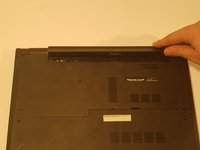
Slide the battery release switch away from the lock symbol towards the “unlock” position.
-
-
-
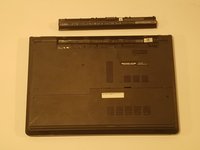
Rotate the battery outward by lifting the bottom lip that pops out.
-
Continue rotating the battery towards the top of the laptop until the battery is completely removed.
-
-
-
-
Keyboard
-
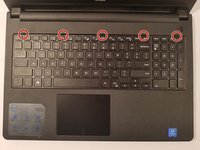
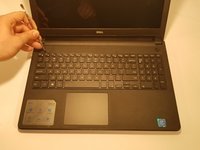
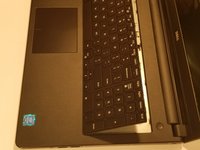
Insert a spudger next to the 5 plastic indents located at the top of the keyboard and gently pry to release the securing clips.
-
-
-
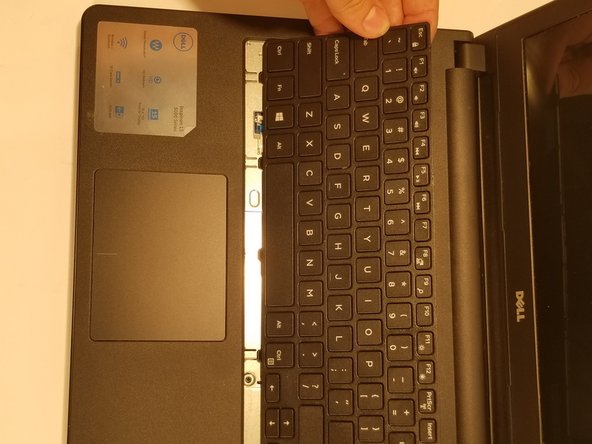
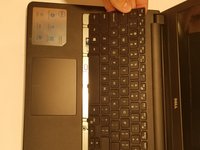
Lift the keyboard off of the computer. *Be careful not to tear the ribbon that attaches the back of the keyboard to the computer when lifting it.*
-
-
-
-
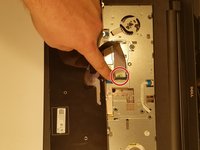
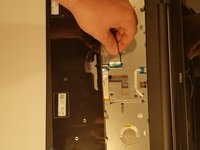
Flip the black securing bar near the base of the ribbon with a spudger to release the ribbon from the computer.
-
-

 Ask FixBot







To reassemble your device, follow these instructions in reverse order.
Cancel: I did not complete this guide.
One other person completed this guide.

Team

Western Carolina University, Team S1-G4, Virtue Spring 2018 Member of Western Carolina University, Team S1-G4, Virtue Spring 2018
WCU-VIRTUE-S18S1G4
4 Members
60 Guides authored
1 Guide Comment
After reading this it took all of 5 minutes to remove the key board thank you now to see why this computer will not power up!!!
