Free Shipping on Domestic Orders $75+

Dell Inspiron 15-5552 CD-Drive Replacement

What you need

    1. Dell Inspiron 15-5552 CD-Drive Replacement, Battery: step 1, image 1 of 1
      • Make sure the laptop is powered down before you remove the battery.

      Ask FixBot

      Add Comment

    2. Dell Inspiron 15-5552 CD-Drive Replacement: step 2, image 1 of 1
      • Locate the battery release switch on the bottom of the laptop.

      Ask FixBot

      Add Comment

    3. Dell Inspiron 15-5552 CD-Drive Replacement: step 3, image 1 of 1
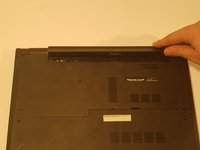
      • Slide the battery release switch away from the lock symbol towards the “unlock” position.

      • You can tell that the battery is unlocked once you hear a "click."

      Ask FixBot

      Add Comment

    4. Dell Inspiron 15-5552 CD-Drive Replacement: step 4, image 1 of 2 Dell Inspiron 15-5552 CD-Drive Replacement: step 4, image 2 of 2
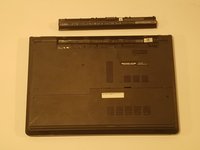
      • Rotate the battery outward by lifting the bottom lip that pops out.

      • Continue rotating the battery towards the top of the laptop until the battery is completely removed.

      Ask FixBot

      Add Comment

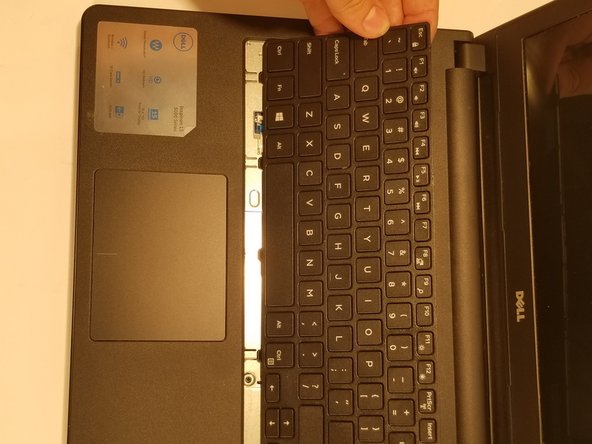
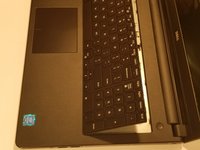
    1. Dell Inspiron 15-5552 CD-Drive Replacement, Keyboard: step 5, image 1 of 2 Dell Inspiron 15-5552 CD-Drive Replacement, Keyboard: step 5, image 2 of 2
      • Keyboard

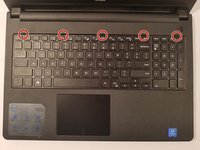
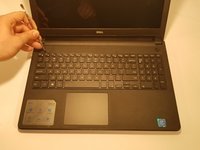
      • Insert a spudger next to the 5 plastic indents located at the top of the keyboard and gently pry to release the securing clips.

      Ask FixBot

      Add Comment

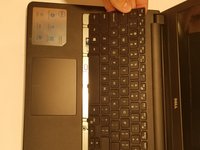
    2. Dell Inspiron 15-5552 CD-Drive Replacement: step 6, image 1 of 2 Dell Inspiron 15-5552 CD-Drive Replacement: step 6, image 2 of 2
      • Lift the keyboard off of the computer. *Be careful not to tear the ribbon that attaches the back of the keyboard to the computer when lifting it.*

      Ask FixBot

      Add Comment

    3. Dell Inspiron 15-5552 CD-Drive Replacement: step 7, image 1 of 1
      • Flip the keyboard over onto the palm-rest assembly.

      Ask FixBot

      Add Comment

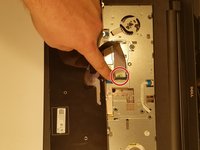
    4. Dell Inspiron 15-5552 CD-Drive Replacement: step 8, image 1 of 2 Dell Inspiron 15-5552 CD-Drive Replacement: step 8, image 2 of 2
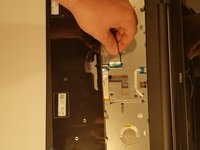
      • Flip the black securing bar near the base of the ribbon with a spudger to release the ribbon from the computer.

      Ask FixBot

      Add Comment

    1. Dell Inspiron 15-5552 CD-Drive Replacement, CD-Drive: step 9, image 1 of 1
      • CD-Drive

      • Flip the computer over, *screen down* and unscrew the 1 screw in the middle located below the battery with a J0 bit tipped screwdriver.

      Ask FixBot

      Add Comment

    2. Dell Inspiron 15-5552 CD-Drive Replacement: step 10, image 1 of 1
      • Next using the J0 bit tipped screwdriver unscrew the 2 remaining screws shown in the picture.

      Ask FixBot

      Add Comment

    3. Dell Inspiron 15-5552 CD-Drive Replacement: step 11, image 1 of 2 Dell Inspiron 15-5552 CD-Drive Replacement: step 11, image 2 of 2
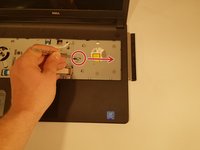
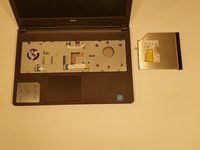
      • After all 3 screws are removed take a spudger and pry the CD-Drive out of the computer.

      Ask FixBot

      Add Comment

Conclusion

To reassemble your device, follow these instructions in reverse order.

Cancel: I did not complete this guide.

One other person completed this guide.

0 Guide Comments

Add Comment

View Statistics:

Past 24 Hours: 1

Past 7 Days: 9

Past 30 Days: 35

All Time: 533