Introduction
Often times, if one is experiencing consistently unreliable wireless connectivity and has tried to troubleshoot this problem using provided software solutions the hardware can be at fault for loss of connectivity. Furthermore, if one wants to upgrade one's wireless speed, a wireless card replacement is in order.
What you need
-
-
-
Flip the laptop over.
-
Slide the latches toward the outside of the laptop to unlock the battery.
-
Lift the battery out of the laptop.
 Ask FixBot
-
-
-
Flip laptop right side up
-
Using a flat head screwdriver, depress locking tabs holding keyboard into place
-
Using a spudger, pry the keyboard from the laptop, giving room to access with hands.
-
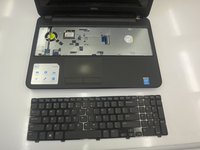
Using hands, remove keyboard completely from laptop body, leaving only the connecting cord that attaches the keyboard to the laptop.
-
-
-
-
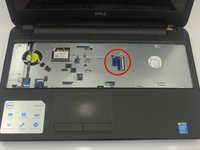
To disconnect the keyboard, locate the keyboard cable locking mechanism.
-
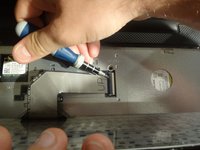
Open the locking mechanism by gently pulling up.
-
Slide out the keyboard cable from the interface to separate the keyboard form the laptop.
-
-
-
-
-
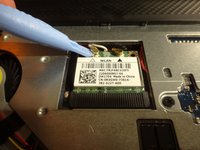
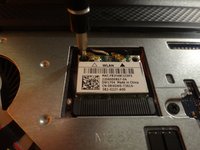
Remove the wireless card cables powering the wireless card
-
Unscrew the wireless card using a PH0 screwdriver.
-
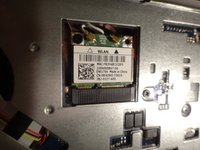
Replace with a new wireless card, reattaching the power cables.
-
-




To reassemble your device, follow these instructions in reverse order.
Cancel: I did not complete this guide.
7 other people completed this guide.

Team

Clemson, Team 3-1, Benson Fall 2014 Member of Clemson, Team 3-1, Benson Fall 2014
CLEM-BENSON-F14S3G1
4 Members
108 Guides authored
2 Guide Comments
On an Insperion 15 model 3878, the Wi-Fi adapter wasn't under the keyboard. It was under the inset cover on the bottom.
I reseated the card connection and then Windows could communicate to configure it.
its wlan is right now 2.4ghz. i want to upgrade it to 5ghz. please suggest a solution!
