
Dell Inspiron 15-3521 Keyboard Replacement

Andrew Dippre and 5 other contributors
Last updated on Jan 3, 2023
Views: 24K
View statistics:
- Past 24 Hours:
- 2
- Past 7 Days:
- 27
- Past 30 Days:
- 108
- All Time:
- 23,779
Comments: 1
1 guide comment.
Go to guide commentsCompleted: 15 16
15 people have marked this guide "completed." Will you be next?
16 people have marked this guide "completed." Including you — great job!
Favorites: 2 3
2 people have favorited (and subscribed to) this guide. Will you be next?
3 people have favorited (and subscribed to) this guide — including you!
Introduction
Go to step 1 ↓This guide will provide the steps necessary to replace the keyboard for the Dell Inspiron 15-3521. This is an easy fix, and it will save you money by negating the need to purchase a new device. In three easy steps, your device will work like new.
If you're trying to troubleshoot your computer, please follow this link: troubleshooting page. It is a very resourceful link and it can save you from scrapping a perfectly capable device.
Keyboards can last for up to ten years depending on how heavily they've been used. If your keys are not working, or you find your keys are sticking as you type, it may be time for a replacement. If you maintain your keyboard by replacing it when necessary, you can save your device, money, and time.
Repairing your keyboard as parts break can make mechanical keyboards last much longer.
What you need
Tools

-
-
-
Flip the laptop over.
-
Slide the latches toward the outside of the laptop to unlock the battery.
-
Lift the battery out of the laptop.
 Ask FixBot
-
-
-
Flip laptop right side up
-
Using a flat head screwdriver, depress locking tabs holding keyboard into place
-
Using a spudger, pry the keyboard from the laptop, giving room to access with hands.
-
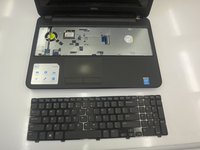
Using hands, remove keyboard completely from laptop body, leaving only the connecting cord that attaches the keyboard to the laptop.
-
-
-
-
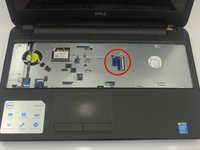
To disconnect the keyboard, locate the keyboard cable locking mechanism.
-
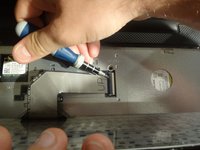
Open the locking mechanism by gently pulling up.
-
Slide out the keyboard cable from the interface to separate the keyboard form the laptop.
-
-


To reassemble your device, follow these instructions in reverse order.
Cancel: I did not complete this guide.
15 other people completed this guide.

Team

Clemson, Team 3-1, Benson Fall 2014 Member of Clemson, Team 3-1, Benson Fall 2014
CLEM-BENSON-F14S3G1
4 Members
108 Guides authored
