Introduction
After multiple cycles of charging your battery, it will eventually no longer be able to hold a charge and you'll need to replace it. This is a simple battery replacement guide for the Dell Inspiron 15 3593.
Before using this guide, please make sure that the laptop is physically unplugged as well as turned off during the replacement.
What you need
-
-
-
Turn the computer upside down so its backside is facing you and place on a flat and clean surface to work.
-
Use a Phillips #0 screwdriver to remove six (M2.5x7mm) screws, three (M2x2mm) screws, and one (M2x4mm) screw.
-
Remove the optical drive.
 Ask FixBot
-
-
-
Turn the laptop over and open the lid so the screen faces you.
-
Use the plastic opening tool to gently pry the top panel with keyboard off of the computer. Work your way around the perimeter and undo the clips holding it down.
-
-
-
-
Close the lid and flip the laptop so the backside is facing up.
-
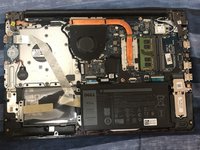
Pull the back panel off to reveal the battery.
-
-
-
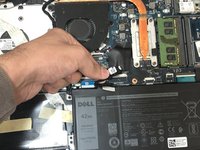
Disconnect the battery connector from the motherboard.
-
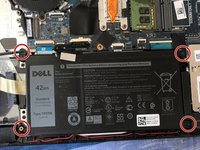
Use the Phillips #0 screwdriver to remove the four (M2x3mm) screws that are keeping the battery in place.
-
-





Reassemble the computer by following
the above steps in reversed order.
Cancel: I did not complete this guide.
4 other people completed this guide.

Team

York University, Team R-20, Melo-Thaiss Winter 2022 Member of York University, Team R-20, Melo-Thaiss Winter 2022
YORK-MELO-THAISS-W22SRG20
1 Member
12 Guides authored
