Free Shipping on Domestic Orders $75+

Dell Inspiron 14R-5421 Keyboard Replacement

What you need

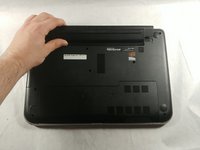
    1. Dell Inspiron 14R-5421 Keyboard Replacement, Battery: step 1, image 1 of 1
      • Push the two sliders away from the battery towards the outer edges.

      Ask FixBot

      Add Comment

    2. Dell Inspiron 14R-5421 Keyboard Replacement: step 2, image 1 of 2 Dell Inspiron 14R-5421 Keyboard Replacement: step 2, image 2 of 2
      • Remove the battery when it pops up.

      Ask FixBot

      Add Comment

    1. Dell Inspiron 14R-5421 Keyboard Replacement, Keyboard: step 3, image 1 of 1
      • Insert a plastic opening tool into the top edge of the keyboard. Push the tool inward to release each of the keyboard’s clips.

      • Work from left to right until all the clips are free.

      Ask FixBot

      Add Comment

    2. Dell Inspiron 14R-5421 Keyboard Replacement: step 4, image 1 of 1
      • Using a pry tool, detach the 9 clips from the keyboard by prying at a 90 degree angle.

      • Be careful while detaching and do not lift the keyboard too high or be too rough. The keys can break easily and there is a fragile ribbon cable beneath the keyboard.

      Ask FixBot

      Add Comment

    3. Dell Inspiron 14R-5421 Keyboard Replacement: step 5, image 1 of 1
      • Carefully disconnect the ribbon cable from the socket and pull apart.

      • The cable could be connected to other components of the laptop.

      Ask FixBot

      Add Comment

Conclusion

To reassemble your device, follow these instructions in reverse order.

Cancel: I did not complete this guide.

Jared paiva

Member since: 03/27/18

504 Reputation

5 Guides authored

Team

0 Guide Comments

Add Comment

View Statistics:

Past 24 Hours: 1

Past 7 Days: 4

Past 30 Days: 28

All Time: 967