Free Shipping on Domestic Orders $75+

Dell Inspiron 1440 Touch Pad Buttons Replacement

What you need

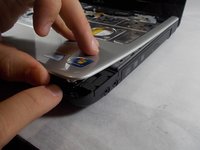
    1. Dell Inspiron 1440 Touch Pad Buttons Replacement, Keyboard: step 1, image 1 of 2 Dell Inspiron 1440 Touch Pad Buttons Replacement, Keyboard: step 1, image 2 of 2
      • Take off the plastic strip with the speaker cover above the keyboard using an opening tool.

      • Once it pops out, pull it off.

      Ask FixBot

      Add Comment

    2. Dell Inspiron 1440 Touch Pad Buttons Replacement: step 2, image 1 of 1
      • Remove the screws at the top of the keyboard.

      Ask FixBot

      Add Comment

    3. Dell Inspiron 1440 Touch Pad Buttons Replacement: step 3, image 1 of 1
      • Lift from the top part of the keyboard and pull out.

      Ask FixBot

      Add Comment

    1. Dell Inspiron 1440 Touch Pad Buttons Replacement, Touch Pad Buttons: step 4, image 1 of 2 Dell Inspiron 1440 Touch Pad Buttons Replacement, Touch Pad Buttons: step 4, image 2 of 2
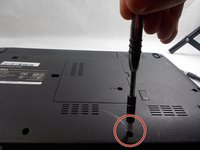
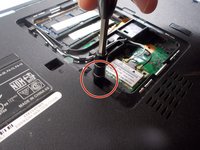
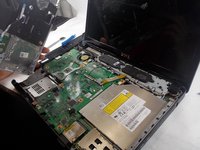
      • Remove all of the 6 mm screws on the bottom of the laptop.

      • There are some that go along the edge and some that surrounding and underneath a middle plate.

      Ask FixBot

      Add Comment

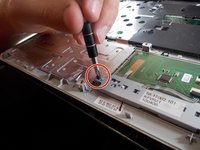
    2. Dell Inspiron 1440 Touch Pad Buttons Replacement: step 5, image 1 of 2 Dell Inspiron 1440 Touch Pad Buttons Replacement: step 5, image 2 of 2
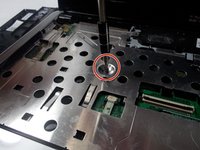
      • Remove the 6 mm screws that are in the silver metal plate under the keyboard.

      • Disconnect any wires that are attached to the metal plate.

      Ask FixBot

      Add Comment

    3. Dell Inspiron 1440 Touch Pad Buttons Replacement: step 6, image 1 of 2 Dell Inspiron 1440 Touch Pad Buttons Replacement: step 6, image 2 of 2
      • Once all of the screws are out of the silver plate and the bottom of the laptop, pull silver plate, which is attached to the silver plastic on top, off of the laptop.

      Ask FixBot

      Add Comment

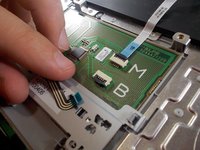
    4. Dell Inspiron 1440 Touch Pad Buttons Replacement: step 7, image 1 of 2 Dell Inspiron 1440 Touch Pad Buttons Replacement: step 7, image 2 of 2
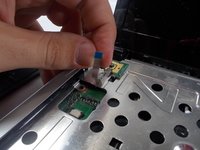
      • Flip over the silver plate, and remove the 3 mm screw attached the buttons.

      • Remove the ribbon cables that are also attached.

      Ask FixBot

      Add Comment

    5. Dell Inspiron 1440 Touch Pad Buttons Replacement: step 8, image 1 of 1
      • Remove the buttons.

      Ask FixBot

      Add Comment

Conclusion

To reassemble your device, follow these instructions in reverse order.

Cancel: I did not complete this guide.

Tyler Lyons

Member since: 11/05/19

452 Reputation

4 Guides authored

Team

0 Guide Comments

Add Comment

View Statistics:

Past 24 Hours: 2

Past 7 Days: 8

Past 30 Days: 24

All Time: 656