
Dell Inspiron 14-5447 Fan Replacement

Isabella Chavez and 8 other contributors
Last updated on May 7, 2024
Views: 1.3K
View statistics:
- Past 24 Hours:
- 2
- Past 7 Days:
- 32
- Past 30 Days:
- 106
- All Time:
- 1,301
Comments: 4
4 comments on steps.
Completed: 0 1
No one has marked this guide "completed." Will you be the first?
1 person has marked this guide "completed." It's you — great job!
Favorites: 0 1
No one has favorited (and subscribed to) this guide. Will you be the first?
1 person has favorited (and subscribed to) this guide — and that's you!
Introduction
Go to step 1 ↓This guide will teach users how to replace a faulty fan for the Dell Inspiron 14-5447. With removal of the fan, cleaning any debris left behind will help your new fan run much quieter and have better cooling circulation.
Prior to beginning this repair, be sure to power off the laptop and unplug it from the power cord.
What you need


-
-
-
Remove the two black 5.70mm Phillips#0 screws on the case's back.
-
Insert a plastic opening tool into the small slit, centered between the removed screws, and pry open the back cover
-
-
-
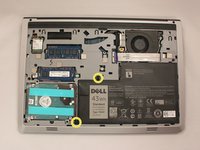
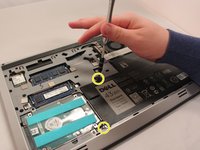
Remove the two 5.70mm Phillips #0 screws that secure the battery in place on its left side .
-
-
-
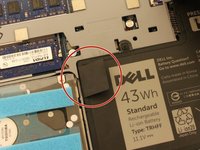
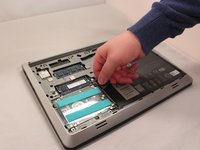
Use the black, plastic flap on the left side to pull the battery out.
-
Slowly lift the flap up and the battery should slide out.
-
-
-
-
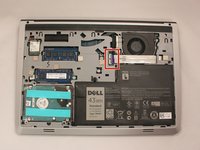
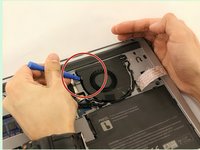
Look along the wide line of white cable until you find the tab insert.
-
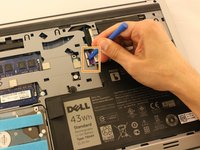
Remove the thick white cable crossing over the fan, using the blue spudger shown, to flip the securing flap holding down the cable.
-
-
-
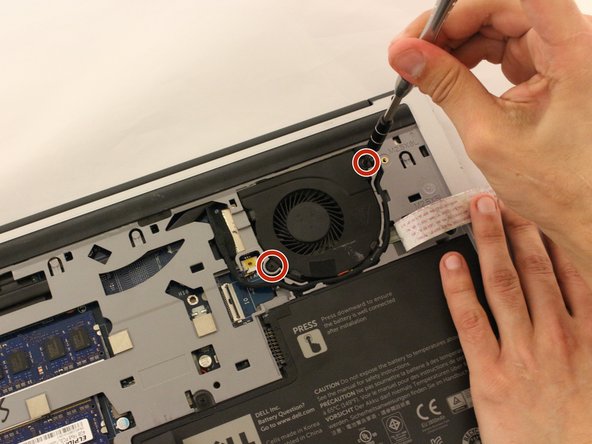
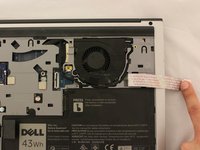
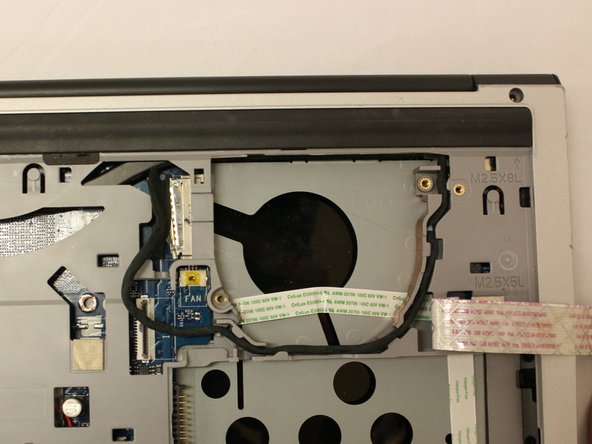
Move the cable over to the side to reveal the fan screws.
-
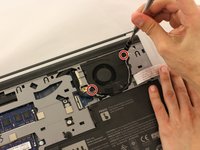
Remove the two black 5.70 mm screws from the fan.
-
-
-
Tool used on this step:Tweezers$4.99
-
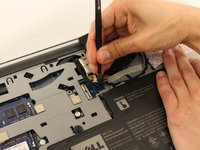
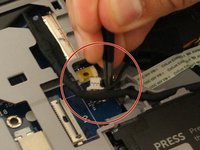
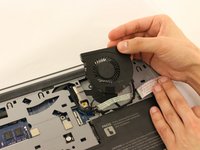
Use tweezers to remove the small cable attached to the fan.
-

 Ask FixBot











To reassemble your device, follow these instructions in reverse order.

Team

Eastern Washington University, Team S1-G3, Crane Spring 2017 Member of Eastern Washington University, Team S1-G3, Crane Spring 2017
EWU-CRANE-S17S1G3
3 Members
60 Guides authored
